

What RDP and xRDP are
RDP (Remote Desktop Protocol) shows the desktop of a remote machine on your screen. xRDP is an open-source RDP server for Linux. With it you can use the built-in Remote Desktop clients of Windows and macOS, or a Linux client, to open a Linux desktop.
Advantages of xRDP:
- Cross-platform. Many RDP clients work with it.
- Works with common desktops such as XFCE and MATE.
- Light on resources.
- Open source and customizable.
- Works on many distributions, such as Ubuntu, Debian and CentOS.
What you need
- A Linux server (Ubuntu, Debian, CentOS or similar).
- Root or sudo access.
- An SSH client, to log in and install the software.
- A firewall where you can open port 3389.
Install xRDP and a desktop
Update the package list first.
Ubuntu and Debian
sudo apt update
sudo apt install xrdp xfce4 -y
CentOS, Rocky and AlmaLinux
sudo yum update
sudo yum install epel-release -y
sudo yum install xrdp -y
sudo yum groupinstall "Xfce" -y
(If the Xfce group is not available, install another desktop that your system provides.)
Tell xRDP to start the XFCE desktop:
echo "xfce4-session" > ~/.xsessionStart the service
sudo systemctl start xrdp
sudo systemctl enable xrdp
Open the firewall
Ubuntu and Debian (UFW)
sudo ufw allow 3389/tcpCentOS (firewalld)
sudo firewall-cmd --add-port=3389/tcp --permanent
sudo firewall-cmd --reload
Check xRDP
sudo systemctl status xrdpIt should say active (running).
Connect
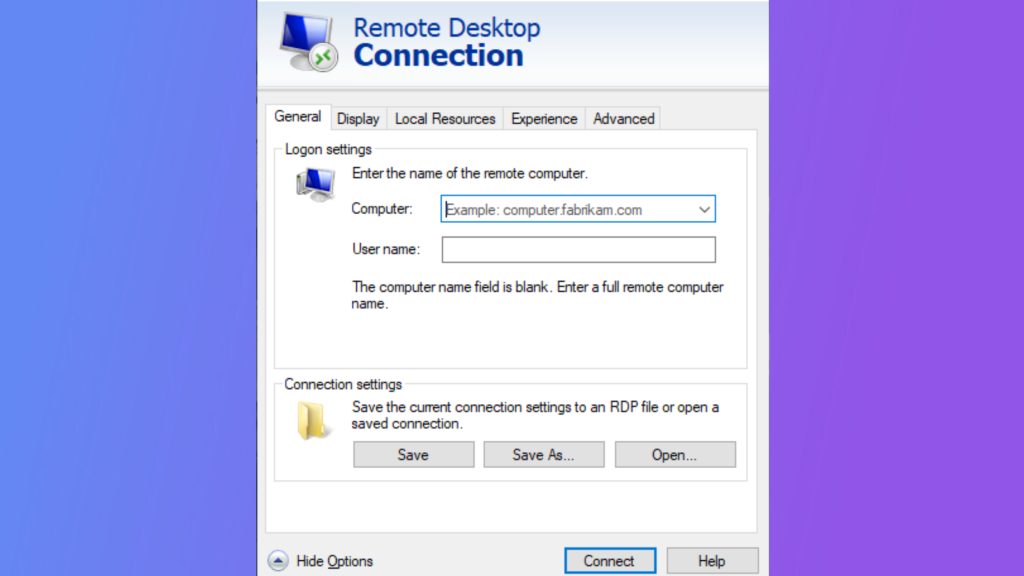
- Open a remote desktop client: Microsoft Remote Desktop, Remmina or any RDP client.
- Enter the IP address of the server.
- Enter the user name and password of a Linux account.
- Choose the session type Xorg (if the login screen shows it) and click Connect or OK.
- If asked, accept the certificate of the server.
- Enter the password again in the xRDP login window.
- The Linux desktop appears. Use it as if you sat in front of the server.
Warning: Do not leave port 3389 open to the whole internet. Allow only your own IP address in the firewall, or use a VPN or an SSH tunnel.
Quick recap
- Install
xrdpand a desktop such as XFCE. - Start the service and open port 3389.
- Connect with any RDP client and a Linux account.