

Method 1: Ubuntu Software Center
- Open Ubuntu Software and search for
Sublime Text.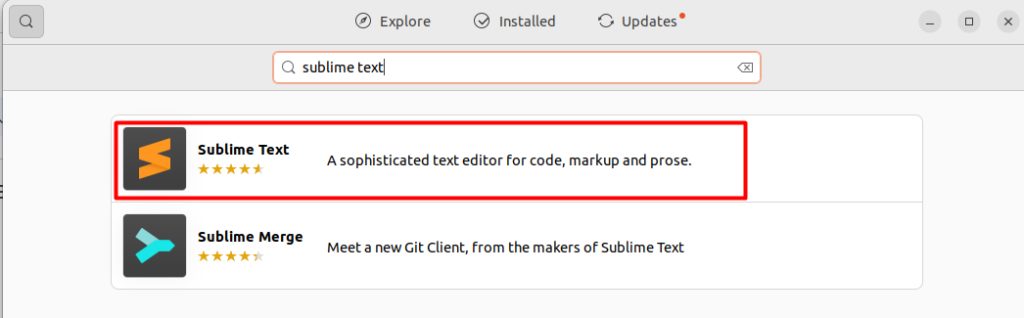
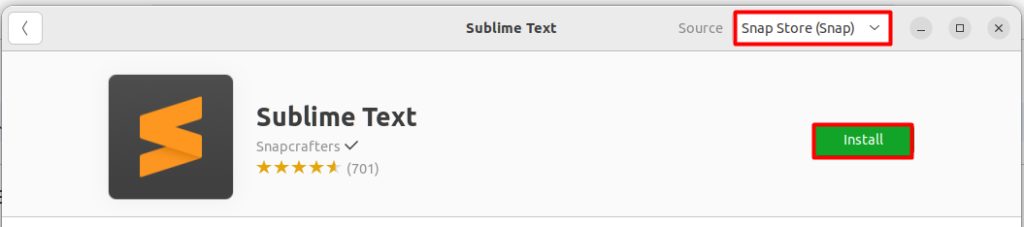
- Click Install and enter your password.
Method 2: The official repository
- Add the signing key:
wget -qO - https://download.sublimetext.com/sublimehq-pub.gpg | gpg --dearmor | sudo tee /etc/apt/trusted.gpg.d/sublimehq-archive.gpg > /dev/null
- Add the repository:
echo "deb https://download.sublimetext.com/ apt/stable/" | sudo tee /etc/apt/sources.list.d/sublime-text.list
- Update the package list:
sudo apt update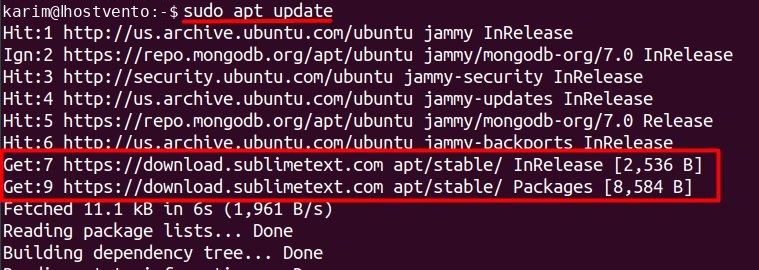
- Install:
sudo apt install sublime-text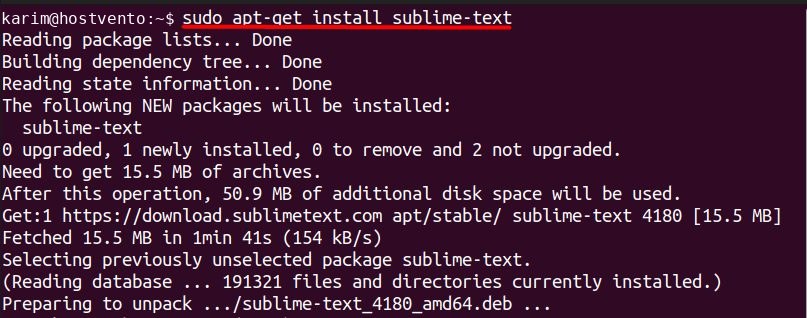
Method 3: Snap
sudo apt install snapd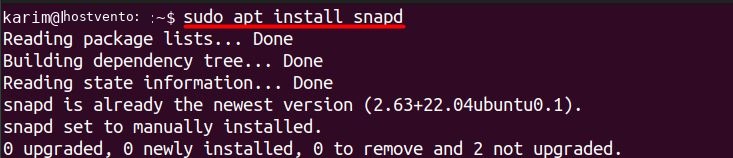
sudo snap install sublime-text --classic
Start it
Run subl in a terminal, or open it from the application menu.
Main features
- Syntax highlighting for many languages.
- Autocomplete suggestions as you type.
- Multiple selections to edit many lines at once.
- Goto Anything to jump to files and symbols fast.
- Plugins through Package Control.
- Fast and light, even with big files.
Quick recap
- Use the repository for easy updates, or Snap for the quickest install.
- Start the editor with
subl.