

Step 1: Update the system
sudo apt update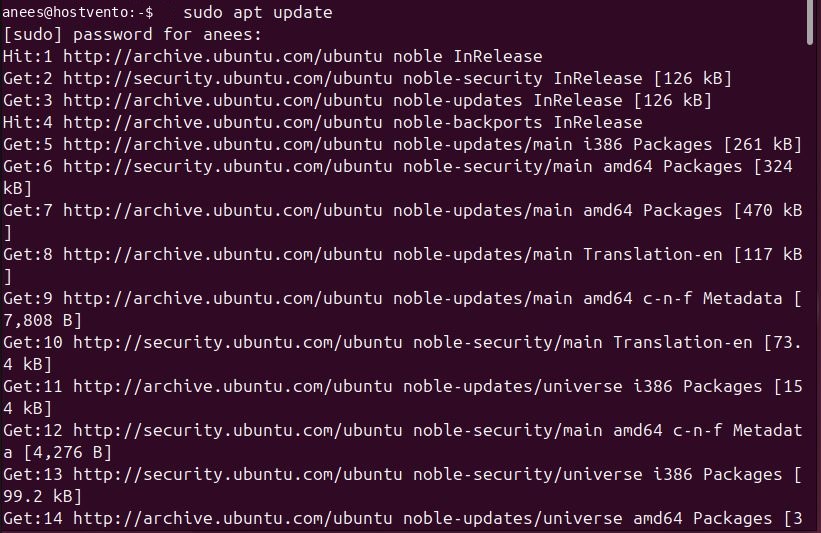
sudo apt upgrade -y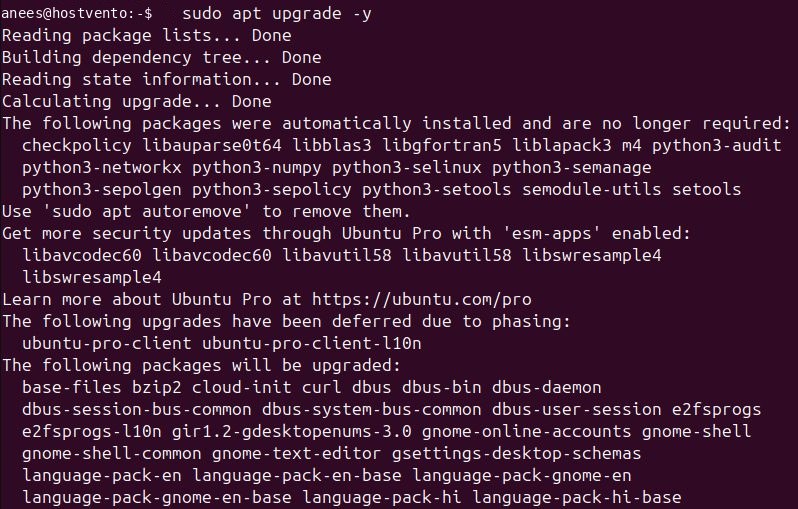
Step 2: Download the repository script
sudo curl -o webmin-setup-repo.sh https://raw.githubusercontent.com/webmin/webmin/master/webmin-setup-repo.sh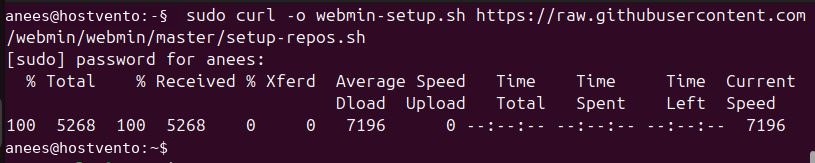
Note: The script name has changed in the past. If the download fails, check the Webmin download page for the current script and use it.
Step 3: Run the script
sudo sh webmin-setup-repo.sh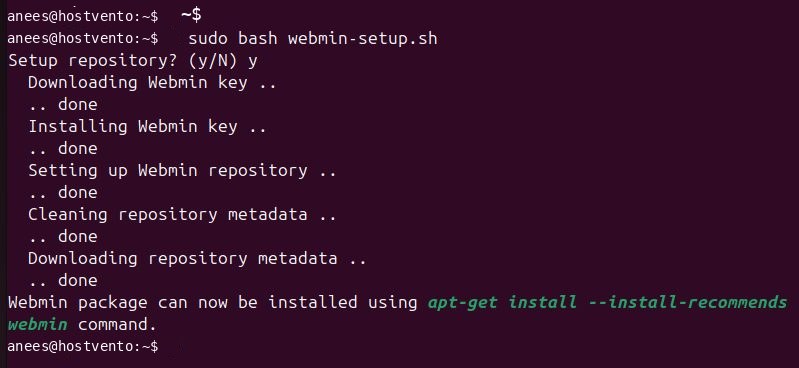
Step 4: Install Webmin
sudo apt install webmin --install-recommends -y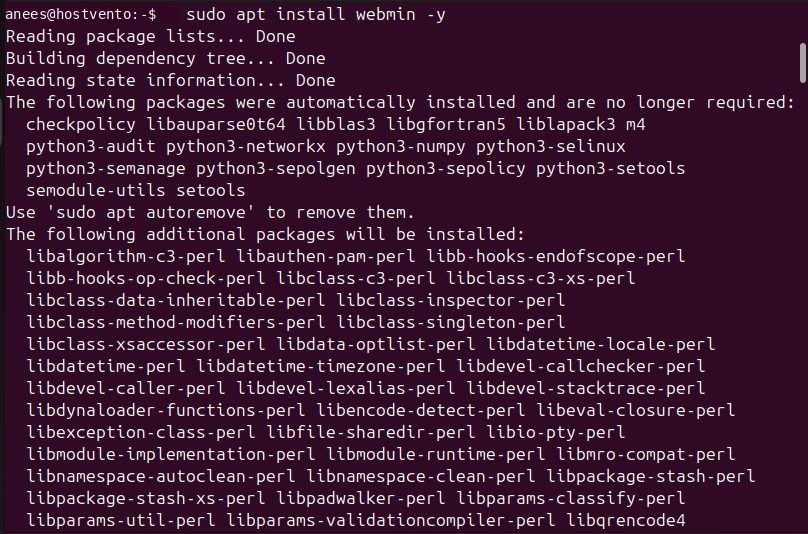
Step 5: Check the installation
sudo systemctl status webmin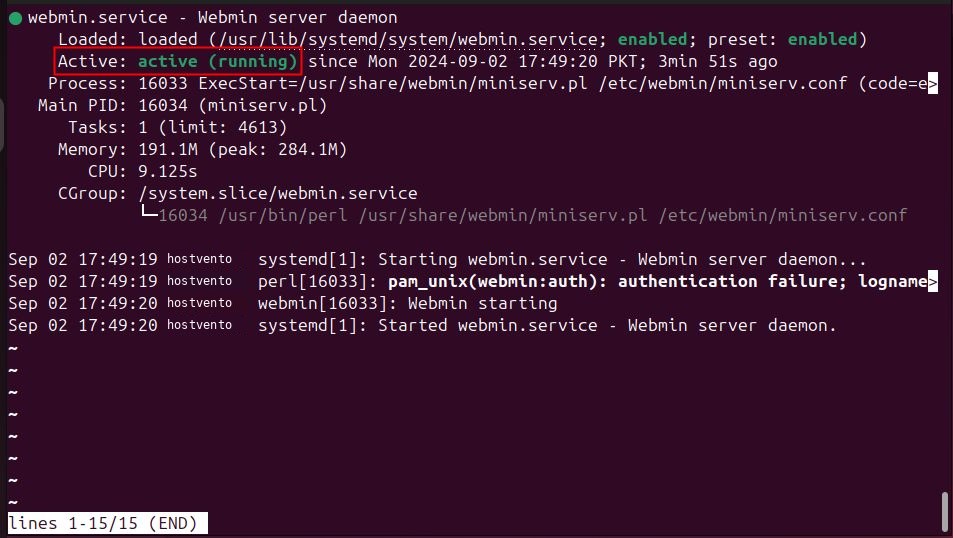
dpkg -l | grep webmin
Open the firewall
Webmin uses port 10000.
sudo ufw allow 10000/tcp
sudo ufw reload
sudo ufw status
Open Webmin
In your browser go to:
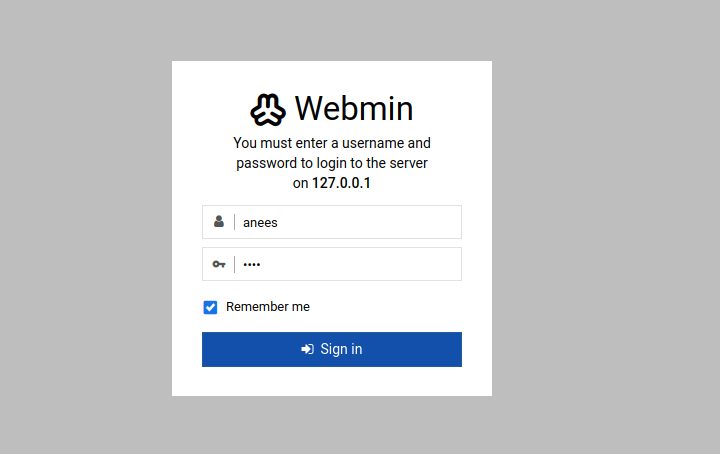
https://your-server-ip:10000The browser shows a certificate warning because Webmin uses a self-signed certificate. Accept it to continue. Sign in with your Linux user and password.
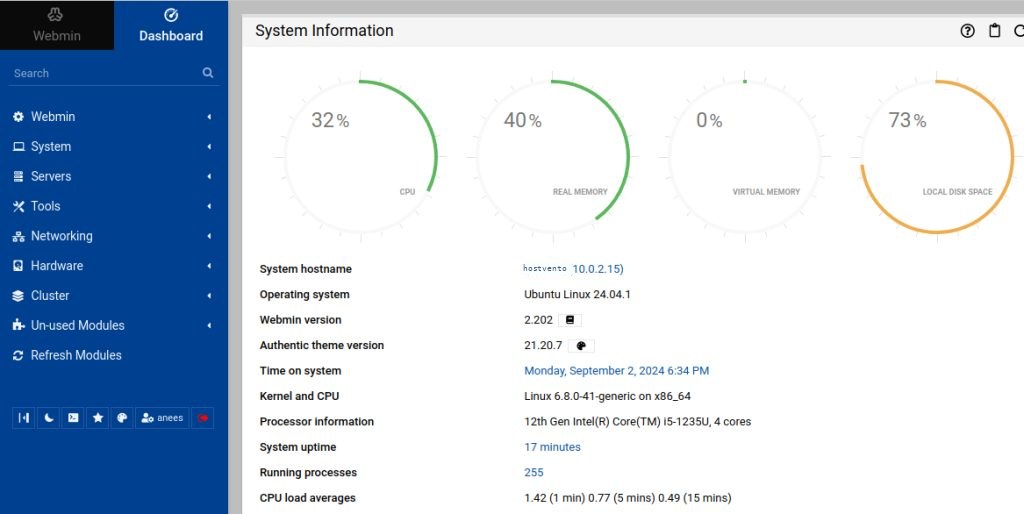
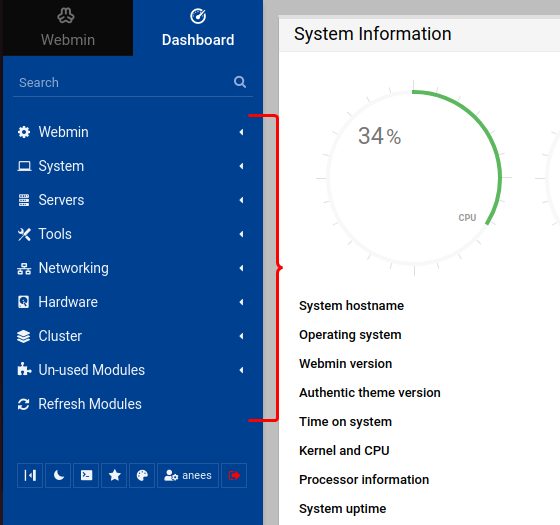
The menu on the left lets you manage users, services, packages, files, firewall and more.
Quick recap
- Add the repository, install
webminand open port 10000. - Sign in at
https://your-server-ip:10000.