

Note: This is an admin task. It needs root access to the Webuzo admin panel, so it fits VPS and dedicated server customers.
What is web server configuration?
A web server is the program that sends your web pages to visitors. Apache and Nginx are two common ones. Each has a configuration, which is a set of written rules. The rules decide things like timeouts, upload sizes and extra headers. Webuzo builds most rules for you. The extra configuration box lets you add your own.
Warning: A wrong line can stop the web server and take every site offline. Take a backup or snapshot first. Write down what you change so you can undo it.
Steps
- Log in to the Webuzo admin panel with your root login. The address is in your welcome email.
- Use the search box at the top and type Apache Settings or Webserver. Pick the web server your server uses.
- Open the settings page.
- Look for a box named Extra Configuration, Custom Configuration or something similar. The exact name can differ by version.
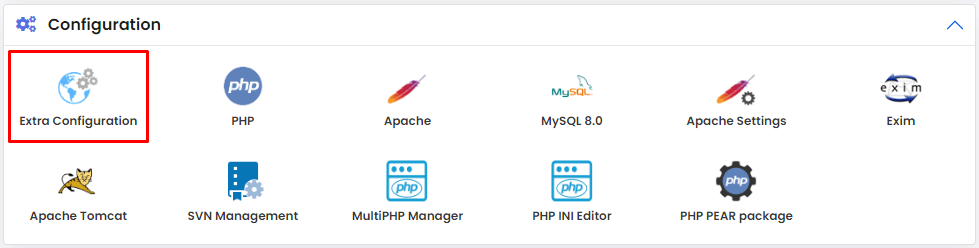
- Click inside the box.
- Type or paste your extra lines. Here is an example for Apache that raises the time a request can run:
This tells Apache to wait up to 300 seconds before giving up on a request.Timeout 300 - Check each line for typing mistakes. Look at spelling and spaces.
- Click Save or Submit.
- Webuzo rebuilds the config and restarts the web server. This takes a few seconds.
- Open one of your websites to see that it still loads.
If something breaks
- Go back to the same box.
- Remove the lines you added.
- Save again.
- If the panel does not load, connect with SSH and check the web server error log. Or open a support ticket.
Tip: Add one change at a time. Then if there is a problem you know which line caused it.
Quick recap
- Extra configuration adds your own rules to Apache or Nginx.
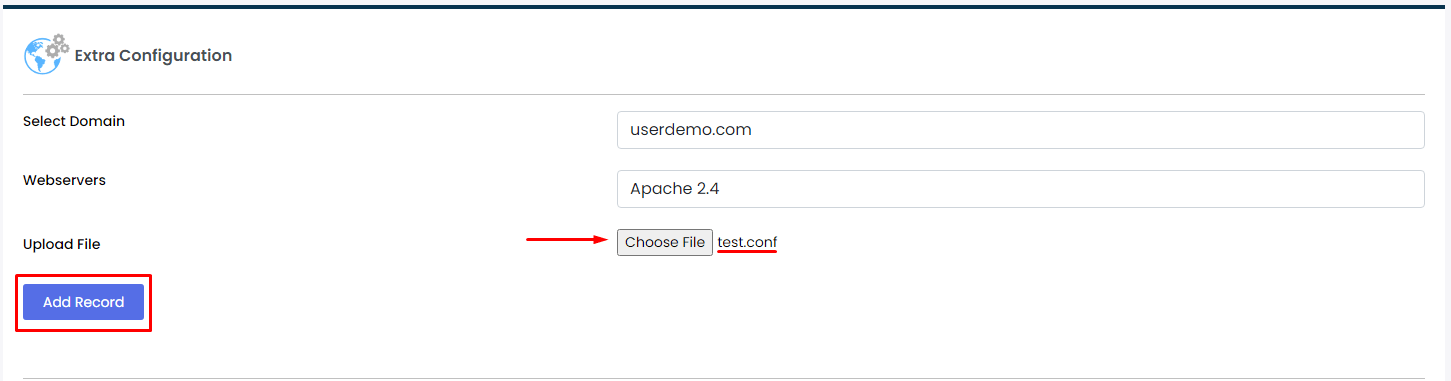
- Find the box in the web server settings in Webuzo admin.
- Save, then check your sites.
- Back up first. A bad line can take sites down.