

What is php.ini?
PHP is a language that runs many websites. The file php.ini holds its settings. Think of it as the settings menu of a game. Changing a setting changes how PHP behaves for your site.
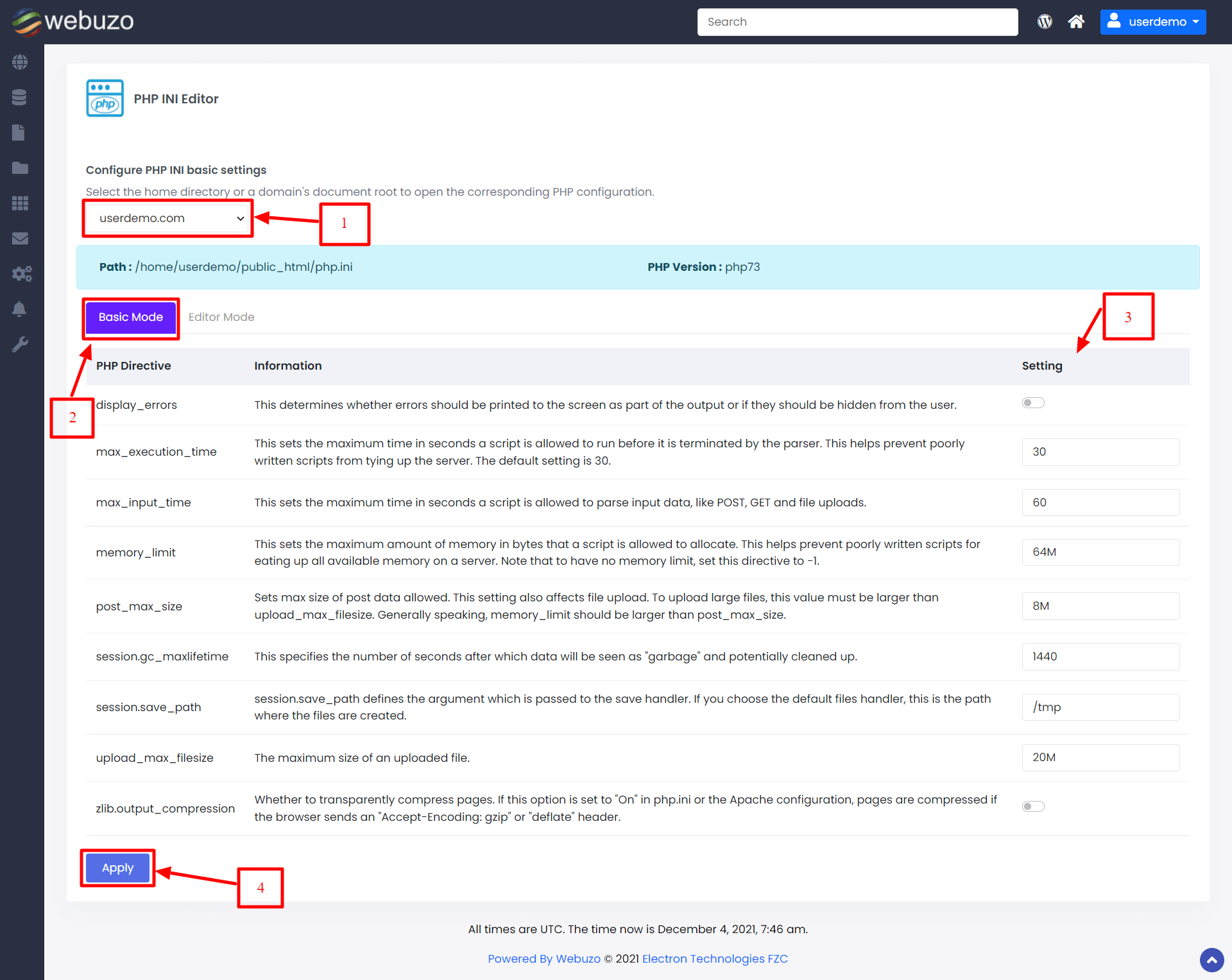
The PHP INI Editor is a page in Webuzo that lets you change these settings without opening the file by hand.
Common settings
| Setting | What it does |
|---|---|
| memory_limit | How much memory one script may use. |
| upload_max_filesize | The biggest file you can upload. |
| post_max_size | The biggest amount of form data allowed. Keep it bigger than the upload size. |
| max_execution_time | How many seconds a script may run. |
| display_errors | Whether error messages show on the page. |
Warning: A wrong value can break your site. Write down the old value before you change it. Very large values may not be allowed on your plan. Ask Hostvento support if a change does not take effect.
Steps
- Log in to Webuzo. The address and login are in your welcome email.
- Type PHP INI in the search box.
- Open PHP INI Editor. If it is not found, look under the PHP tools.

- Choose the PHP version you want to edit, if there are many.
- You may see a simple view with fields and a raw view where you edit the whole file. Start with the simple view.
- Find the setting. Use the search box on the page if it has one.
- Change the value. For example, set
upload_max_filesizeto64M. The M means megabytes. - Also raise
post_max_sizeto64Mor more. - Click Save.
- Wait a minute. Then test the change. Many apps show the PHP limits on a status page.
Use the raw editor
- Switch to the raw or editor view.
- Find the line you want. Lines that start with
;are comments and are ignored. - Edit the value and save.
Tip: If the site shows a blank page after saving, set the old value back.
Quick recap
- php.ini holds PHP settings.
- The PHP INI Editor changes them from the browser.
- Raise upload_max_filesize and post_max_size together.
- Note old values so you can undo a mistake.