

What is a redirect?
A redirect is like a "we moved" sign on a shop door. When someone visits the old address, the browser is sent to the new one. Redirects keep visitors and search engines from landing on missing pages.
There are two main kinds:
- Permanent (301): the move is final. Search engines move their records to the new address.
- Temporary (302): the move is short. Use it for a sale page or while you fix something.
Before you start
- Log in to Webuzo. Your login and panel address are in your welcome email.
- Know the old address and the full new address, such as
https://example.com/new-page. - Redirects can change how your site works. Take a backup of your
.htaccessfile first.
Steps
- Log in to the Webuzo user panel.
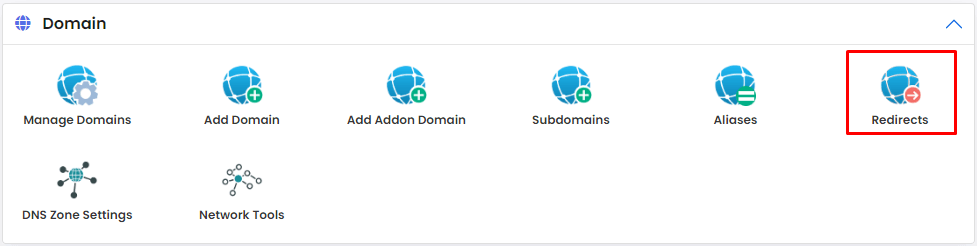
- Find the Redirects tool. Use the search box and type Redirects if you cannot see it. It is often under the domain tools.
- Open it.
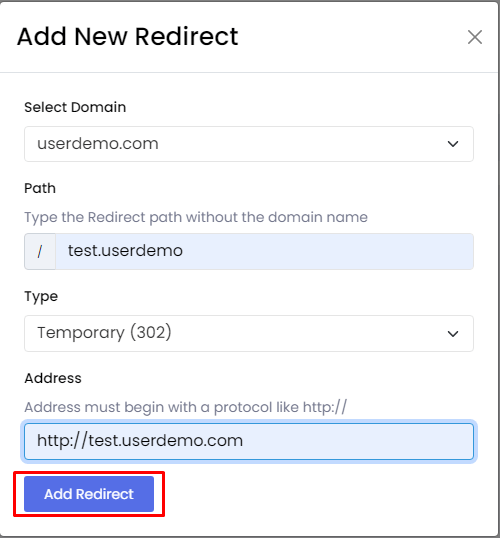
- Choose the redirect type, Permanent (301) or Temporary (302).
- Pick the domain from the list.
- In the first box, type the old path. For the whole site leave it empty. For one page type something like
/old-page. - In the second box, type the full new address. Start with
https://. - Choose whether
wwwshould also redirect, if the tool offers it. - Click Add or Save.

- Open the old address in a new browser tab. You should land on the new one.
Remove a redirect
- Open the same Redirects tool.
- Find the redirect in the list below.
- Click the Delete or bin icon beside it.
Browsers remember permanent redirects. If you remove one and it still seems to work, clear your browser cache.
Warning: Do not make two redirects that point to each other. This makes a loop, and the page will not open.
Quick recap
- A redirect sends visitors from an old address to a new one.
- Use 301 for permanent moves and 302 for temporary ones.
- Add it in the Redirects tool, then test the old address.
- Avoid loops and keep a backup of .htaccess.