

What is a PHP version?
PHP is a language that many websites use to build their pages, including WordPress. Like phone apps, PHP gets new versions. Newer versions are faster and safer. Old versions stop getting fixes.
But some old plugins or themes only work on older versions. If your site shows errors after a change, the version may not suit it. That is why you should test.
Warning: Changing PHP can break a site. Take a full backup first. Do it at a quiet time of day.
Before you start
- Check what your app needs. For example, WordPress shows the needed PHP version on its website.
- Update your plugins, themes and app to their latest versions.
- Ask Hostvento support which PHP versions your plan offers.
Steps for your own domain
- Log in to Webuzo. The address and login are in your welcome email.
- Use the search box and type PHP. Look for a tool such as Choose PHP Version or PHP Settings. The label can differ in your version.
- Open it.
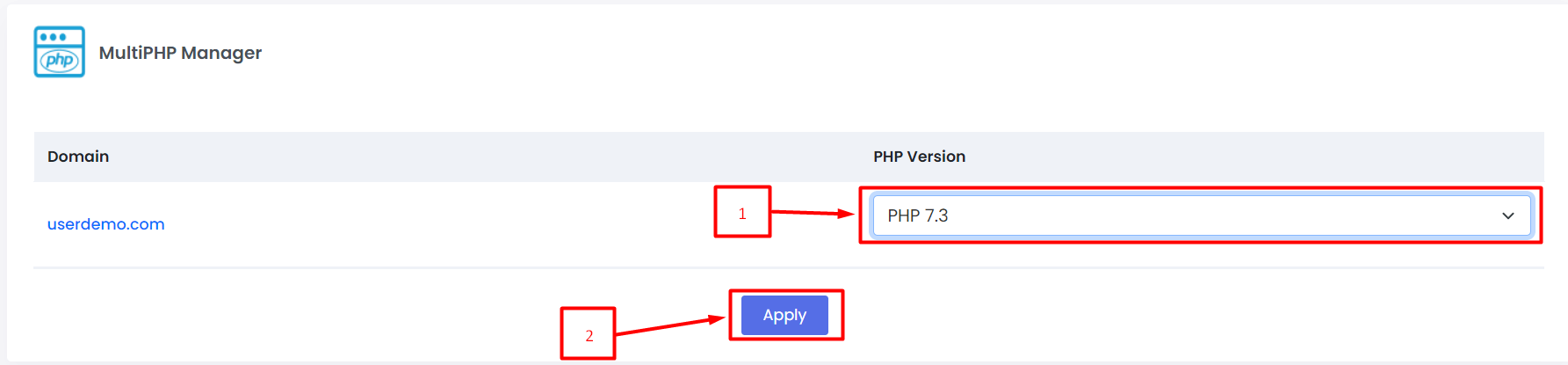
- Find your domain in the list.
- Open the drop-down list next to the domain. It shows the PHP versions that are installed.
- Pick the version you want.
- Click Save or Apply.
- Open your website in a new tab. Check the home page and a few other pages.
- Log in to the admin area of your app, too. Errors often hide there.
Steps for the whole server
This needs root access, so it is for VPS and dedicated customers.
- Log in to the Webuzo admin panel.

- Search for PHP and open the PHP tool.
- Install the version you need if it is not on the list. Webuzo downloads it for you.
- Set it as the default if you want every site to use it.
If your site breaks
- Go back to the same tool.
- Choose the old version again.
- Save. The site should return to normal.
- Update or replace the plugin that caused the trouble. Then try again.
Tip: If you need help, open a support ticket and say which version you want.
Quick recap
- Newer PHP is faster and safer, but old code may not like it.
- Back up and update your app first.
- Pick the version for your domain in the PHP tool and save.
- Test the site. Switch back if it fails.