

What are file permissions?
Permissions are rules about who may use a file. Think of a locker with three keys. One key lets you look inside. One lets you change things. One lets you run it like a program. These keys are given to three groups: the owner, the group and everyone else.
Permissions are shown as a three-digit number, like 644. Each digit stands for one group. A digit is the sum of these values:
- 4 = read
- 2 = write
- 1 = execute (run)
So 6 means read and write (4+2). And 5 means read and run (4+1).
Common values
| Number | Meaning | Normal use |
|---|---|---|
| 644 | Owner reads and writes. Others only read. | Files |
| 755 | Owner has all. Others read and run. | Folders |
| 600 | Only the owner reads and writes. | Private config files |
Warning: Never use 777 unless a guide tells you to. It lets everyone write to the file. Hackers love that. Wrong permissions can also give a "403 Forbidden" or "500" error.
Steps
- Log in to Webuzo. Your panel address and login are in your welcome email.
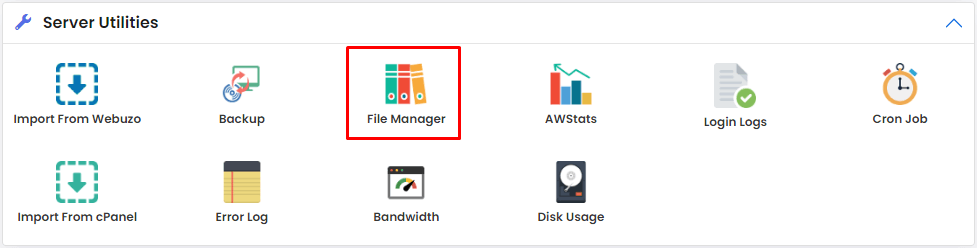
- Open File Manager.
- Go to the folder that holds your file. Website files are usually in a folder like
public_htmlorwww. - Click the file or folder once to select it.
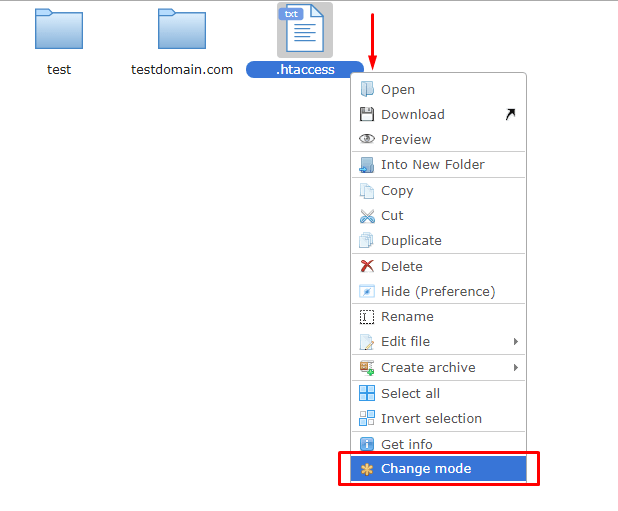
- Right-click it. If there is no right-click menu, look for a Permissions or Change Permissions button in the toolbar.
- Choose Change Permissions.
- You see tick boxes for read, write and execute for each group. Or you see a number box. Use either one.
- Set the value you need, such as
644for a file. - If it is a folder, you may see a tick box to apply to everything inside. Use it with care.
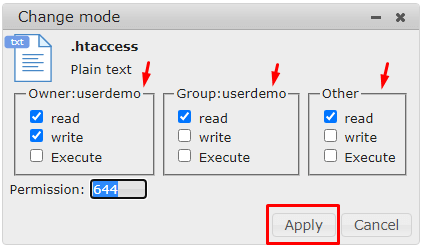
- Click Change or Save.
- Reload your website to see if the problem is fixed.
Tip: If you are unsure what value to use, files at 644 and folders at 755 work for most sites.
Quick recap
- Permissions decide who can read, write or run a file.
- Digits add up: 4 read, 2 write, 1 run.
- Use 644 for files and 755 for folders.
- Avoid 777.
- Right-click the file in File Manager and pick Change Permissions.