

Why change your password?
Your password is the key to your hosting. If someone else learns it, they can change or delete your files. Change it if you shared it, if you think it leaked, or if it is old. Webuzo is the control panel where you manage your hosting.
What makes a strong password?
- At least 12 characters.
- A mix of upper and lower case letters, numbers and symbols.
- No names, birthdays or simple words.
- One that you do not use on any other website.
A password manager app can create and store long passwords for you.
Steps
- Log in to your Webuzo user panel. The address and login are in your welcome email.
- Look for your account name or a profile icon at the top right of the page.
- Click it and choose a link such as Change Password, Account or Settings. If you cannot see it, type Password in the search box.
- Type your Current Password if the form asks for it.
- Type your New Password.
- Type the new password again in the Confirm Password box.
- Click Save or Change Password.

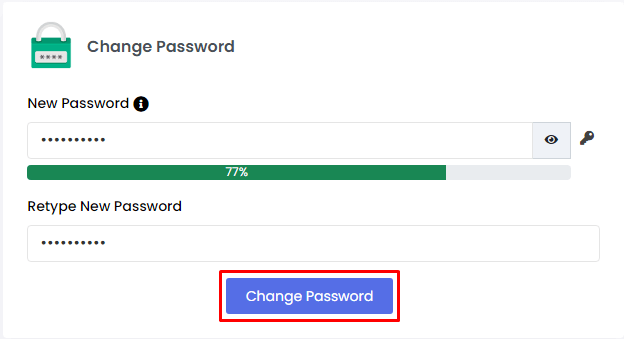
- Wait for the green message that says it worked.
- Log out and log in again with the new password to test it.
Warning: Programs that use the old password, like FTP apps or email apps, may stop working. Update the password in each of them. FTP is a way to send files to your server.
If you forgot your password
- Look for a "Forgot password" link on the login page and follow it.
- If there is none, open a support ticket and ask Hostvento to reset it.
- You can also log in to your client area and check the service details.
Tip: The password of your Hostvento client area is a different one. Changing one does not change the other.
Quick recap
- Open your profile or account settings in Webuzo.
- Enter the old password, then the new one twice.
- Save and test by logging in again.
- Update the password in any app that uses it.
- Use a long, unique password.