

Note: This guide needs root access. It is for VPS and dedicated server customers.
What is the root password?
Root is the all-powerful account on a Linux server. Whoever has the root password can do anything: read files, install programs and delete everything. Webuzo is a control panel. Its admin side uses the root login. So the root password must be strong and private.
Change it if you think someone else knows it, if a person who had it left your team, or if it has not changed for a long time.
Warning: Keep your current SSH window open while you test the new password. If something goes wrong, you can still fix it. Store the new password safely before you close anything.
Choose a good password
- Use 16 characters or more.
- Mix letters, numbers and symbols.
- Do not reuse it anywhere.
Steps using SSH
- Open a terminal on your computer. SSH is a safe way to type commands on your server.
- Connect to your server.
This logs you in as root. Your server address is in your welcome email.ssh root@your-server-ip - Start the password change.
This asks you for a new password for the current user, which is root.passwd - Type the new password. The screen shows nothing while you type. That is normal.
- Type it again to confirm.
- Look for the message "all authentication tokens updated successfully".
Check the Webuzo admin login
- Open the Webuzo admin panel in your browser. The address is in your welcome email.
- Log in as root with the new password.
- If the panel still wants the old password, look in the panel for an account or profile page with a password change option. Update it there too.
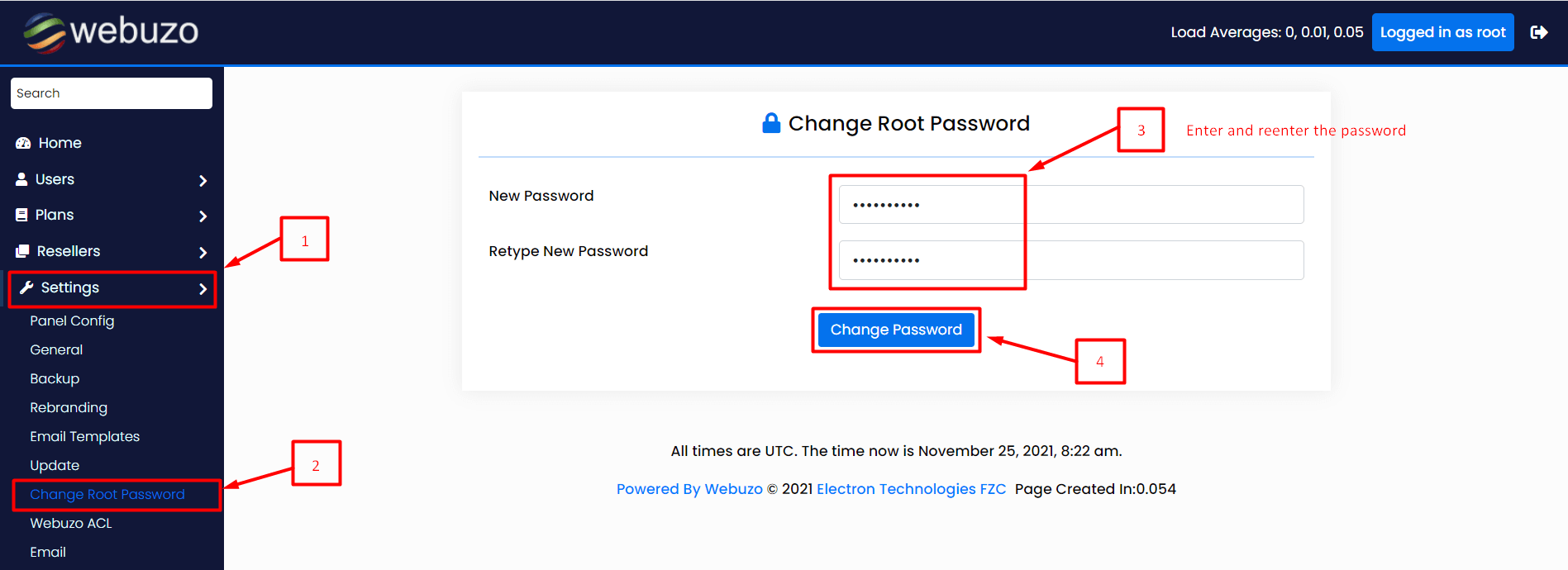
If you lost the root password
- Log in to your client area.
- Check your service details to see if a password reset option is offered.
- If not, open a support ticket and ask for help.
Tip: For more safety, use SSH keys instead of passwords for logging in.
Quick recap
- Root is the most powerful account. Guard its password.
- Run
passwdover SSH to set a new one. - Test the Webuzo admin login afterwards.
- Keep the old session open until you have checked.