

What is the File Manager?
The File Manager is a tool inside Webuzo. It works like the Files app on your computer. You see folders and files of your website. You can make, move, rename, edit and delete them. You do not need extra software.
The main website folder is often called public_html or www. Files in it can be seen by visitors.
Create a new file
- Log in to Webuzo. The address and login are in your welcome email.
- Open File Manager.
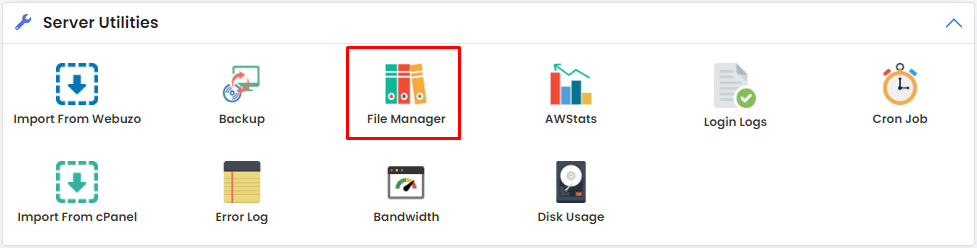
- Click through the folders until you reach where the file should live, for example
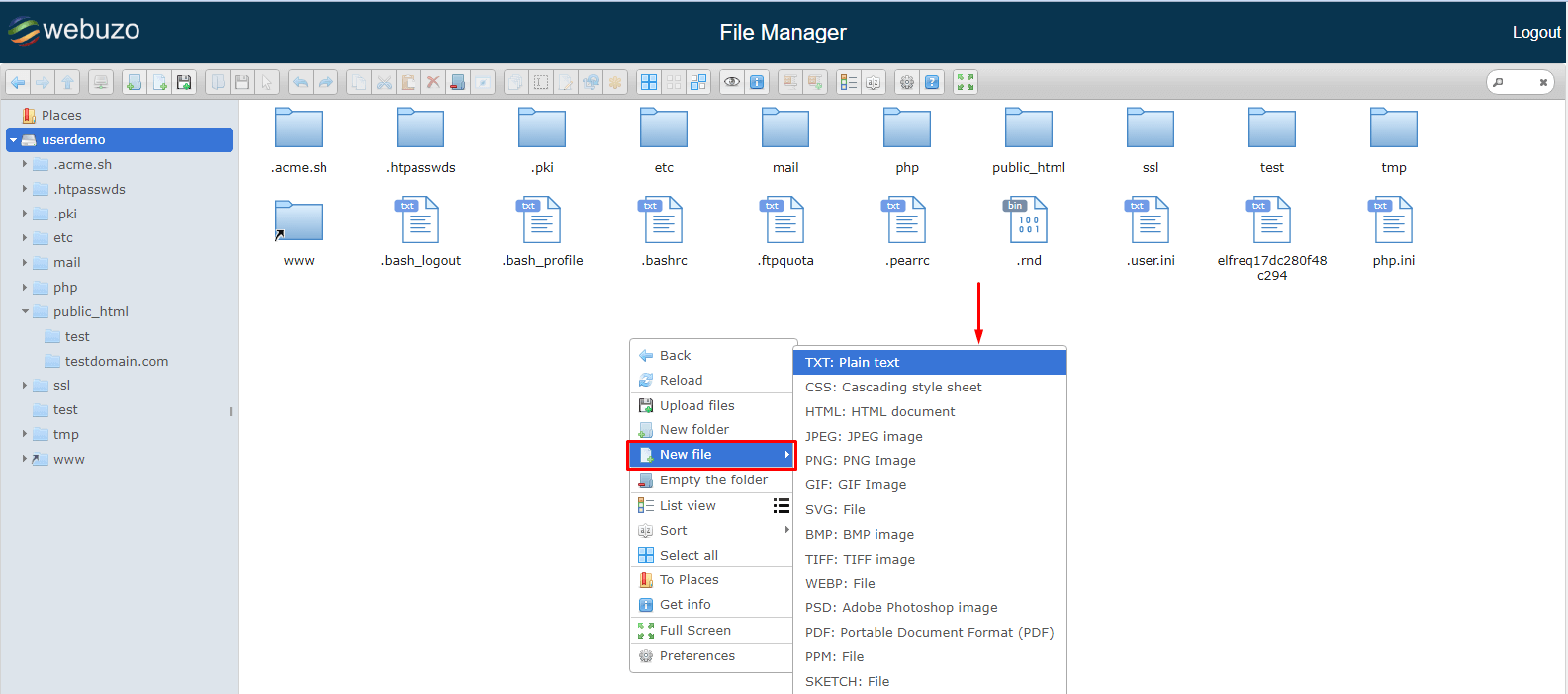
public_html. - Click New File in the toolbar. If you do not see it, look for a plus icon or a menu with a similar name.
- Type the file name with its ending, such as
hello.html. The ending tells the server what kind of file it is. - Click Create.
- The new file shows in the list.

Edit a file
Warning: A small typing mistake in a code file can take your site down. Make a copy first. Right-click the file, pick Copy and paste it with a new name like
index.php.bak.- Find the file in the list.
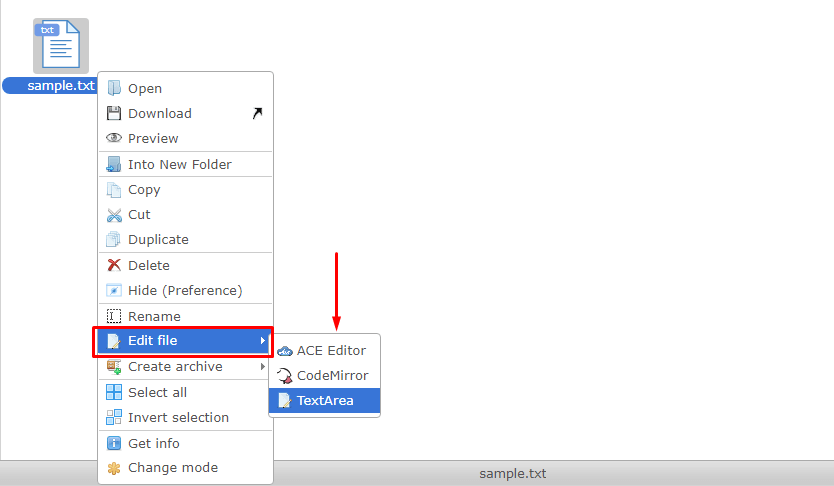
- Right-click it, or select it and look at the toolbar.
- Choose Edit or Code Editor. A text editor opens.
- If a box asks about the text encoding, choose UTF-8. It handles most languages.
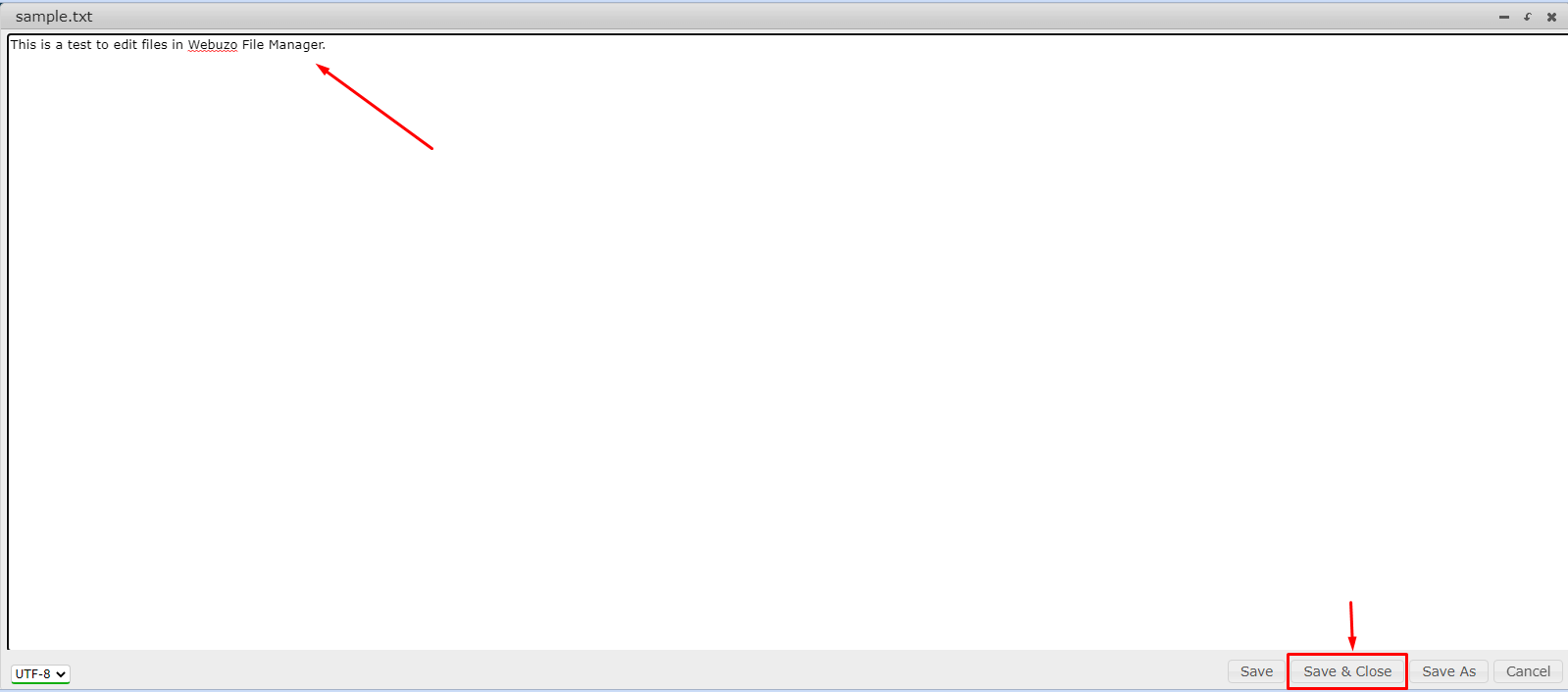
- Make your change.
- Click Save.
- Close the editor and refresh your website in the browser.
Try it
- Create
hello.html. - Edit it and type this:
This shows a big heading.<h1>Hello from Hostvento</h1> - Save it, then open yourdomain.com/hello.html.
- Delete the file when you are done testing.
If you cannot save
- The file permissions may not allow writing. See the permissions guide for Webuzo File Manager.
- Your browser may have blocked the pop-up editor. Allow pop-ups for the panel.
Tip: For big changes, work on a copy on your computer and upload it.
Quick recap
- File Manager lets you handle files in the browser.
- Use New File to create and Edit to change.
- Always copy a file before editing it.
- Save and refresh the site to check.