

Note: This is an admin task. It needs root access to the Webuzo admin panel. It fits VPS and dedicated server customers.
What is a demo account?
A demo account is a safe practice account. Webuzo is a control panel, a website where you manage hosting. In a demo, a visitor or a new team member can click around and learn. They cannot damage your real websites.
Hosting resellers use demos to show customers how the panel looks. Teachers use them for lessons.
How the demo works
Webuzo can create a normal user account with limited use. You control it from the admin panel. Features and menu names change between Webuzo versions. If you cannot find an item, use the search box in the panel or ask Hostvento support.
Steps
- Log in to the Webuzo admin panel with your root login. The address is in your welcome email.
- Search for Create Account or open the Users area.
- Click the button to add a new user.
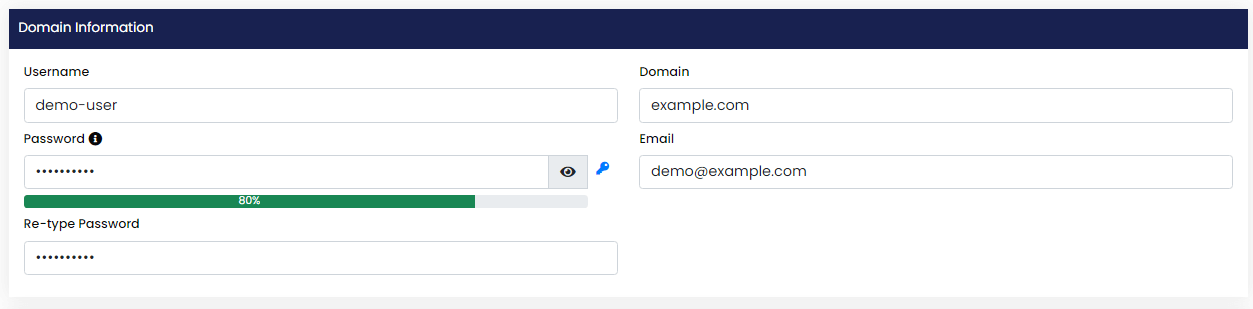
- Type a domain for the demo. A subdomain such as
demo.yourdomain.comis a good choice. A subdomain is a smaller address under your main one. - Type a user name, like
demo.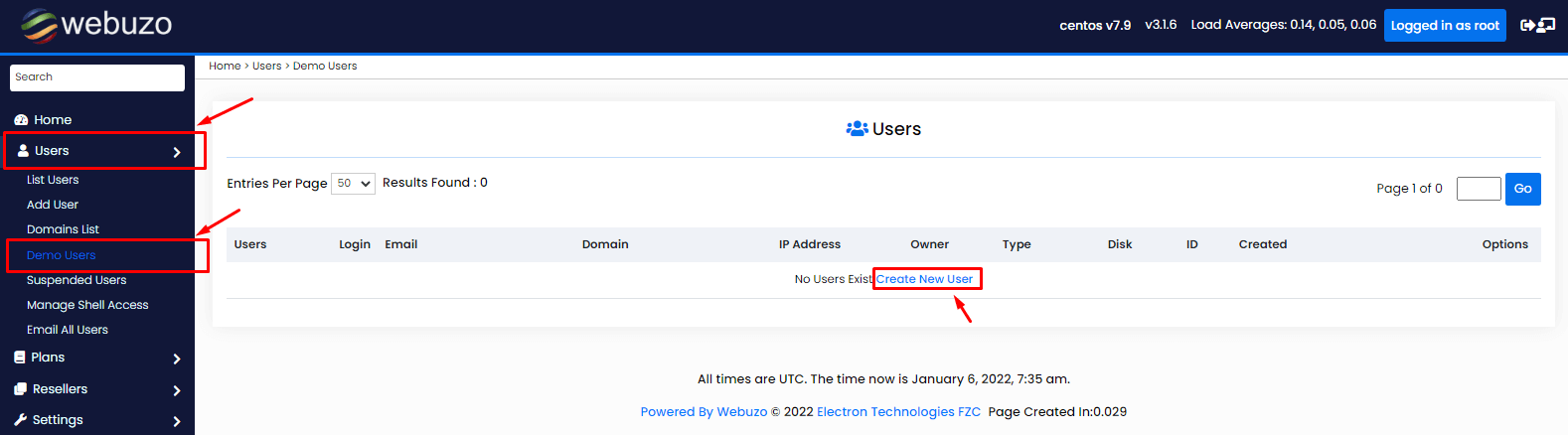
- Type a strong password. Do not reuse your real password.
- Add an email address you can reach.
- Choose a plan or set small limits for disk space and bandwidth. Bandwidth is the amount of data the site may send out. Small limits keep the demo cheap and safe.
- Click Create.
- Webuzo makes the account. It shows a message when it is done.
Share and test
- Open the user panel address in a private browser window.
- Log in with the demo user name and password.

- Check that everything works.
- Share the details only with the people who should try it.
Clean up
When the demo ends, remove the account in the admin panel. Deleting removes its files, so check nothing important is inside.
Tip: Change the demo password often. Anyone who has it can use the account.
Quick recap
- A demo account is a limited practice account.
- Create it in the Webuzo admin panel with small limits.
- Test it in a private window.
- Delete it when it is no longer needed.