

Note: This guide needs root access to the Webuzo admin panel. It is for VPS and dedicated server customers.
What is SSH?
SSH is a safe way to control your server by typing commands from your own computer. The server runs a small program that listens for SSH connections. A port is a numbered door on the server. SSH uses door number 22 by default.
Because every attacker knows this, SSH gets many break-in tries. Tuning its settings makes your server safer.
Warning: A wrong SSH setting can lock you out of your server. Keep your current SSH window open until you have tested the new settings in a second window. Take a snapshot or backup first.
Useful settings
- Port: change it from 22 to another number between 1024 and 65535. This hides you from simple scans.
- Root login: turning it off stops direct root logins. You log in as a normal user and switch to root.
- Password login: you can turn it off when you use SSH keys instead.
Steps
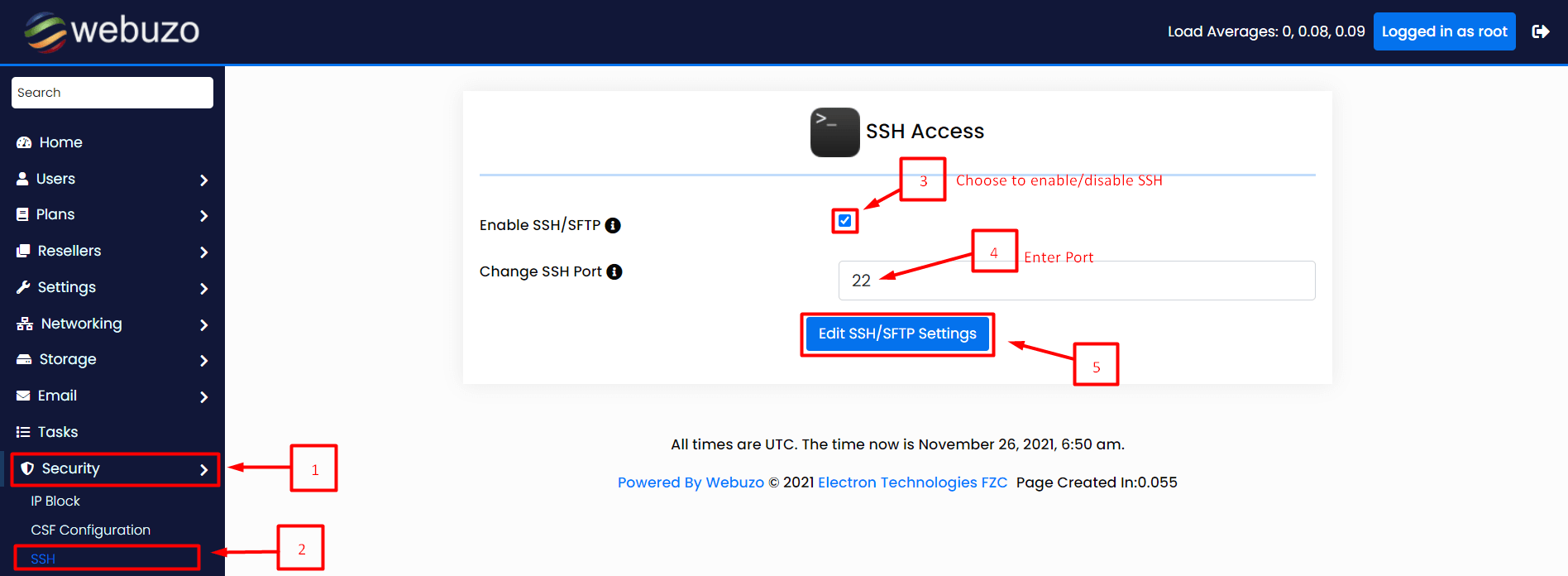
- Log in to the Webuzo admin panel with your root login. The address is in your welcome email.
- Type SSH in the search box.
- Open the SSH settings page. It may be named SSH Settings or SSH Configuration.
- Read the current values before changing anything.
- Change the Port to your new number. Pick one that is not in use.
- Change other options only if you understand them.
- Click Save. Webuzo restarts the SSH service.
- Open a second terminal on your computer. Test the new settings.
Thessh -p 2222 youruser@your-server-ip-poption tells SSH which port to use. Replace 2222 with your new port. - If the login works, you are done. If it fails, use your first window to undo the change.
Firewall note
If a firewall runs on your server, allow the new port in it. Otherwise it will block you. Ask Hostvento support if you are not sure how. You can open a support ticket.
Quick recap
- SSH is the secure command line to your server.
- Change the port, root login and password login in Webuzo SSH settings.
- Keep one session open and test in another.
- Open the new port in the firewall.