

What is Webuzo?
Webuzo is a control panel. A control panel is a dashboard where you manage your hosting with clicks instead of commands. Webuzo is used on some VPS and dedicated servers. Ask Hostvento support if it is on your plan.
Why lock a folder?
Some folders should be private. Examples are a test version of your site, a client area or private files. A password stops strangers from opening them.
Under the hood, the server uses two small files. The .htaccess file turns on the lock. The .htpasswd file stores the usernames and scrambled passwords.
Steps
- Log in to the Webuzo panel. Your welcome email has the address and login.

- Look in the menu for Password Protect Directories. It may be inside a section like Security or Files. Use the search box if you cannot find it.
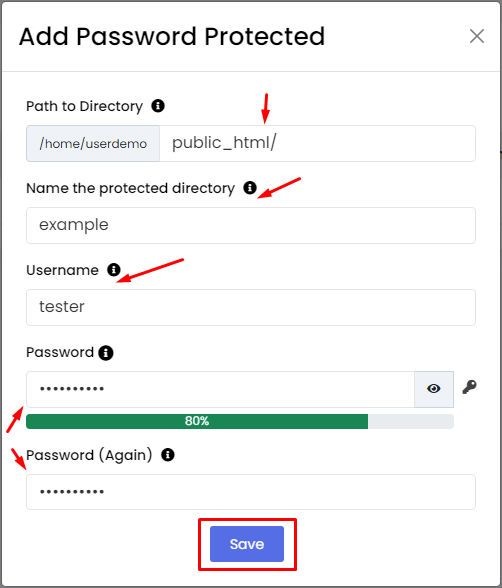
- Choose the folder you want to lock. Click through the folder list.
- Tick the box to protect the folder.
- Type a name for the lock, such as "Private area".
- Add a username.
- Add a password. Make it long and hard to guess.
- Click Save or Add.

- Open that folder address in a new browser window. A login box should appear.
Tip: Menu names can differ by Webuzo version. Look for words like "protect" or "directory".
Removing the lock
- Go back to the same page.
- Select the folder.
- Untick the protection box, or delete the user.
- Click Save.
Good to know
- The lock covers all folders inside the chosen folder.
- Use HTTPS so the password is sent safely.
- Back up your
.htaccessfile before big changes.
Quick recap
- Webuzo can lock a folder with a username and password.
- Find the password protect page in the panel.
- Choose the folder, add a user, and save.
- Test it in a new browser window.