

What is the File Manager?
Your website is a set of files on a server. File Manager is a tool in the control panel that shows those files like folders on your computer. A control panel is a dashboard for your hosting. Webuzo is one of them. Ask Hostvento support if Webuzo is on your plan.
Uploading a file
To upload means to send a file from your computer to the server.
- Log in to the Webuzo panel.
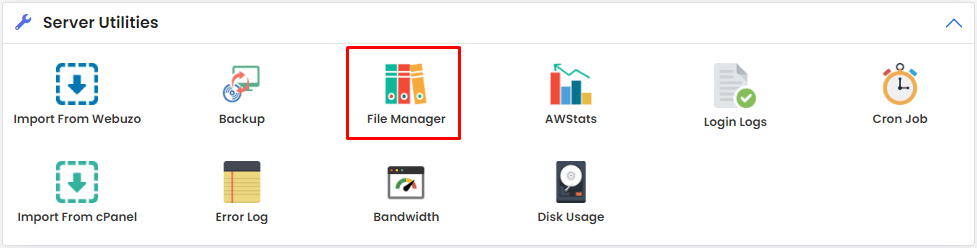
- Click File Manager. Use the search box if you cannot find it.
- Open the folder where the file should go. For a website, this is often a folder like
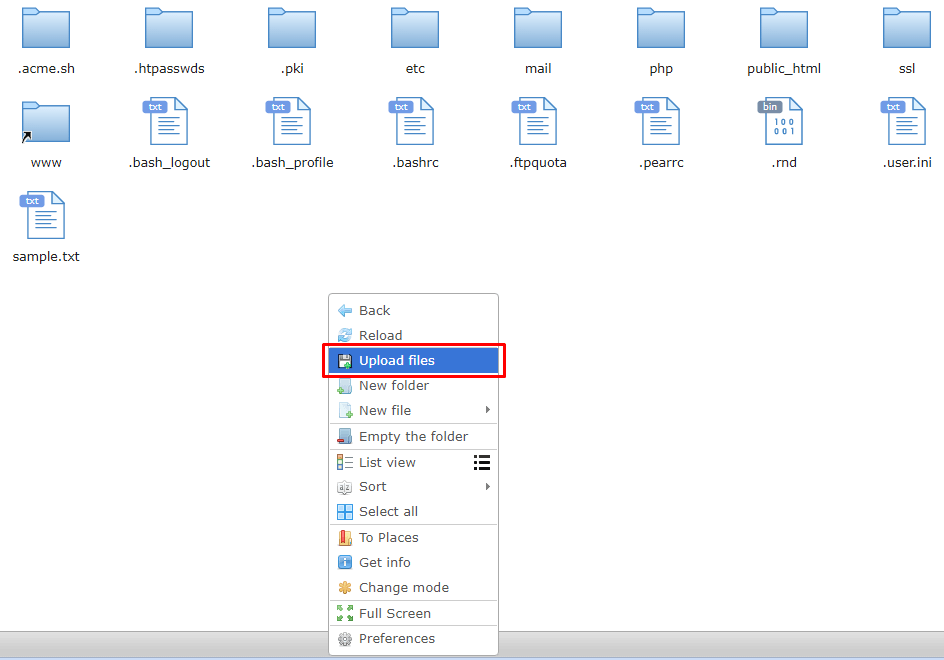
public_htmlorwww. - Click the Upload button at the top.
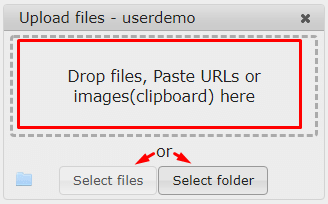
- Click Select File or drag files into the box.
- Choose the file on your computer.
- Wait for the progress bar to finish.
- Refresh the folder list. Your file should now be there.
Warning: if you upload a file with the same name as an existing one, it may replace it. Back up the old file first.
Uploading a whole site
Many small files upload slowly. Make a ZIP file on your computer first. A ZIP file packs many files into one. Upload the ZIP, then right-click it in File Manager and choose Extract.
Downloading a file
To download means to copy a file from the server to your computer.
- Open File Manager.
- Go to the folder that holds the file.
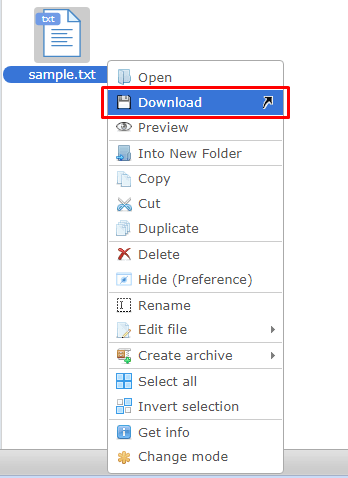
- Click the file once to select it.
- Click Download in the top bar, or right-click and choose Download.
- Your browser saves the file. Look in your Downloads folder.
To download a whole folder, first choose Compress to make a ZIP. Then download the ZIP.
Quick recap
- File Manager shows your server files in the browser.
- Use Upload to send files to the server.
- Use Download to get files back.
- ZIP many files into one before moving them.