

Why change a password in WHM?
WHM is the control panel for the whole server. cPanel is the control panel for one hosting account. A customer may forget their password. Or you may need to lock out someone who should not have access. In WHM you can set a new password without knowing the old one.
What makes a strong password?
- At least 12 characters.
- A mix of big letters, small letters, numbers and symbols.
- Not a name, a birthday or a simple word.
WHM has a Password Generator button that makes one for you.
Steps
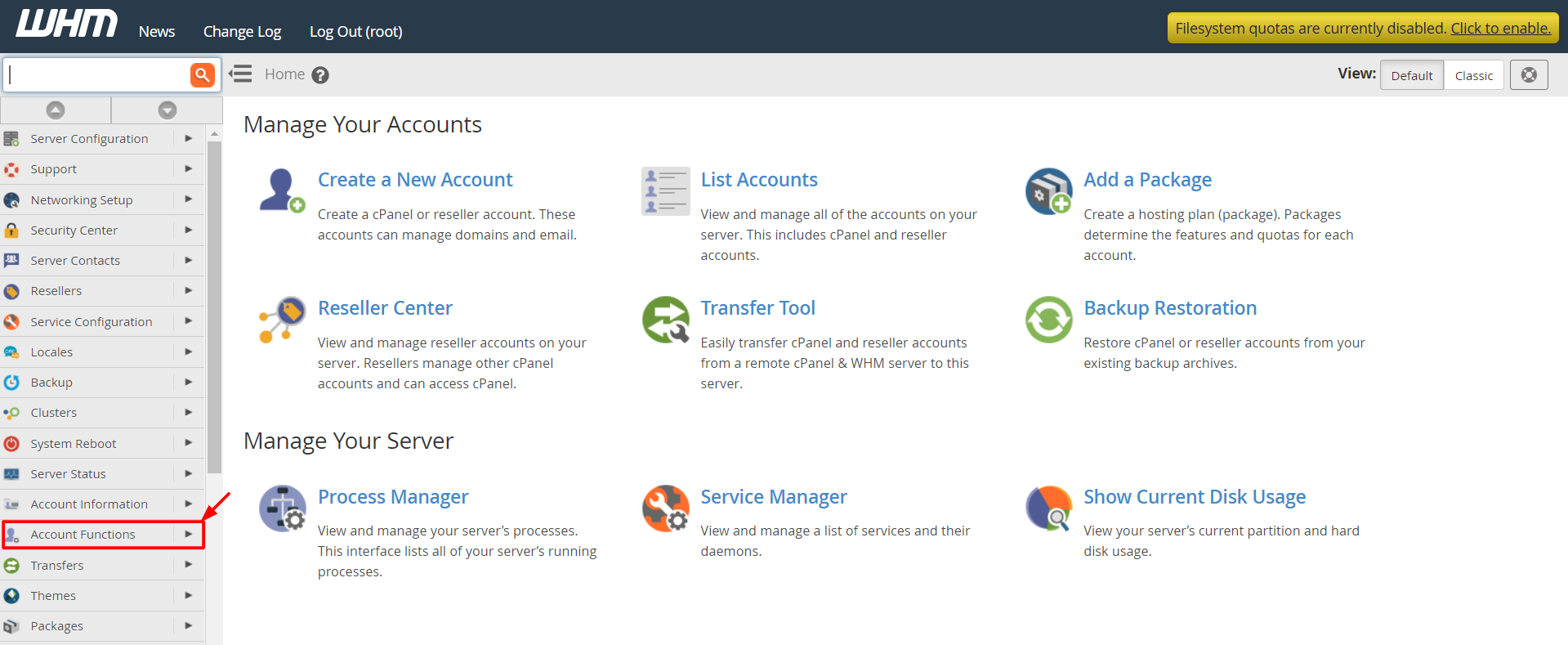
- Log in to WHM. The address is usually your server's IP address or host name followed by
:2087. - Type Password Modification in the search box at the top of the left menu.
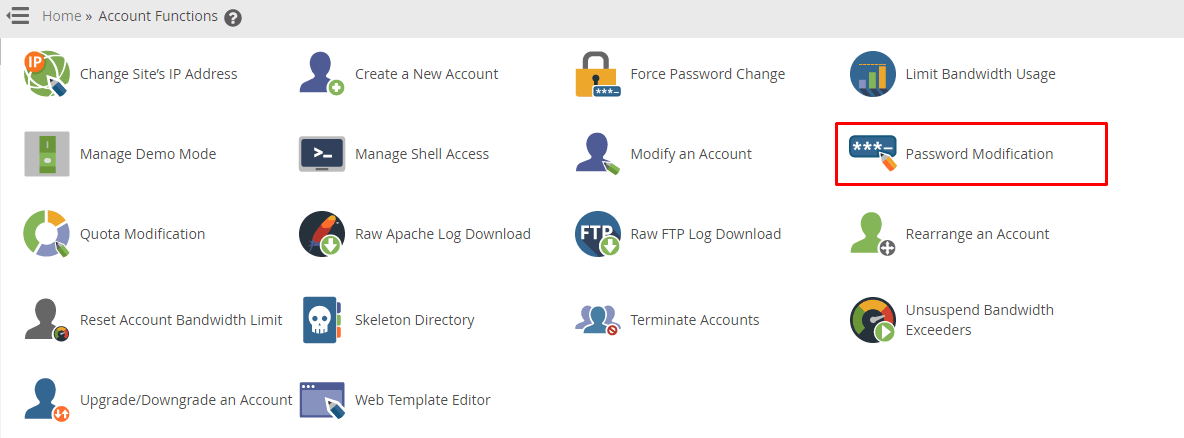
- Click Password Modification. It is in the Account Functions section.
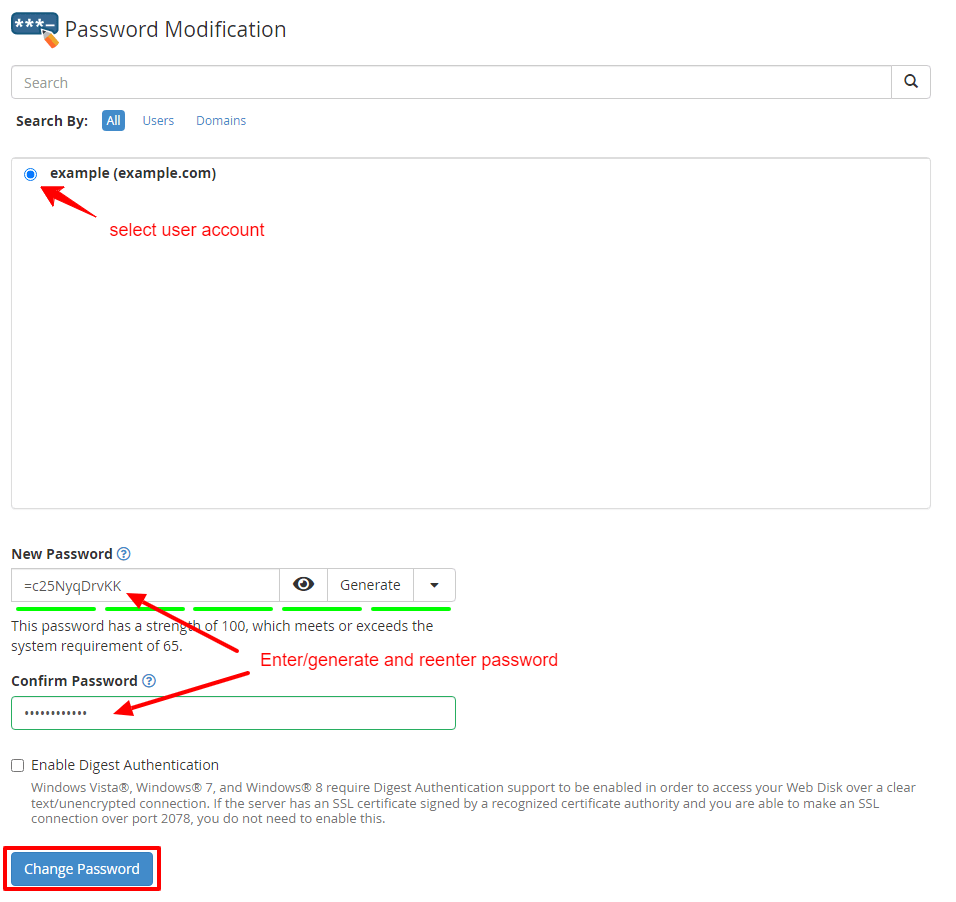
- Choose the account from the drop-down list.
- Type the new password in the password box. Type it again in the second box.
- Click Password Generator if you want WHM to make a strong one. Copy it before you continue.
- Click Change Your Password (the button name may be slightly different in your version).
- WHM shows a message when the change is done.
- Tell the account owner their new password in a safe way.
Good to know
- This changes the cPanel login password for that account.
- It may also change FTP and other logins that use the main password. FTP is a way to upload files.
- It does not change email account passwords. Those are set inside cPanel.
- It does not change your Hostvento client area password. Change that inside the client area at https://secure.hostvento.com/clientarea.php.
Warning: If the customer uses the old password in apps, such as a website script or an FTP program, those apps stop working until they get the new password.
Tip: Never send passwords in a plain email. Ask the owner to change it again after the first login.
Quick recap
- Search WHM for Password Modification.
- Pick the account and type a strong new password.
- Save the change.
- Share the password safely.