

What is Apache?
Apache is the program that shows websites to visitors. When someone types your site address, Apache sends back the page. If Apache stops, all the websites on the server go down.
WHM is the control panel for the whole server. A control panel is a web page where you manage things by clicking.
Steps
- Log in to WHM as root. The address is usually your server's IP address or host name followed by
:2087.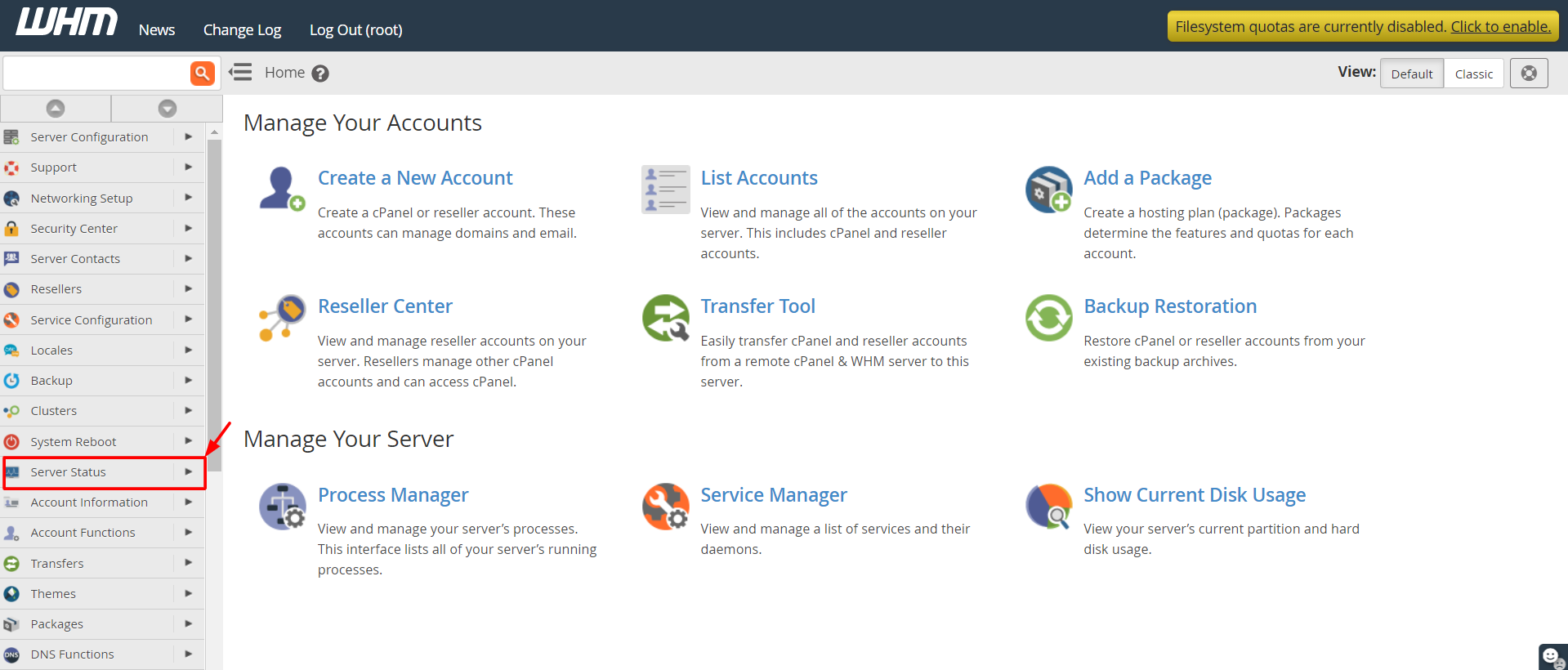
- Type Apache Status in the search box at the top of the left menu.
- Click Apache Status. It is in the Server Status section.

- A page opens with the live status of Apache.
- Read the top part. It shows the Apache version and how long Apache has been running.
- Read the part about requests. A request is one visitor asking for one file. You can see how many are being handled now.
- Look at the list of workers or connections. A worker is a helper that serves one visitor at a time.
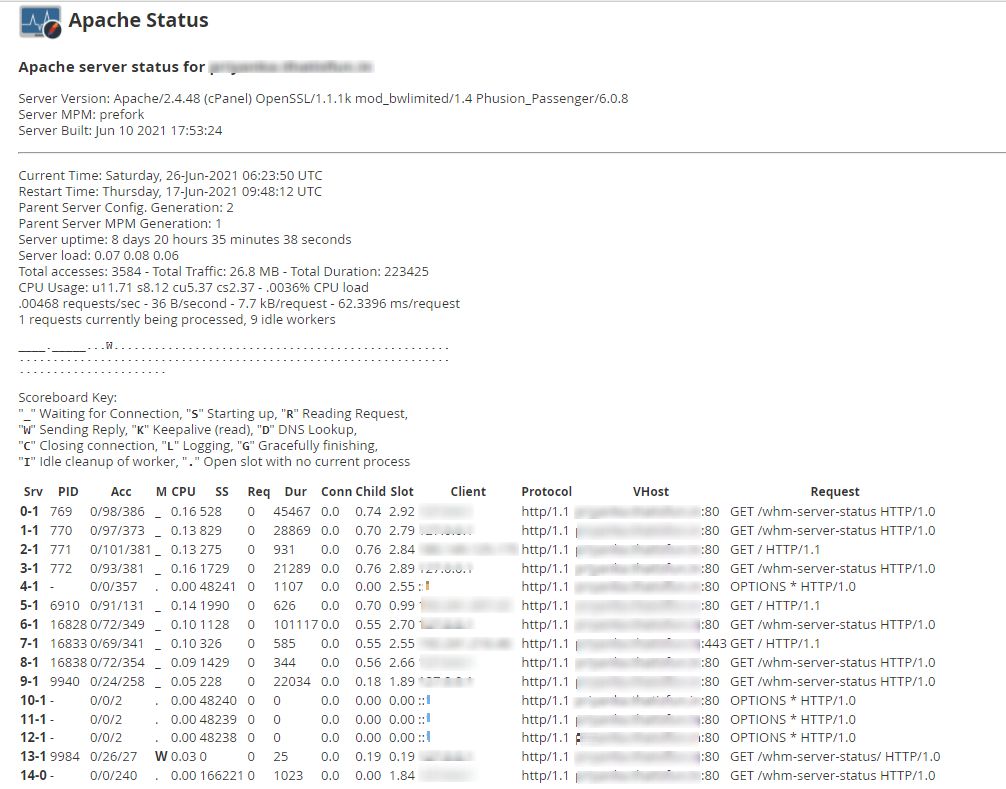
- Refresh the page to see new numbers.
How to read the numbers
- If Apache runs and handles requests, it is healthy.
- If almost all workers are busy all the time, the server may be overloaded.
- If the page cannot show a status, Apache may be stopped.
If Apache is stopped
- In WHM, search for Service Manager and open it.
- Find Apache Web Server in the list and make sure it is enabled and monitored.
- If you have SSH access, you can restart it. SSH lets you type commands on a remote computer.
This command restarts Apache on cPanel servers. The service name can differ on other setups.systemctl restart httpd
Warning: Restarting Apache briefly cuts off every visitor. Do it at a quiet time.
Tip: If Apache keeps stopping, look at the error log or ask Hostvento support. Restarting again and again will not fix the real cause.
Quick recap
- Apache serves your websites.
- Open Apache Status in WHM's Server Status section.
- Read the uptime, requests and workers.
- Restart only if needed, at a quiet time.