

What is the Daily Process Log?
A process is a program that is running on the server. Apache, the mail program and a database are all processes. Each one uses some processor power (CPU) and memory (RAM).
The Daily Process Log is a report saved by WHM. It lists the processes that used the most power for each account. This helps you find the account that slows down the server.
Steps
- Log in to WHM as root. The address is usually your server's IP address or host name followed by
:2087. - Type Daily Process Log in the search box at the top of the left menu.
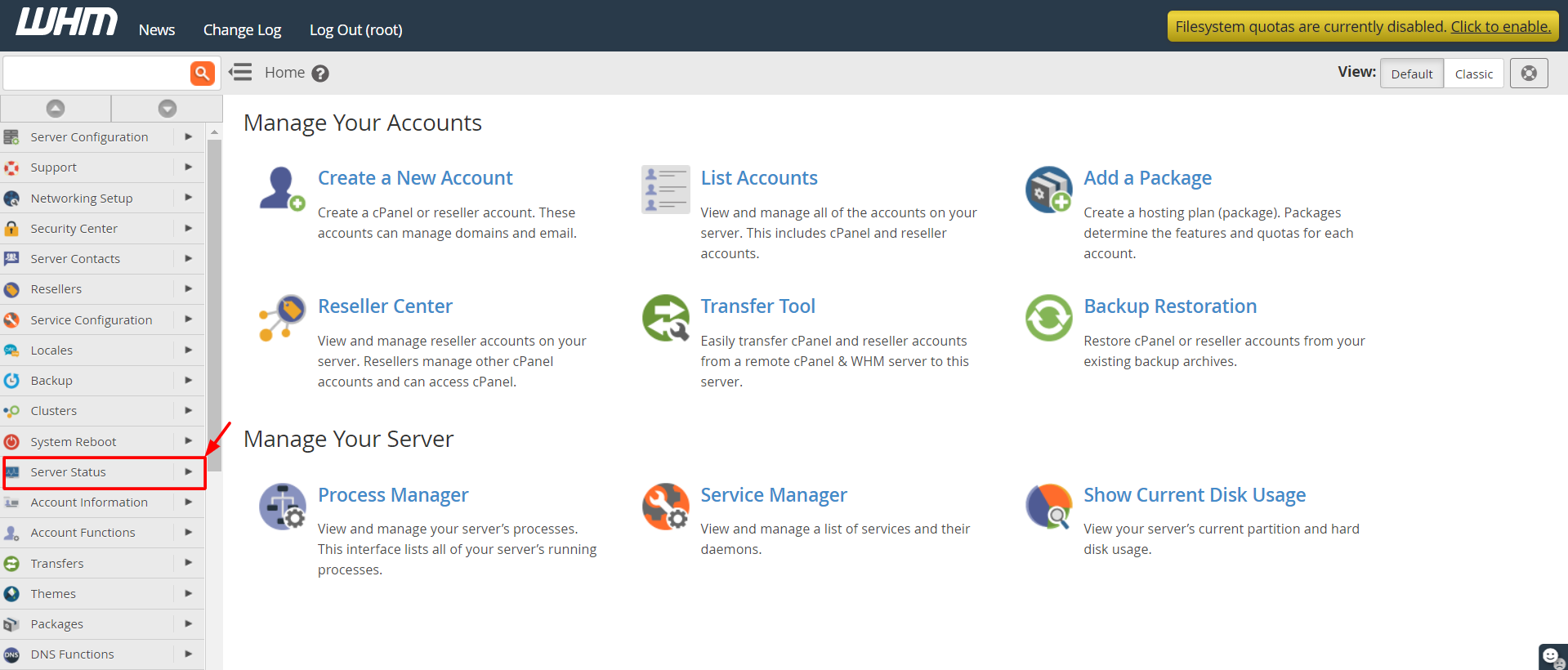
- Click Daily Process Log. It is in the Server Status section.

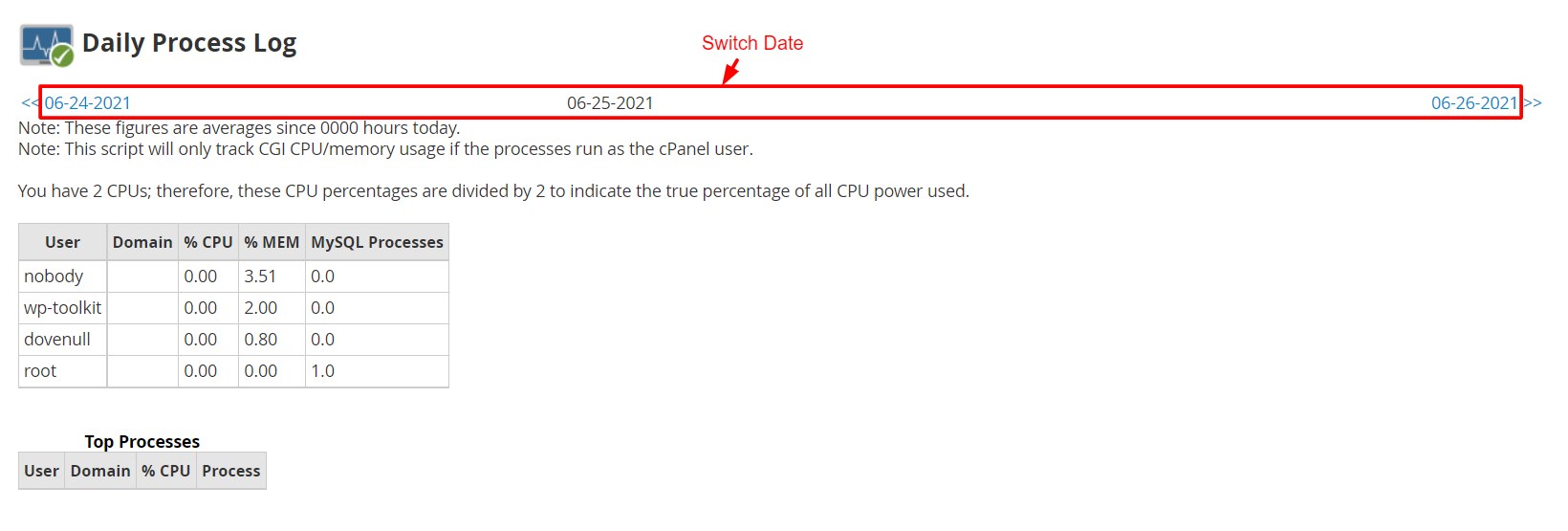
- Choose the day you want to look at. The page shows today by default.
- Read the table. Each row shows an account and the programs it ran.
- Sort or scan the columns for the heaviest users of CPU and memory.
How to read the report
- User is the account that owned the process.
- CPU shows how much processor power it used.
- Memory shows how much RAM it took.
- Command shows which program it was, such as a PHP script.
The exact columns can differ a little between WHM versions.
Turn the log on if it is empty
The log needs a setting. If the page says nothing is recorded, follow these steps.
- Search for Background Process Killer or Tweak Settings in WHM.
- In Tweak Settings, search for a setting about the process log or daily process logging.
- Turn it on and click Save.
The log fills up from the next day on.
What to do with the results
- If one account always tops the list, check its website for slow scripts or heavy plugins.
- Talk to the account owner or ask Hostvento support for advice.
- Do not stop random programs. Some are needed by the server.
Tip: Check the log after a slow period. Compare it with a normal day to see what changed.
Quick recap
- A process is a running program.
- Open Daily Process Log in WHM's Server Status section.
- Look for the accounts using the most CPU and memory.
- Turn the log on first if it is empty.