

Why does the version matter?
A version is a number that tells you how new the software is. cPanel is the control panel for one hosting account. WHM is the control panel for the whole server. Both come from the same product and share one version number.
Support teams often ask for it. It also tells you if your server is up to date and safe. Newer versions fix bugs and security problems.
Way 1: Look in WHM
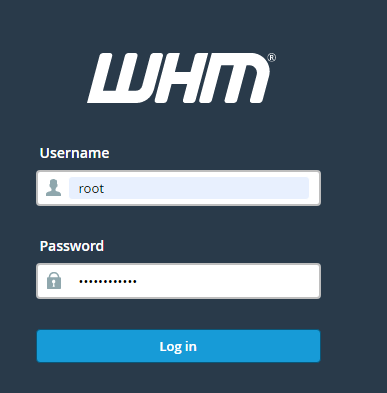
- Log in to WHM. The address is usually your server's IP address or host name followed by
:2087. - Look at the bottom of the left menu or the page footer. The version often shows there.
- You can also type Server Information in the search box at the top of the left menu and open it. It lists the cPanel version.
Way 2: Look in cPanel
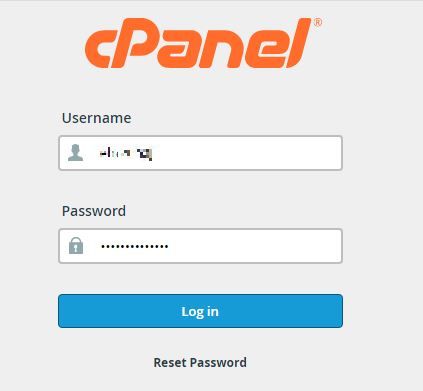
- Log in to cPanel for your account.
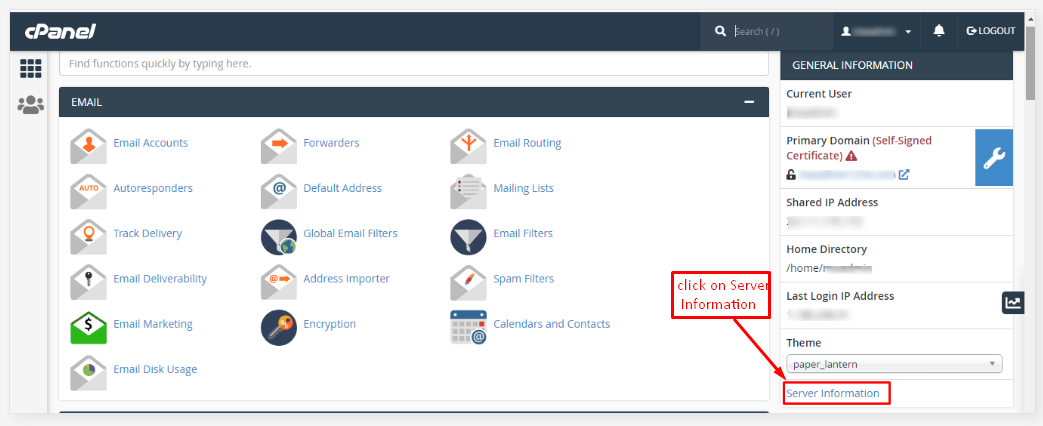
- Open the General Information panel on the home page.
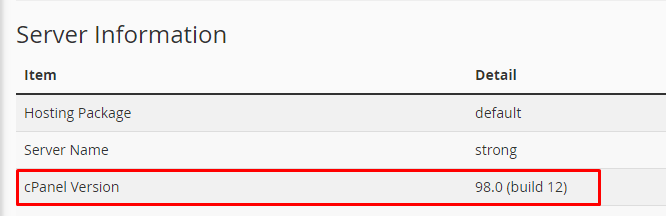
- Click Server Information if you need more detail. Look for the cPanel version.
Way 3: Use a command
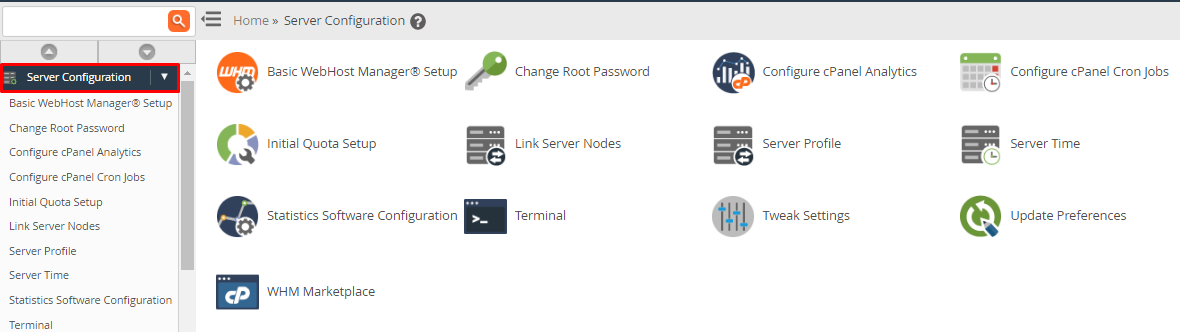
This needs root access. Log in with SSH. SSH lets you type commands on a remote computer. You can also use the Terminal in WHM.
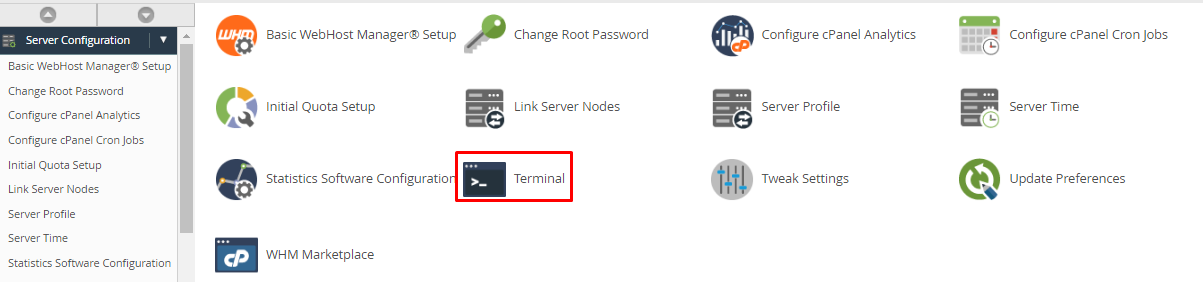
- Type this command and press Enter.
It prints the cPanel version number, such as a number with a few parts separated by dots./usr/local/cpanel/cpanel -V
- For a second way, print the version file.
cat /usr/local/cpanel/version
How to read the number
The number has parts. The first part is the main release. The later parts are smaller updates. A higher number means newer software.
What if it is old?
- In WHM, search for Upgrade to Latest Version to see if an update is available.
- Take a backup before you update.
- If you are on a managed plan, ask Hostvento support whether they handle updates for you.
Tip: When you open a ticket at https://secure.hostvento.com/submitticket.php, include the version number. It helps the team answer faster.
Quick recap
- cPanel and WHM share one version number.
- Find it in WHM, in cPanel, or with
/usr/local/cpanel/cpanel -V. - Keep it updated for security.
- Back up before any update.