

What is demo mode?
Demo mode is a look-but-do-not-touch setting. A visitor can log in and click around the cPanel screens. They cannot save changes, delete files or change passwords. It is like a museum, where you can see things but not move them.
People use it to show a client how cPanel looks, or to let a trainee practise safely. WHM is the Web Host Manager, the panel the server owner or reseller uses. You need to be signed in as the server owner (root) or as the reseller who owns the account.
Turn demo mode on
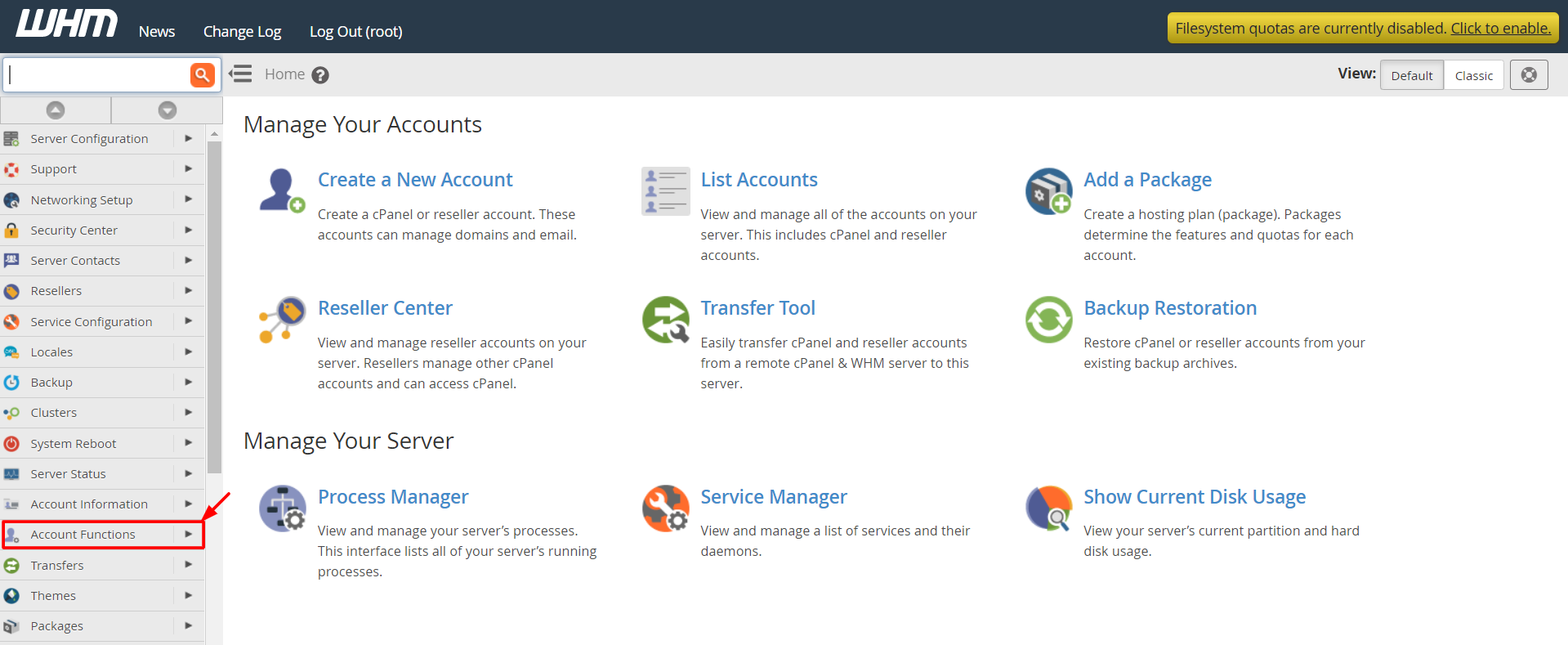
- Log in to WHM.
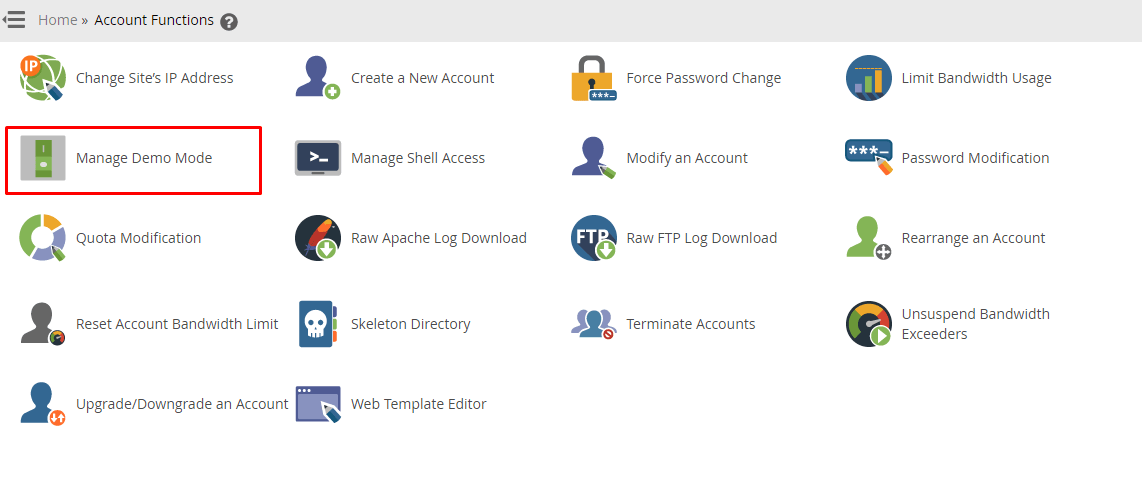
- In the search box on the left, type Web Host Manager Demo Mode. You can also look for Manage Demo Mode.
- Click the result. The menu name can differ a little between WHM versions.
- Choose the account you want from the list.
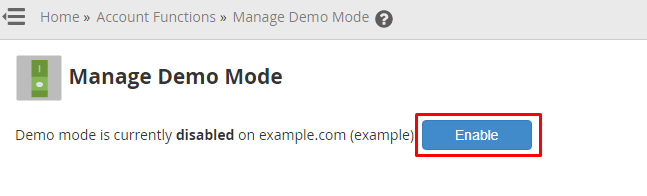
- Click Enable Demo Mode or Modify, depending on what the page shows.
- Confirm if WHM asks.
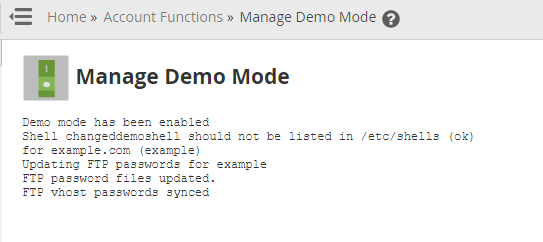
The account now works in demo mode. Share its cPanel login with the person who needs to look.
Turn demo mode off
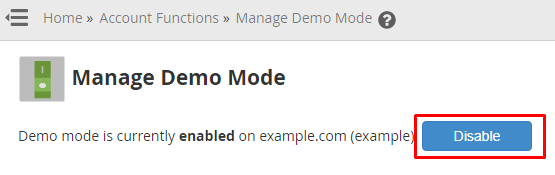
- Open the same Manage Demo Mode page in WHM.
- Find the account.
- Click Disable Demo Mode.
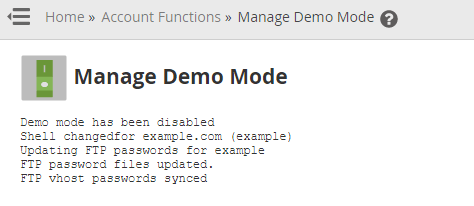
- Check by logging in to the account. You should be able to save changes again.
Warning: Do not turn on demo mode for an account that is in real use. The owner will not be able to change settings, and may think something is broken.
You can also open a support ticket if you need help.
Quick recap
- Demo mode lets people view an account without changing it.
- Turn it on or off from the Manage Demo Mode page in WHM.
- Use it for training or showing a client, never for a live account.
- Test by logging in to the account after you change the setting.