

What is a feature list?
cPanel has many tools, such as Email Accounts, File Manager and Backup. A feature list is a checklist of tools. Tick a tool and the user sees it. Leave it unticked and the tool is hidden.
Think of a TV remote with some buttons covered by tape. The covered buttons do not work. With feature lists, you cover the buttons you do not want some customers to use.
WHM is the Web Host Manager, where a server owner or reseller sets up accounts. Feature lists are made there. You need root or reseller access.
Why use them?
- You can offer a simple plan with few tools and a bigger plan with more.
- You can hide tools that use a lot of server power.
- You keep beginners away from tools that could cause trouble.
The default list
WHM has a list called default. It has all features on. It also has a list called Disabled, which turns tools off. You cannot delete these two lists.
Create a feature list
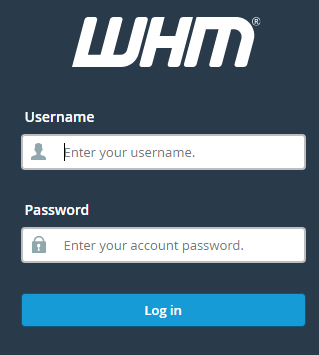
- Log in to WHM.
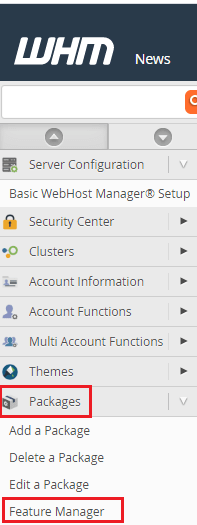
- Search for Feature Manager and open it.
- Under Add a New Feature List, type a name, such as
basic.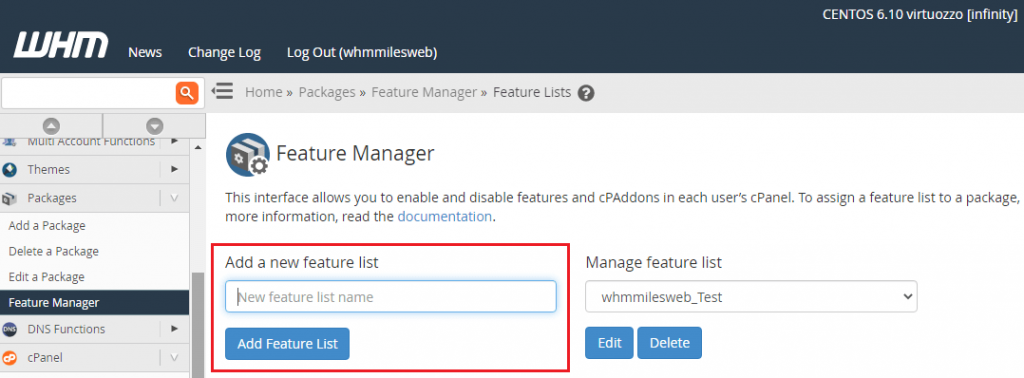
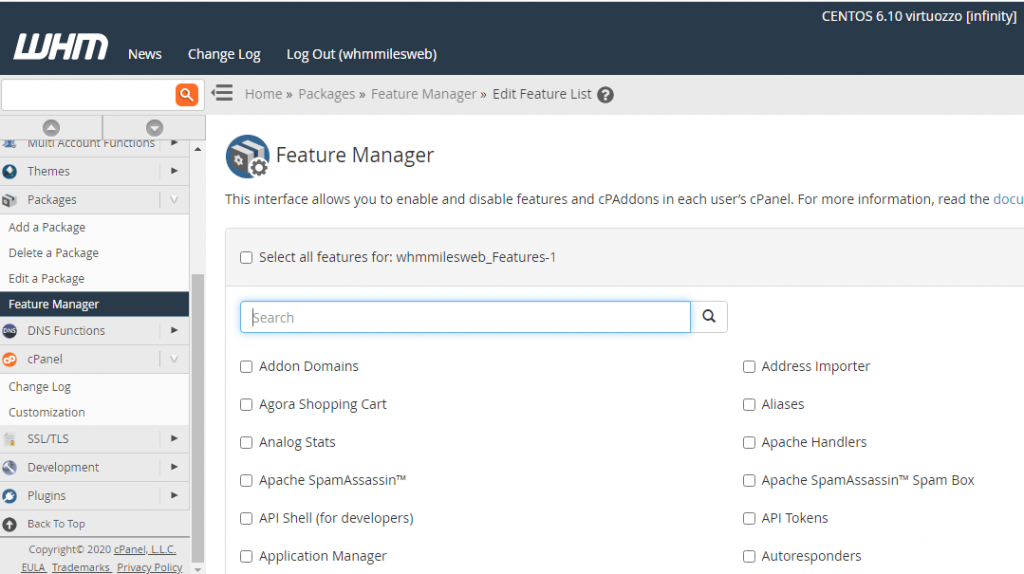
- Click Add Feature List.
- Tick the tools you want. Untick the rest.
- Click Save.
Connect it to a plan
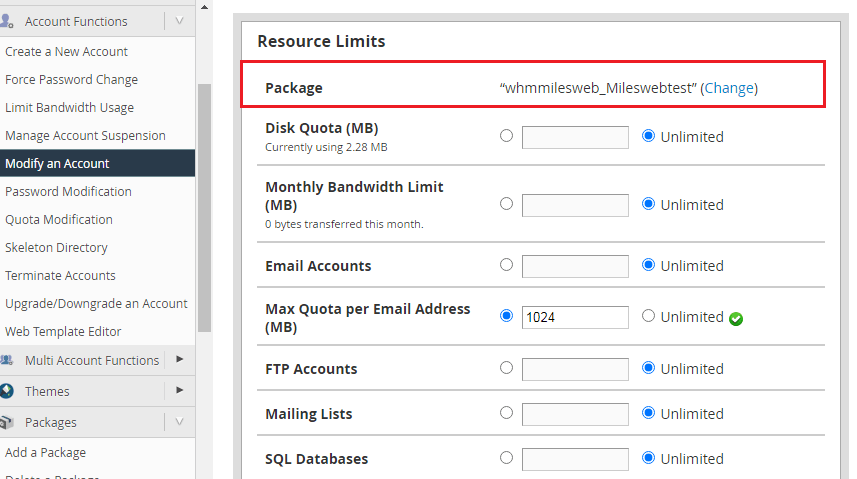
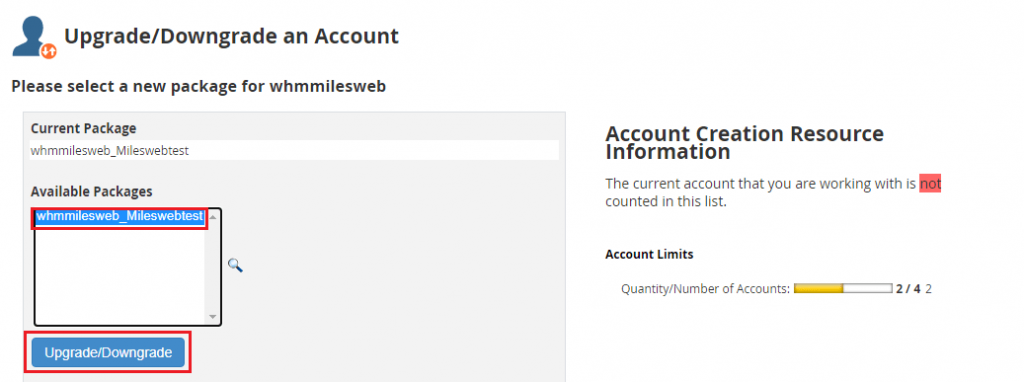
A feature list does nothing until a package uses it. A package is a set of limits for an account, such as disk space.
- Search for Add a Package or Edit a Package.
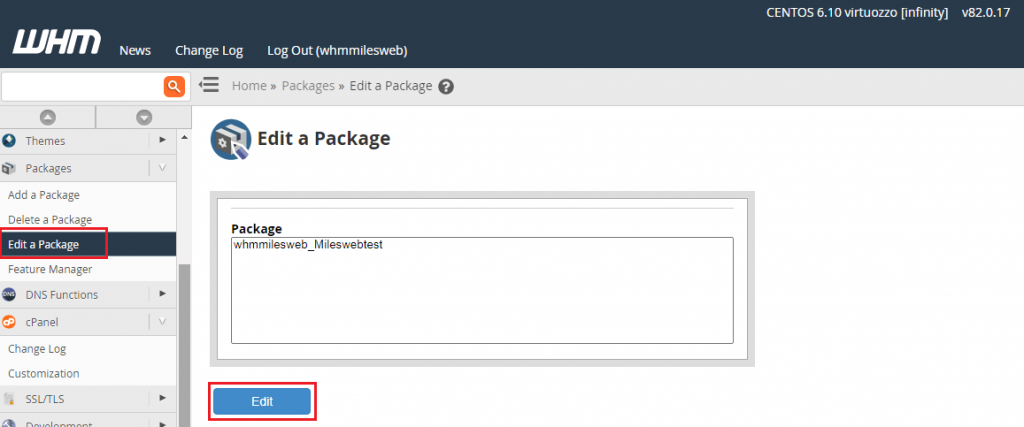
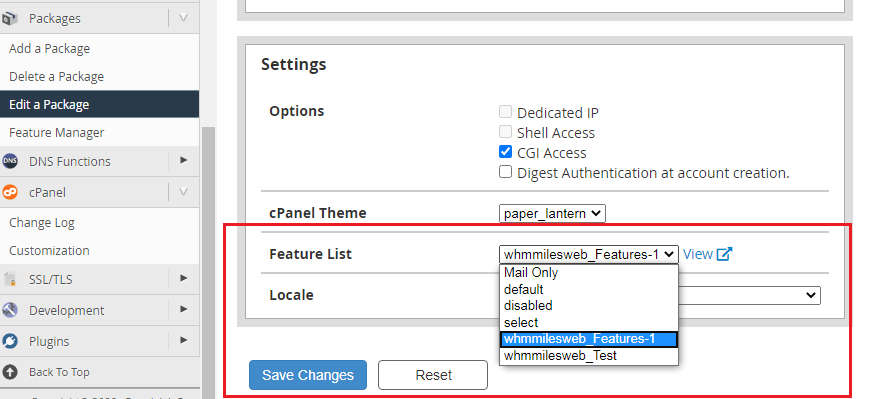
- Find the Feature List drop-down.
- Choose your list.
- Click Add or Save Changes.
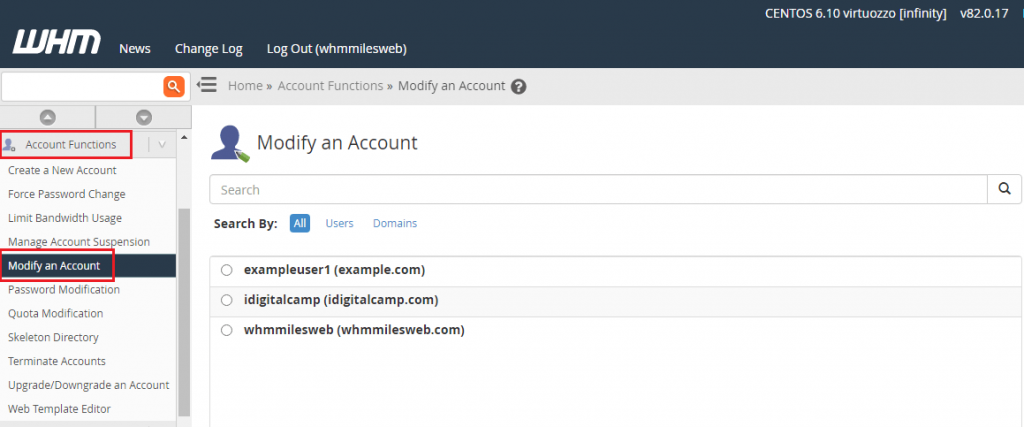
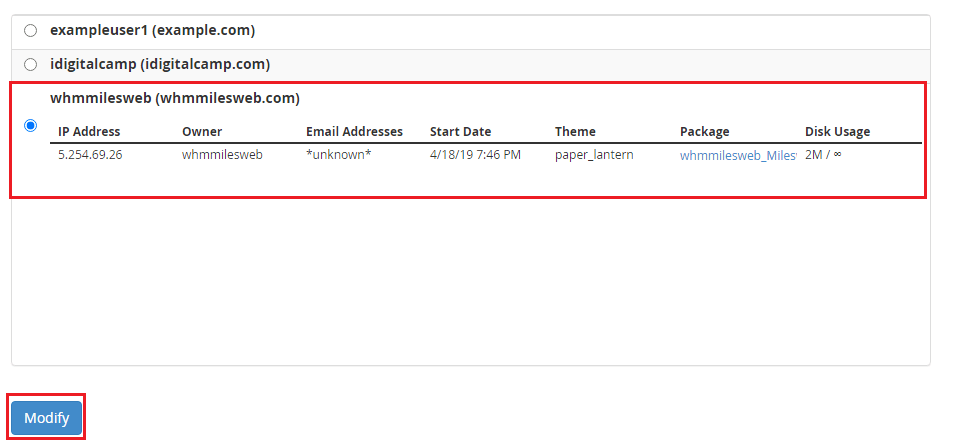
Accounts that use the package will follow the list.
Other jobs
- To change a list, open Feature Manager and click Edit next to it.
- To remove a list, click Delete. Make sure no package still uses it.
basic or pro, so you remember what each one is for.Quick recap
- A feature list is a checklist of tools a user may see.
- Create and edit lists in Feature Manager.
- Attach the list to a package to make it work.
- The default and Disabled lists stay in place.