

Why force a password change?
Sometimes a password is old, weak, or may have leaked. You can make the user choose a new one. This helps keep the account safe. It is like asking a guest to swap a key that might have been copied.
You do this in WHM, the Web Host Manager. It is the panel a server owner or reseller uses. You need root or reseller access.
Steps
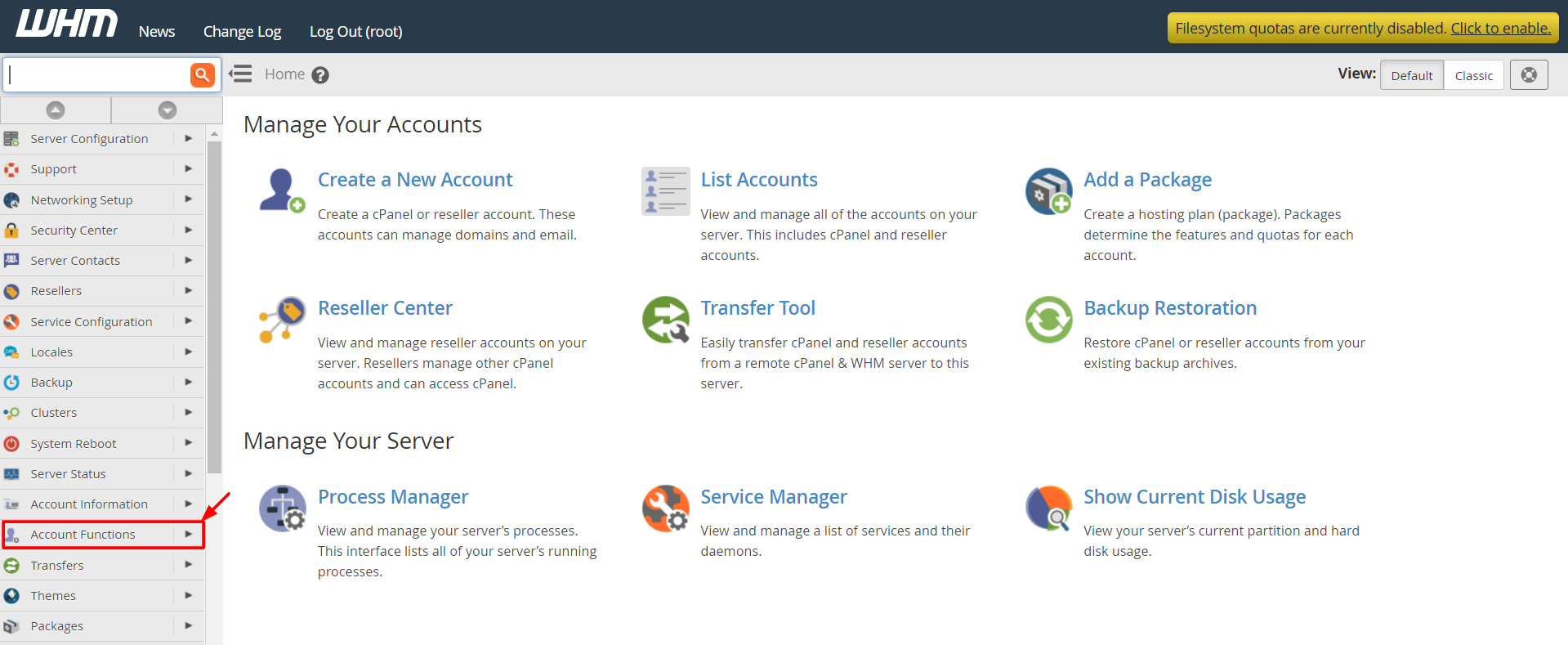
- Log in to WHM.
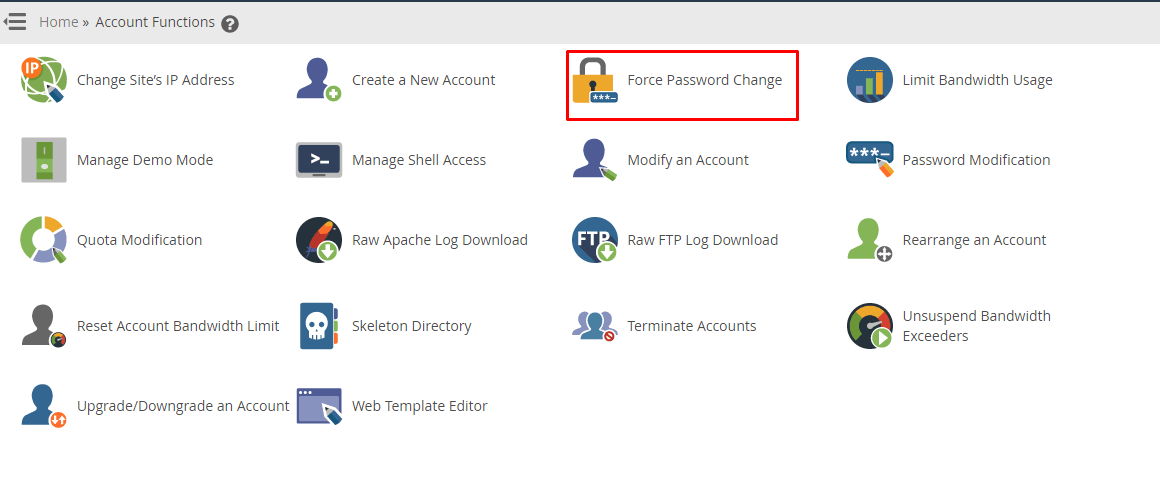
- In the search box at the top left, type Force Password Change. It may show as Password Modification or Security Center tools on some versions.
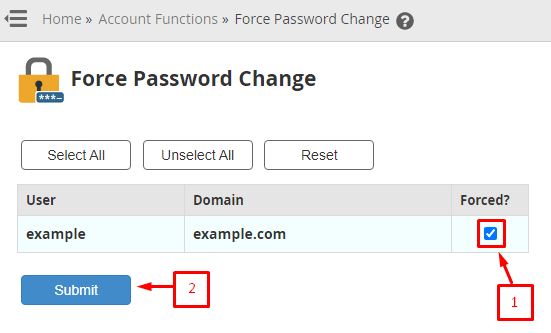
- If the page looks like a list of accounts, tick the box next to each user who must change their password.
- Click Force Password Change or Save.
- Read the message that confirms the change.
The next time the user logs in to cPanel, they see a page telling them to set a new password. They cannot use cPanel until they do.
Another way: change it yourself
- In WHM, open List Accounts.
- Find the account.
- Click the + sign next to it to open more options.
- Click Change Password (the key icon), or use Password Modification.
- Type a strong new password.
- Click Change Password.
- Send the new password to the user in a safe way. Do not email it in plain text if you can avoid it.
Warning: If you change a password, programs that use the old password stop working. Examples are email apps and website tools. Tell the user first.
Make a strong password
- Use at least 12 characters.
- Mix letters, numbers and symbols.
- Do not use names, birthdays or simple words.
- Use a different password for every account.
Tip: Menu names can change between WHM versions. If you cannot find the page, type the word "password" in the search box and read the results.
Need help? Open a support ticket.
Quick recap
- Forcing a change makes a user choose a new password at next login.
- Search WHM for the password tools.
- You can also change the password yourself from List Accounts.
- Warn users, because old saved passwords stop working.