

What are update preferences?
cPanel gets regular updates. They add new features and fix security holes. Update preferences tell your server which updates to take and how often. Think of the setting on a phone that says "update apps automatically" or "ask me first".
Open the page
- Log in to WHM as
root. - In the search box, type Update Preferences.
- Click Update Preferences. It sits under Server Configuration.
Choose a release tier
A tier is a track of cPanel versions. Each track has a different level of testing.
- LONG TERM SUPPORT gets few changes and mainly fixes. It is quiet and steady.
- STABLE is tested and good for most live servers.
- RELEASE gets features a bit earlier.
- CURRENT gets the newest changes first and has the most risk.
- EDGE is for testing only. Do not use it on a live server.
Pick one in the cPanel & WHM Update Configuration section. Tier names can change, so read the page for the current list. Most people choose a stable or long-term option.
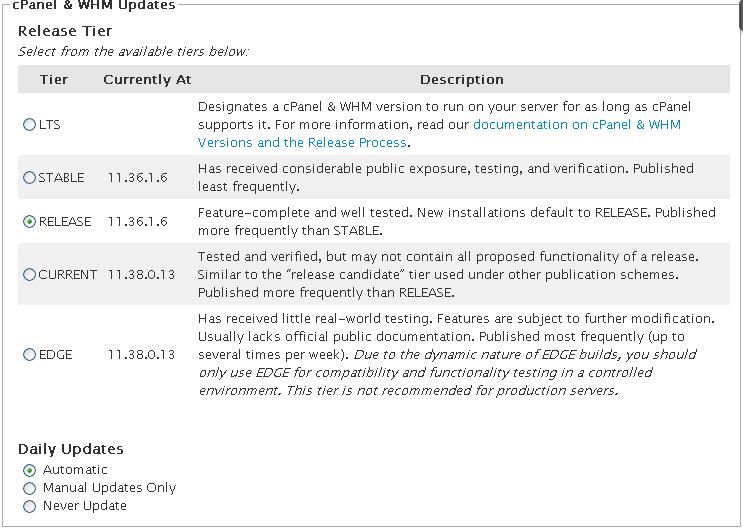
Choose the update style
- Find Daily Updates.
- Choose Automatic to let the server install updates on its own. This is the safest choice for security.
- Or choose Manual Updates Only if you want to start updates yourself.
- Or choose Never Update only if you have a very good reason. Your server will miss security fixes.
Other settings
- Under Operating System Package Updates, choose whether the server also updates its Linux packages each day.
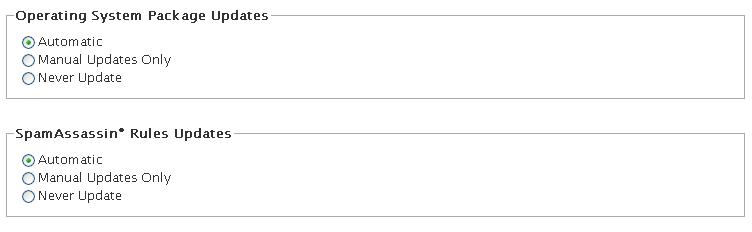
- Under cPanel Security Updates, you can ask for emails when updates run.
- Type an email address in the notification box if you want a message when an update fails.
Save
- Scroll to the bottom.
- Click Save.
Warning: Switching the release tier to an older version is not allowed. Choose carefully, and take a full backup before a big update.
Tip: Choose a quiet time of day so updates do not slow down your sites.
Questions? Open a support ticket.
Quick recap
- Update preferences control how cPanel updates itself.
- Open Update Preferences in WHM.
- Stable or long-term tiers suit most live servers.
- Automatic updates keep your server safe.