

Why does server time matter?
A server has its own clock. Many things use it, such as log files, scheduled tasks and the date on emails. A wrong clock makes logs hard to read. It can also make a scheduled job run at the wrong hour.
A scheduled job is a task the server runs by itself at a set time, like an alarm. In cPanel these are called cron jobs.
Before you start
- You need root access to WHM. This is for VPS and dedicated server owners.
- Shared hosting users cannot change the server clock. Ask Hostvento support if you need help.
Steps
- Log in to WHM as root.
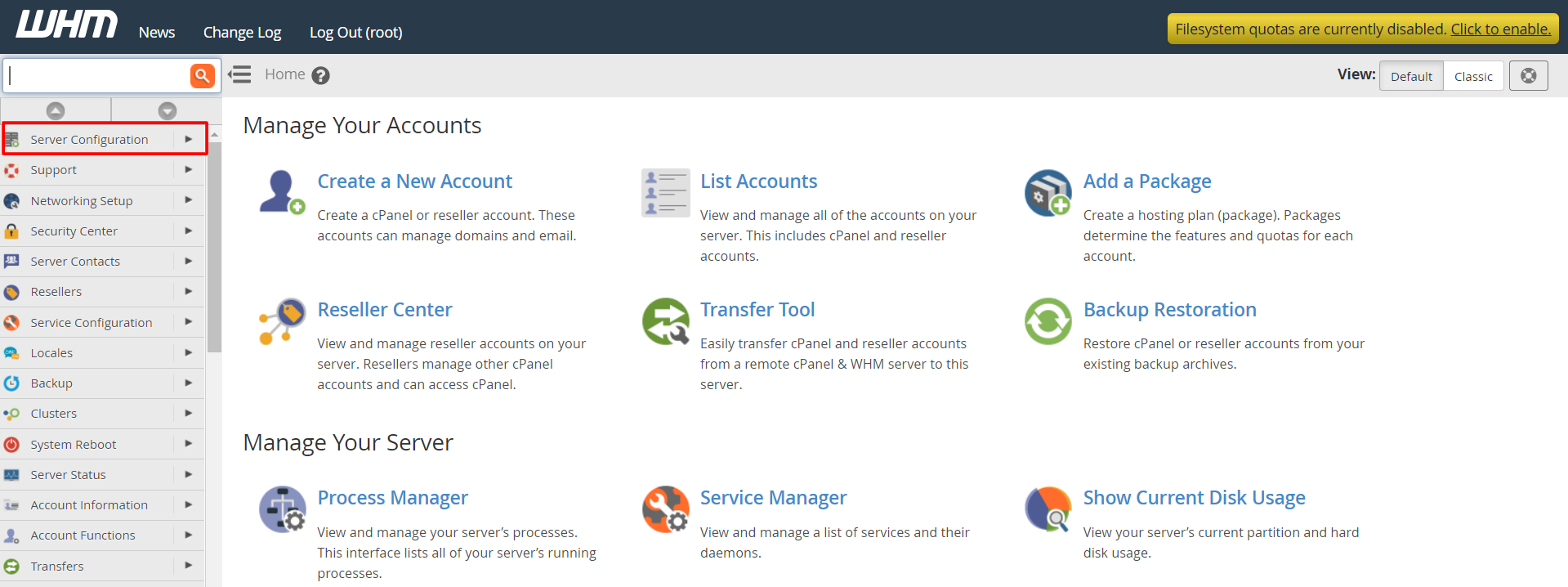
- Type Server Time in the search box.
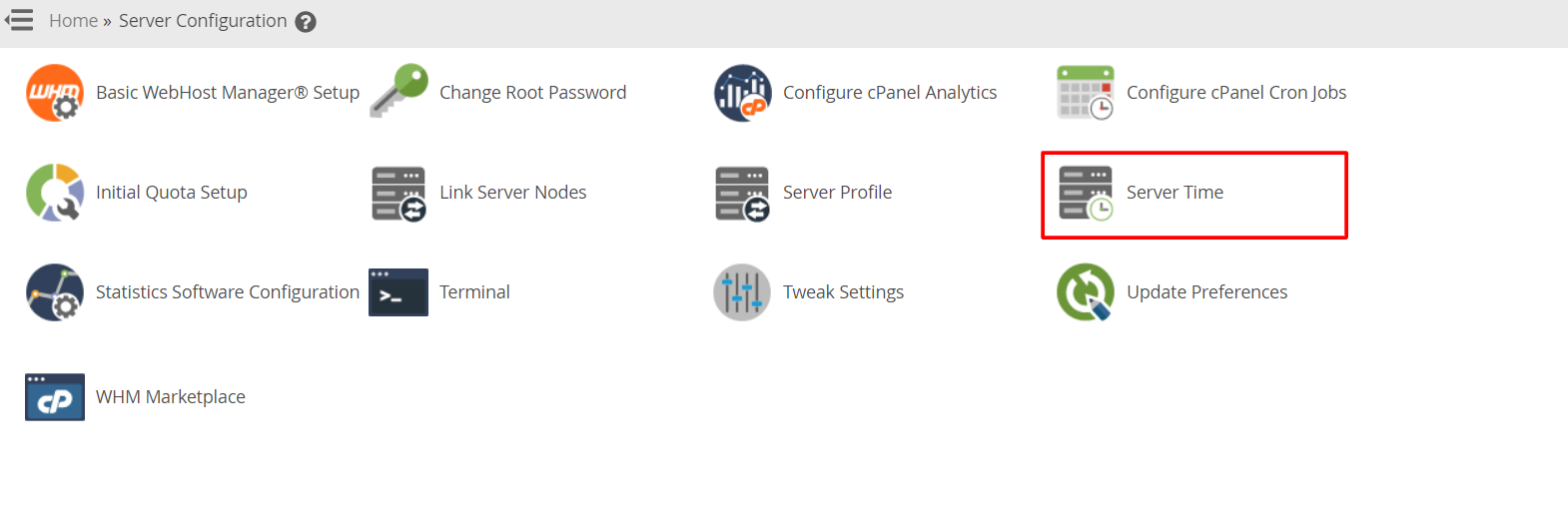
- Click Configure Server Time (the page may just say Server Time).
- Look at the current time and the time zone shown.
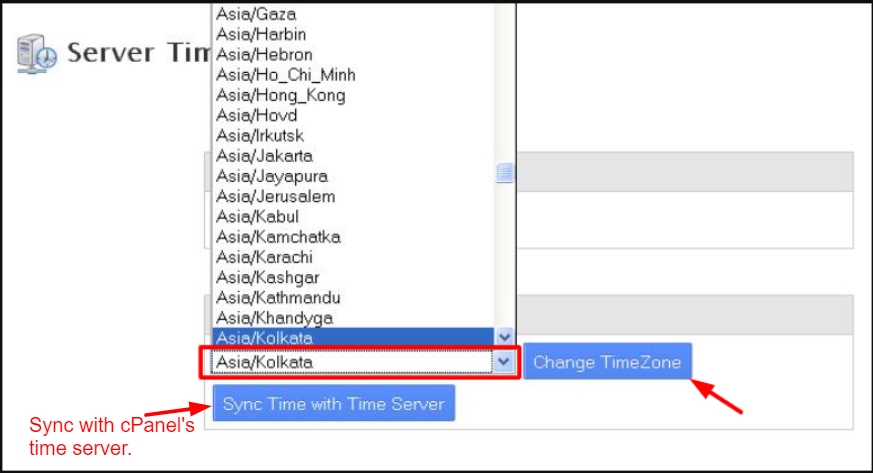
- Choose your time zone from the drop-down list.
- Click Change TimeZone.
- Pick a time server from the list. A time server is a computer on the internet that always knows the right time.
- Click Change Date and Time to make your server match it.
Tip: If you manage the server from the command line, the
date command shows the current time. Type it and press Enter.dateThis prints the date, time and time zone of the server.
Keep the clock right
Servers drift over time. WHM can sync the clock by itself with a service called NTP. NTP is a way for computers to ask a time server for the exact time. It is usually switched on already. If your clock keeps going wrong, ask Hostvento support to check it.
After you change it
- Scheduled tasks may now run at a different clock hour. Check them.
- Old log lines keep their old time stamps.
- Some programs need a restart to see the new time zone.
Quick recap
- The server clock affects logs, emails and scheduled tasks.
- Open Server Time in WHM (root access needed).
- Choose your time zone and sync with a time server.
- Check your scheduled tasks afterward.