

Warning: Terminating an account deletes its files, emails, databases and settings. You cannot undo it easily. Take a full backup first. If you only want to stop the site for a while, suspend it instead.
What is terminating?
Terminating means removing an account from the server completely. Think of it as knocking down a house, not just locking the door. The website, the mailboxes and the databases are all removed. A database is where a site keeps things like posts, users and orders.
Before you start
- Make a backup of the account. Open Backup in WHM, or use Backup Wizard in the account's own cPanel.
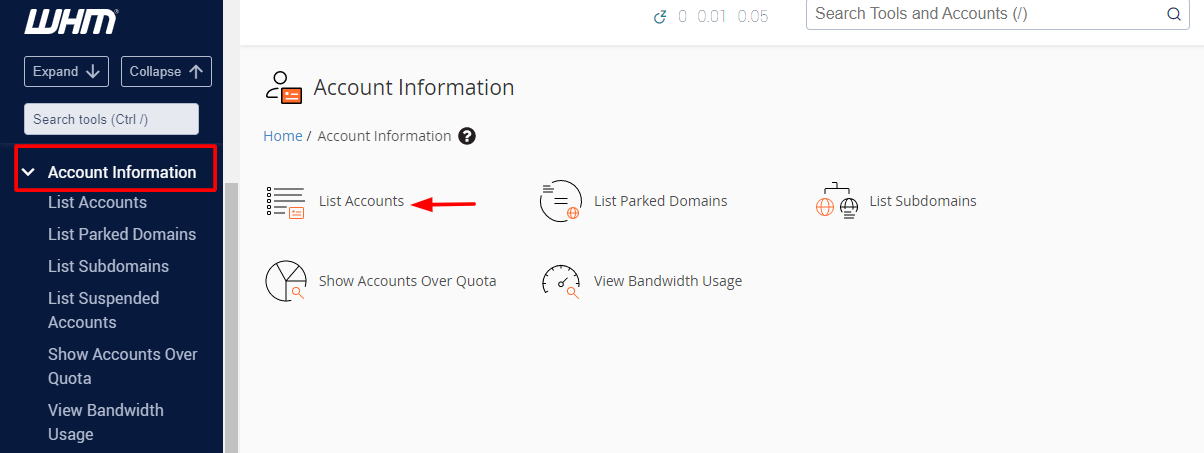
- Download the backup file to your own computer.
- Ask the owner to confirm in writing that the account can go.
- Check that the domain is not needed on this account any more.
Steps
- Log in to WHM.
- Type Terminate Accounts in the search box.
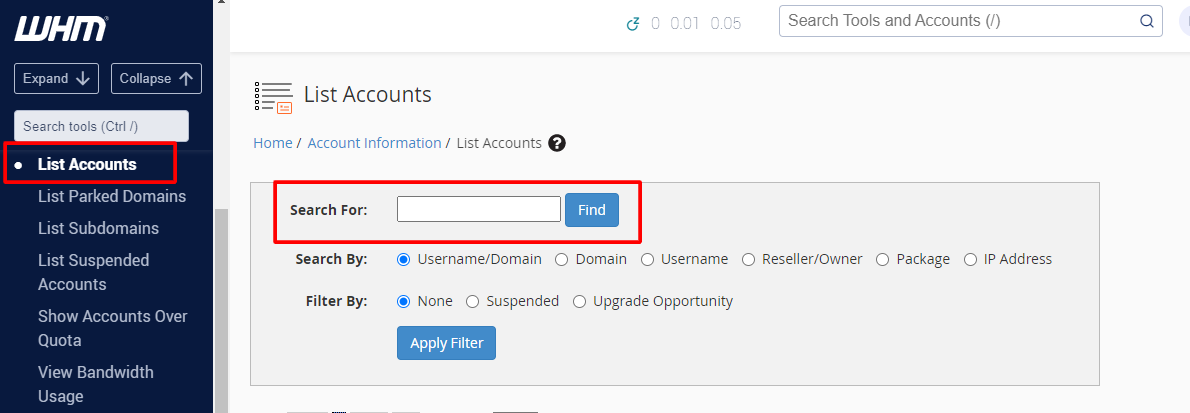
- Open Terminate Accounts.
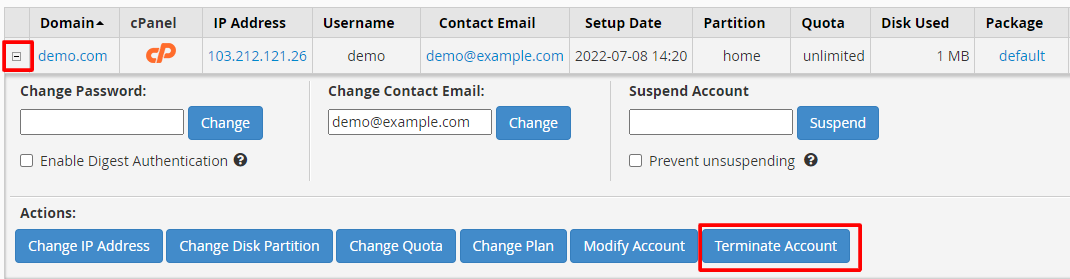
- Select the account from the list. Check the username twice.
- Tick the box to keep the DNS zone only if you need it. The DNS zone is the set of records that points the domain to servers.
- Click Terminate.
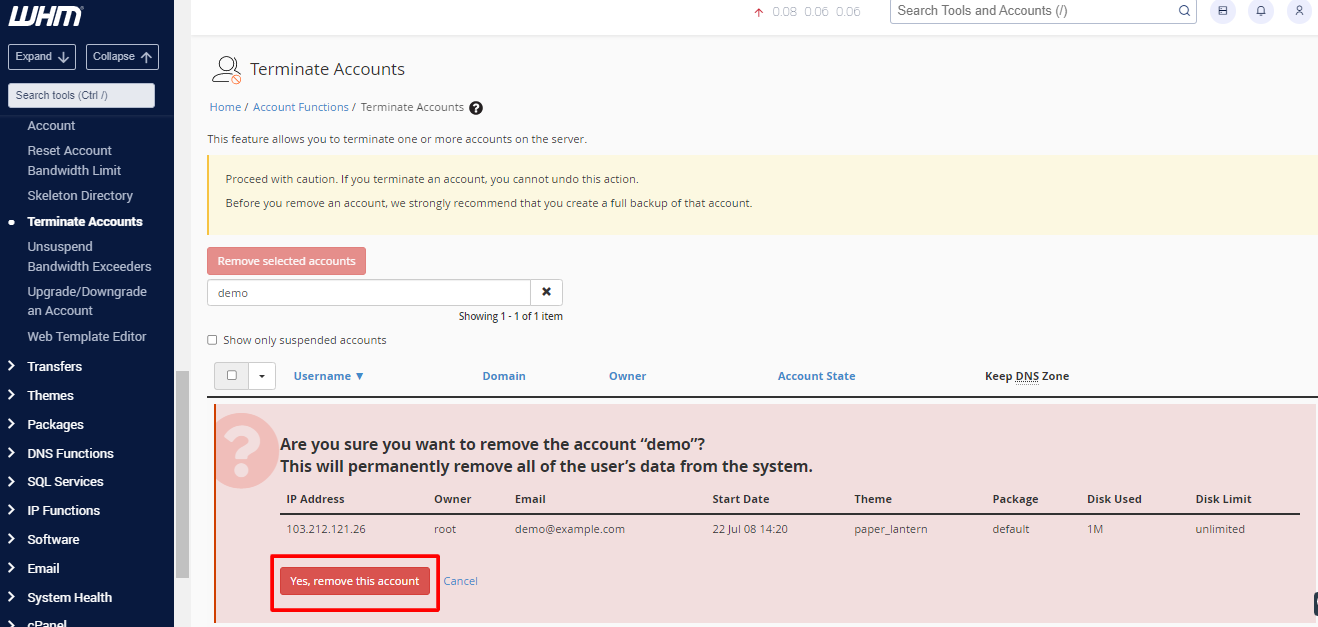
- Read the screen that appears. It lists what will be removed.
- Click Confirm to go ahead.
When it finishes, WHM shows a report of what was removed.
After termination
- The domain no longer points to a working site on this server.
- If the domain should go elsewhere, update its nameservers at the registrar. The registrar is where the domain was bought.
- If you use billing software like WHMCS, cancel the service there too.
If you deleted the wrong account
Restore it from your backup as soon as you can. Ask Hostvento support if you are not sure how. They may be able to tell you what options your plan has.
Quick recap
- Terminating deletes everything in the account.
- Back up and download the data first.
- Use Terminate Accounts in WHM and check the username.
- Suspend instead if you might need the account again.