

What is branding?
Branding means making something look like it belongs to your business. You add your logo, your colors and your name. When customers open cPanel, they see your brand and not a plain screen.
This is useful for resellers, who sell hosting under their own name.
Before you start
- Have your logo ready as an image file. A simple, small PNG works well.
- Know the colors you want, if any.
- Menu names change between cPanel versions. If you cannot find a tool, use the search box in WHM.
Steps
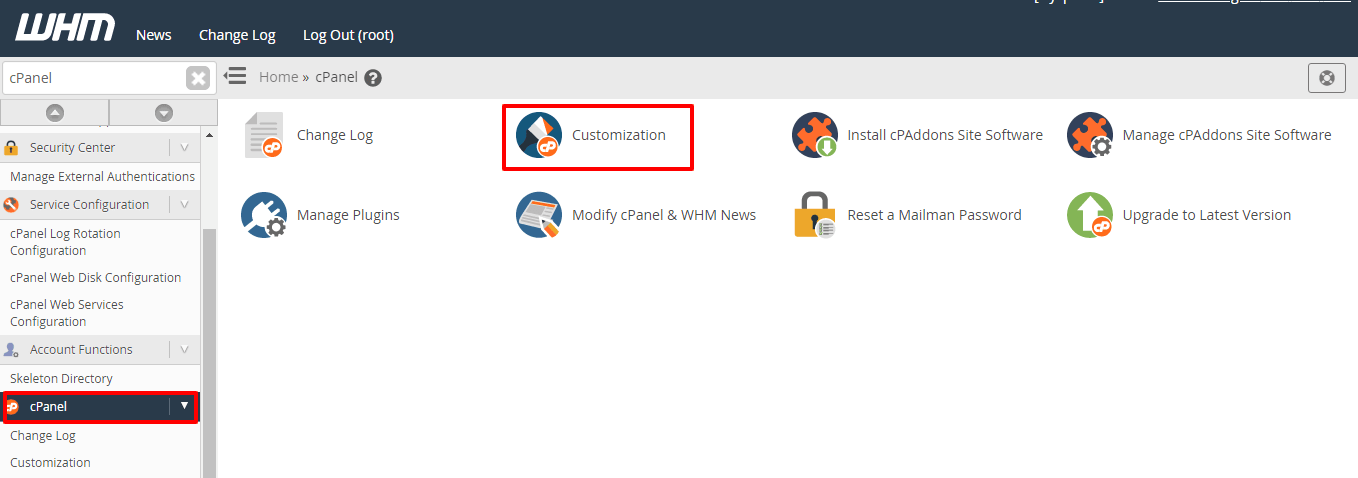
- Log in to WHM.
- Type Branding in the search box. Look for tools named Branding Editor, Customization or Edit Reseller Branding. Resellers usually find them under Reseller Center.
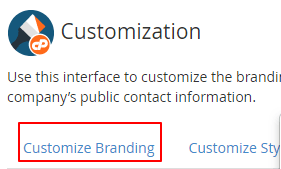
- Open the tool.
- Pick the theme you want to change. The theme is the look of cPanel.
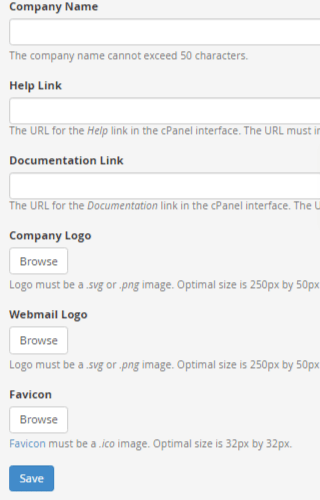
- Click Upload or Browse next to the logo field and choose your logo.

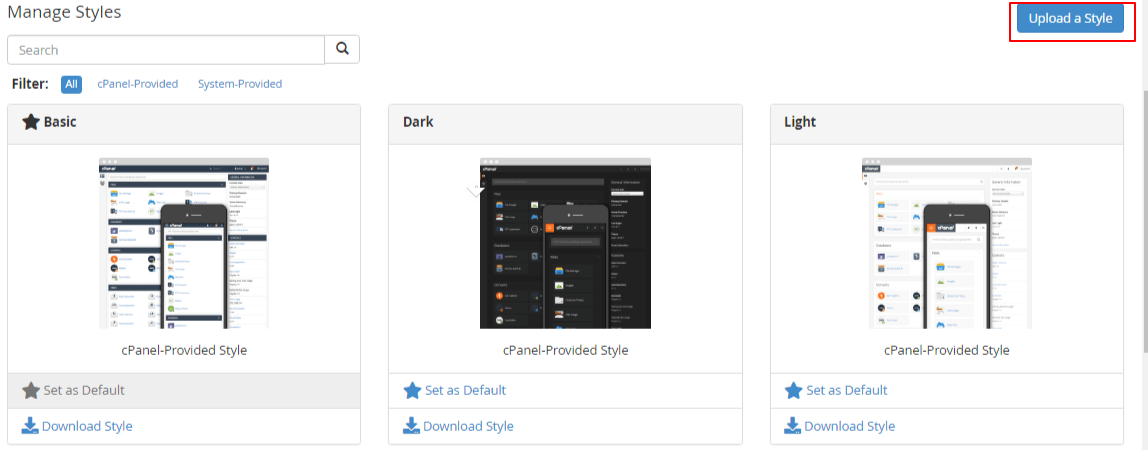
- Set the colors, if the page allows it.
- Change the text, such as the company name, if the page has a field for it.
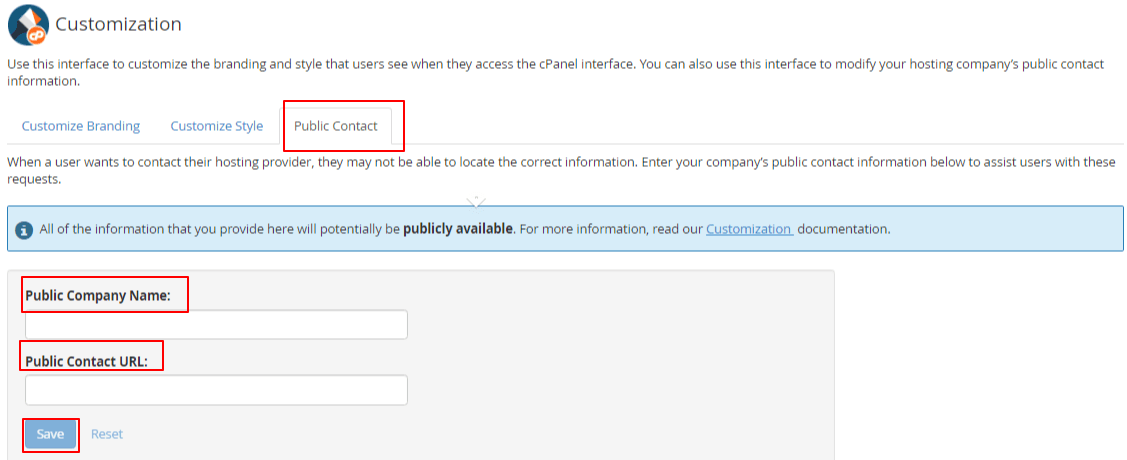
- Click Save.
Check the result
- Open a customer's cPanel in a new window. A private window is best.
- Look for your logo and colors.
- If you see the old look, clear your browser cache and reload. The cache is the memory where the browser keeps old copies of pages.
Tip: Test with a dummy account first. A bad logo size can make the page look odd.
Other things you can customize
- The login page look.
- Help and support links shown to customers.
- The default theme for new accounts, set in Modify an Account or in a package.
Undo a change
Most branding tools have a Delete or Reset button. It brings back the plain look. If you cannot find it, ask Hostvento support.
Quick recap
- Branding puts your logo and colors in cPanel.
- Search WHM for Branding to find the tool in your version.
- Upload a logo, set colors and save.
- Check in a fresh browser window.