

What are services?
A service is a small program that does one job on your server. One service sends email. Another shows web pages. Another stores databases. If a service stops, that job stops too. WHM is the control panel for managing a server. It can show you the health of each service.
This guide is for server owners with WHM access, such as VPS, dedicated and reseller customers.
Steps to see service status
- Log in to WHM.
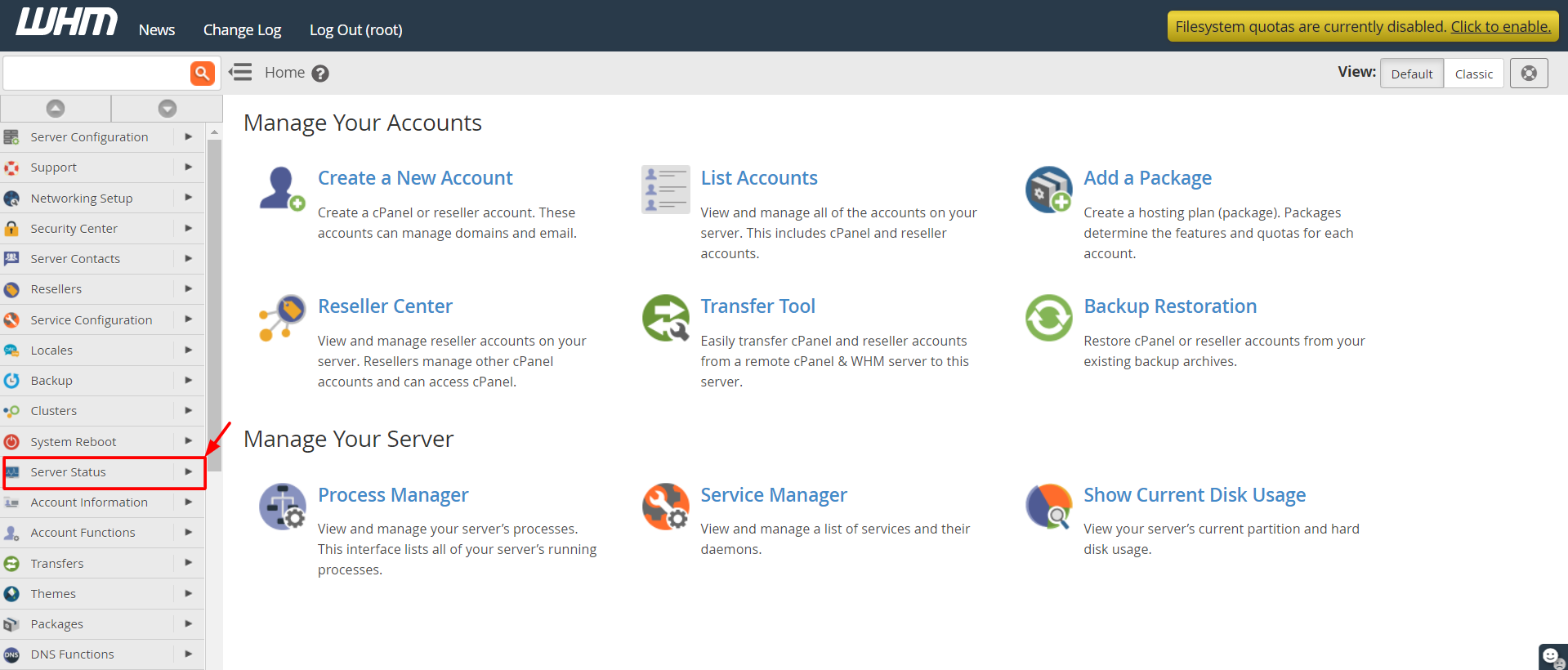
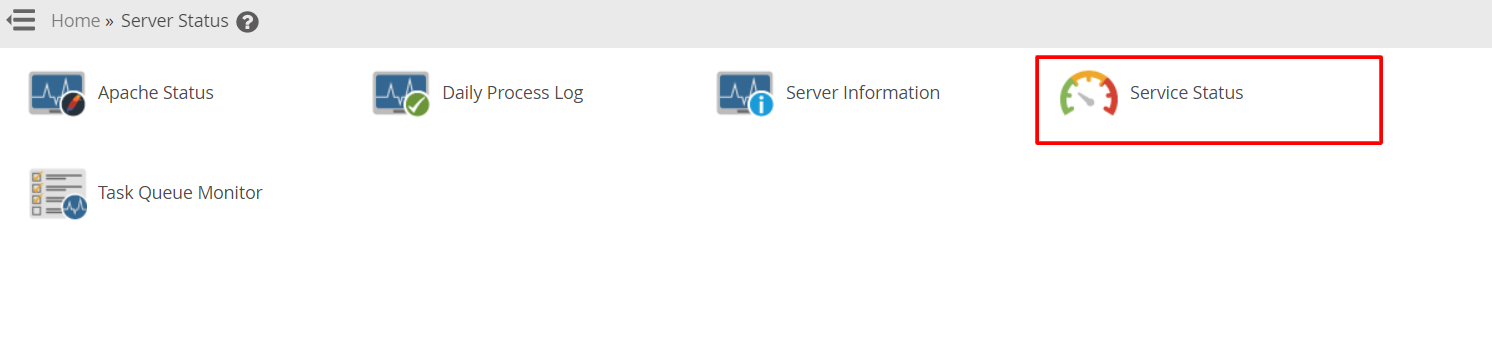
- Type Service Status into the search box at the top left.
- Click Service Status.
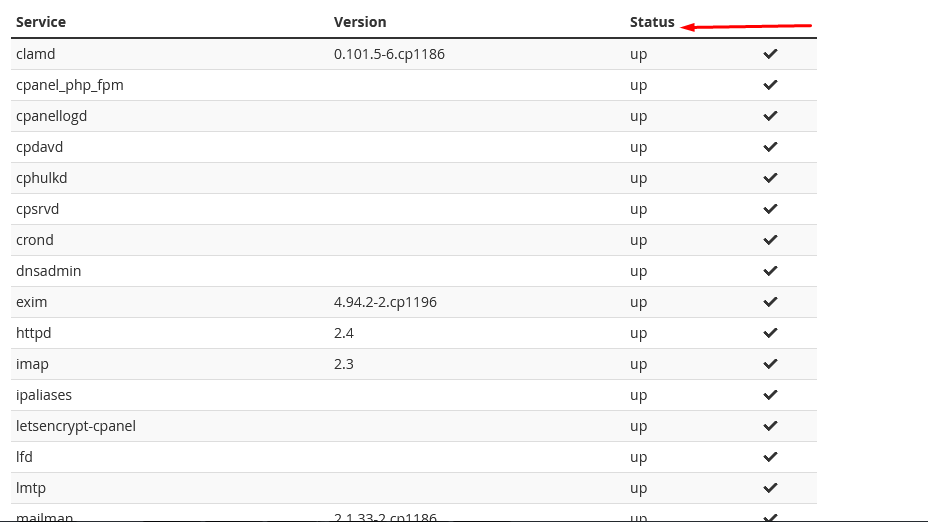
- Read the list. A green mark means the service is running. A red mark means it is down.
- Look for names like Apache (shows websites), MySQL (databases), Exim (sends email), Dovecot (lets people read email) and named (DNS).
- Scroll down to see server details, such as disk usage and memory use.
Steps to choose which services are watched
cPanel has a helper called chkservd. It checks services every few minutes and restarts them if they fail.
- In WHM, search for Service Manager.
- Click Service Manager.
- Find the service you care about.
- Tick Enabled if it should run on the server.
- Tick Monitor so cPanel watches it and restarts it when needed.
- Click Save.
Steps to get alerts
- Search for Contact Manager in WHM.
- Add your email address so the server can tell you about problems.
- Save the settings.
Tip: Only turn on monitoring for services you really use. Monitoring a service you turned off will cause false alarms.
If a service keeps going down, you may be running out of memory or disk space. Ask Hostvento support for help by opening a ticket at https://secure.hostvento.com/submitticket.php.
Quick recap
- A service is a small program that does one server job.
- Use Service Status to see what is running.
- Use Service Manager to enable and monitor services.
- Set up Contact Manager so you receive alerts.
- Contact support if a service keeps failing.