

What is Apache?
Apache is the program that shows websites to visitors. When someone opens your site, Apache sends the pages. WHM is the control panel used to manage a server. It lets you change Apache's settings without editing files by hand.
This guide needs WHM access, which VPS and dedicated server owners have.
Warning: Wrong settings can slow down or break every site on the server. Take a backup of your server first and change one setting at a time.
Steps
- Log in to WHM.
- Search for Apache Configuration.
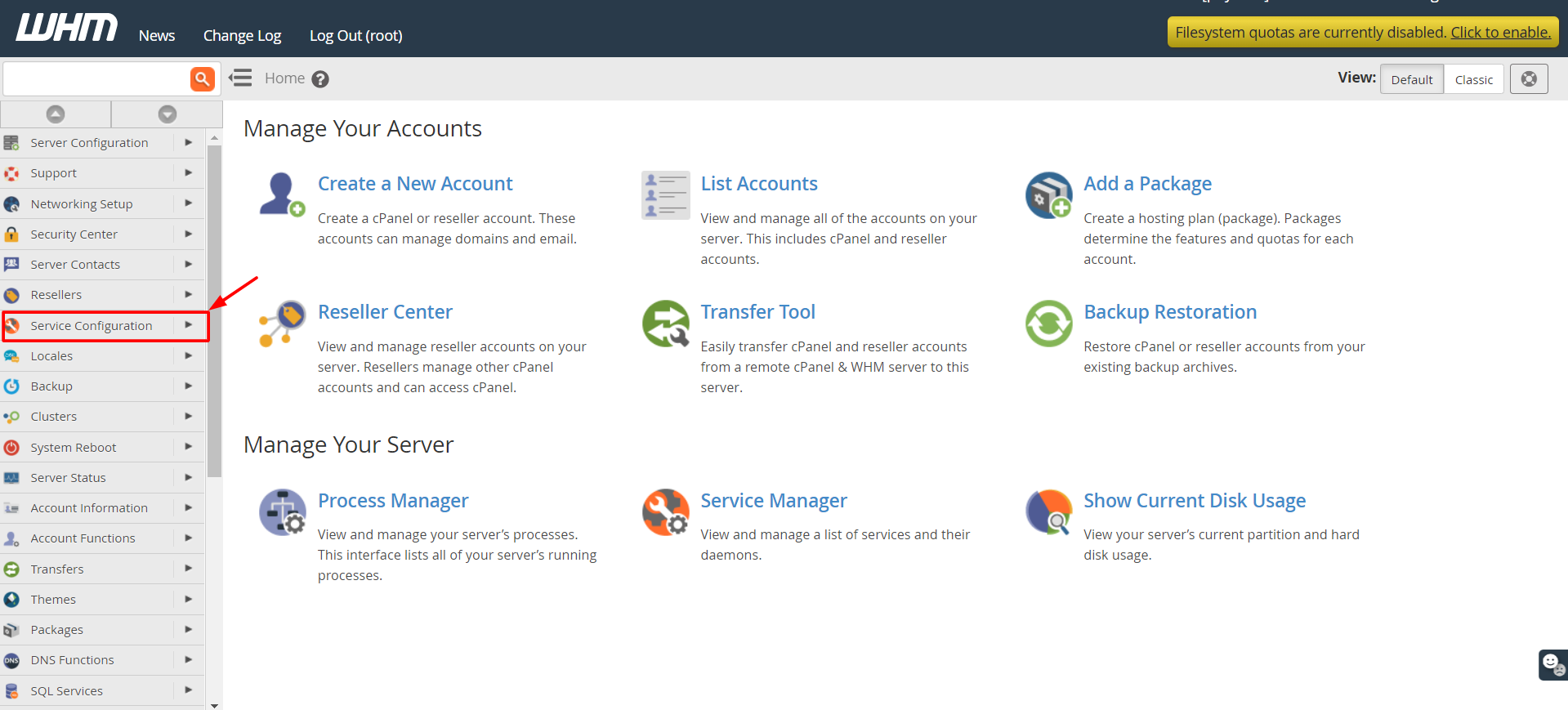

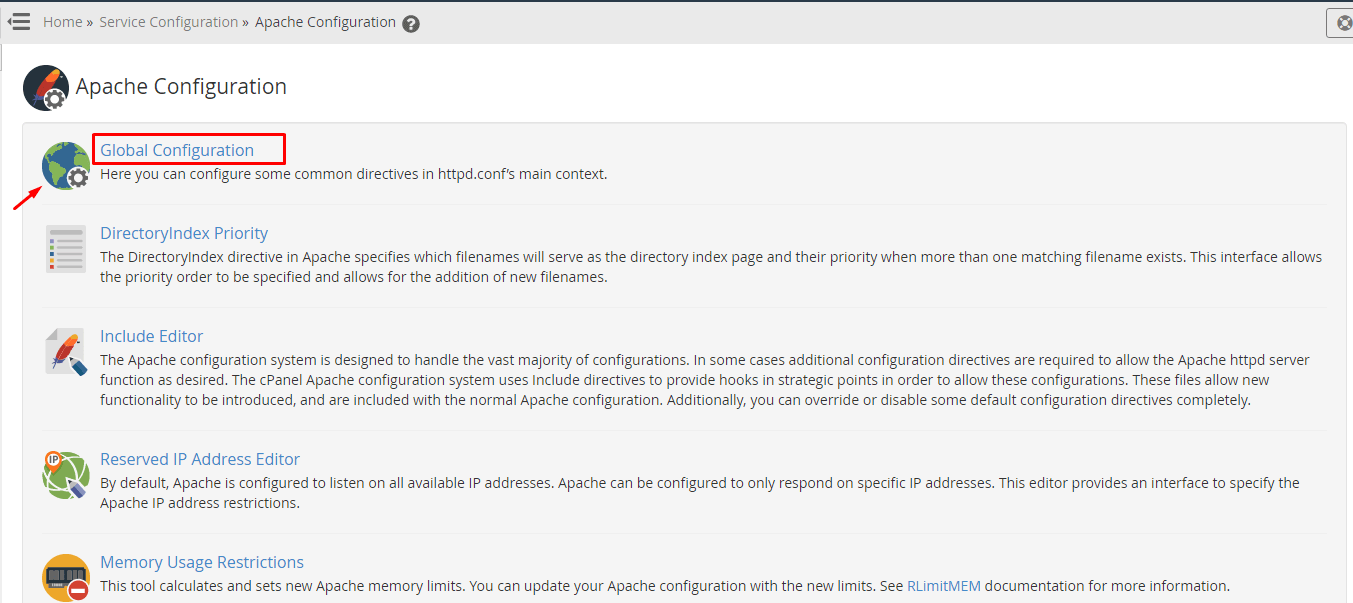
- Click Global Configuration.
- Find Start Servers. This is how many workers Apache starts with. A worker is a helper that answers visitors.
- Find Maximum Clients (also named Max Request Workers). This is the top number of visitors served at once. Too high a number can use all your memory.
- Find Keep-Alive and set it to On. It lets a visitor reuse one connection for many files, so pages load faster.
- Find Keep-Alive Timeout and set a low number, such as 5 seconds. This frees workers quickly.
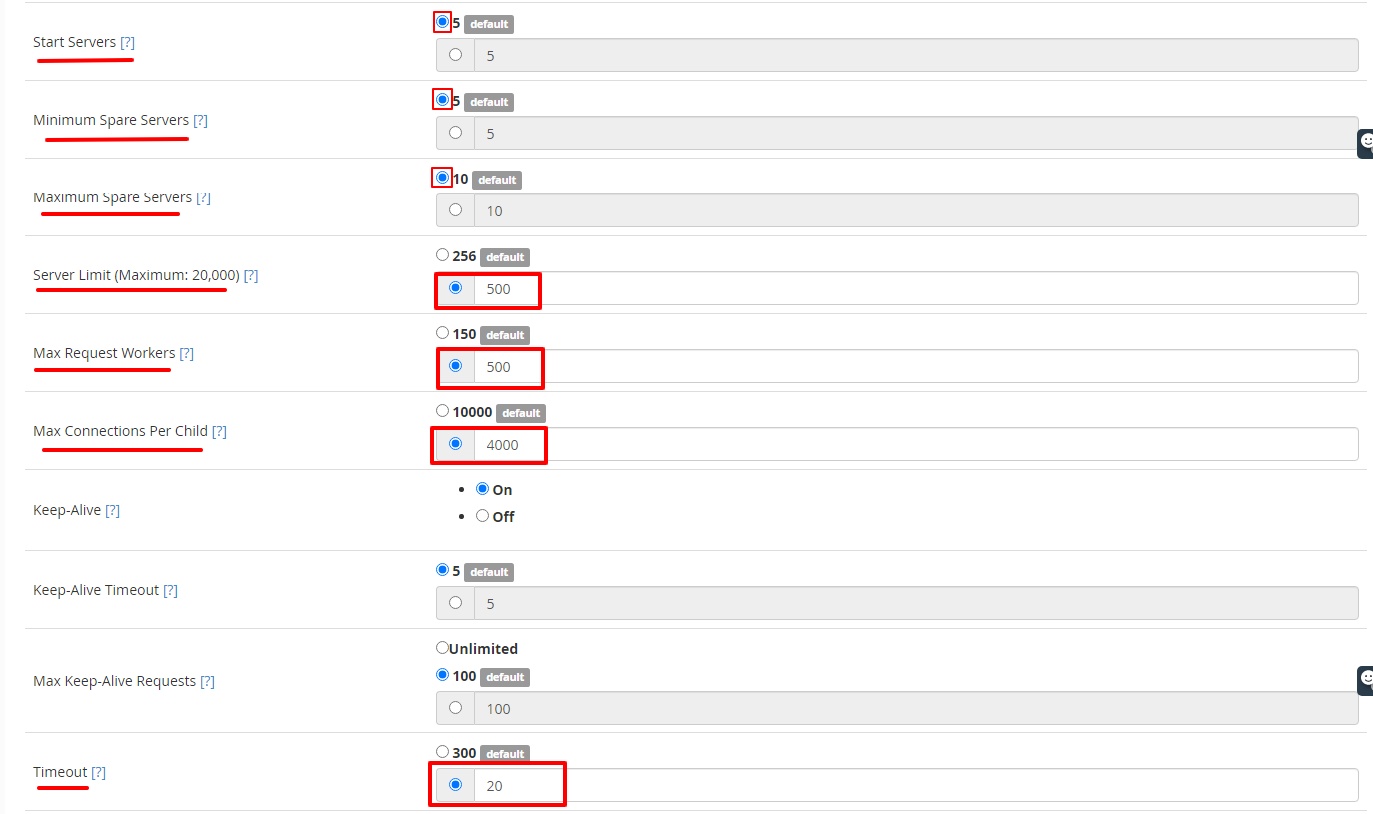
- Find Timeout. A lower value ends stuck connections sooner.
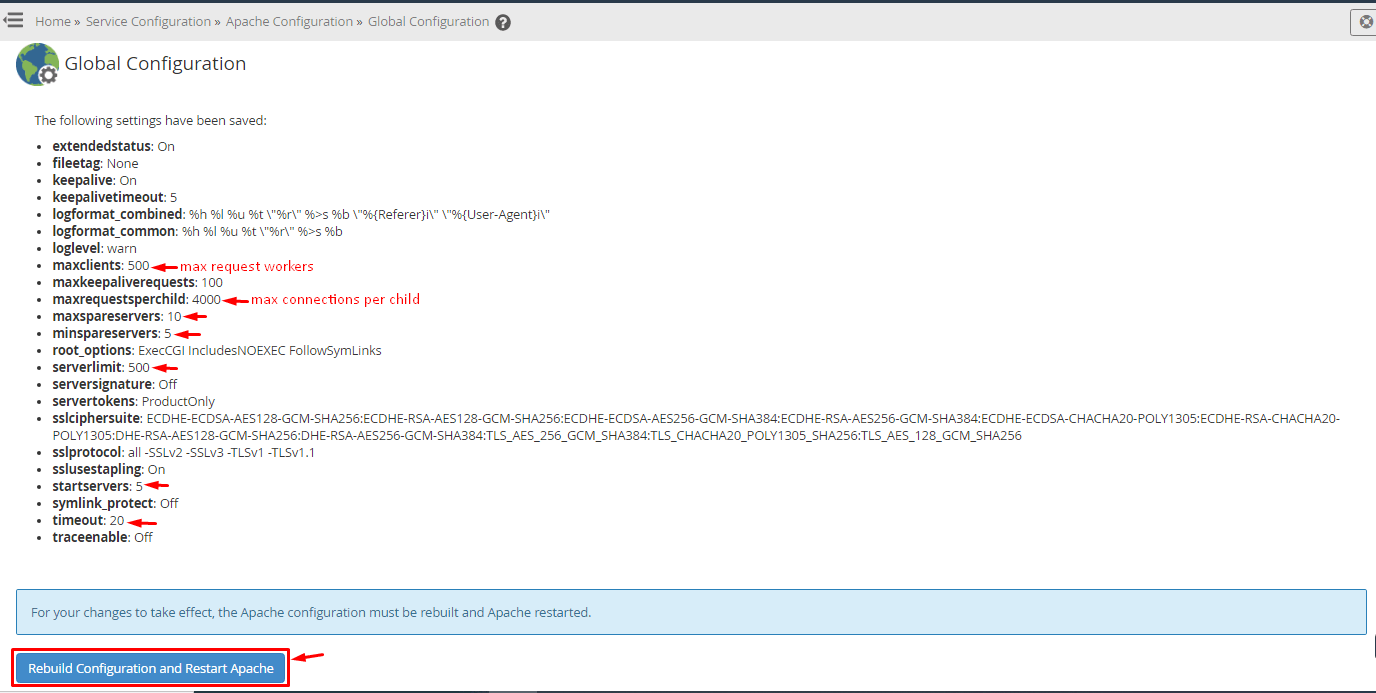
- Click Save.
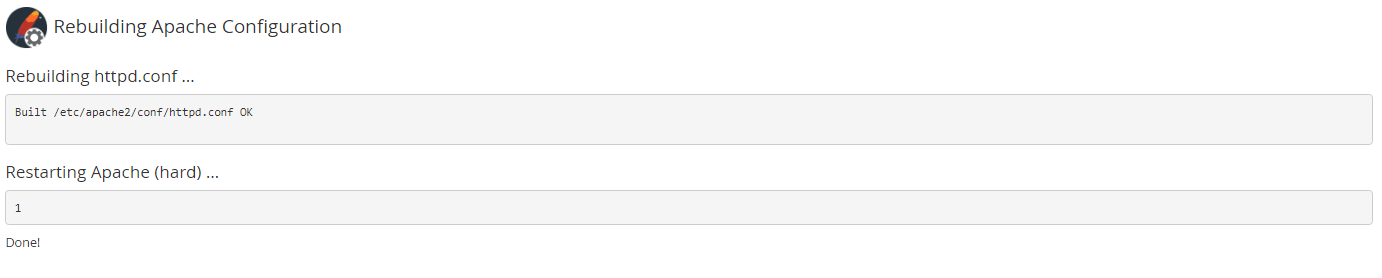
- Click Rebuild Configuration and Restart Apache when asked.
Other ways to help Apache
- Open EasyApache 4 in WHM and remove modules (add-on features) you do not use.
- Turn on compression in Optimize Website. Compression makes files smaller before they travel.
- Use caching on your sites. Caching saves ready-made pages so the server works less.
- Keep PHP and Apache updated.
Check the result
- Visit your website and see if it loads normally.
- In WHM, open Apache Status to see how busy Apache is.
- If sites slow down, return to the setting you changed and undo it.
The best values depend on your server's memory and traffic. Ask Hostvento support if you are not sure.
Quick recap
- Apache shows your websites to visitors.
- Use Apache Configuration then Global Configuration in WHM.
- Turn on Keep-Alive and use sensible worker limits.
- Back up first and change one thing at a time.
- Remove unused modules with EasyApache.