

What is File Manager?
cPanel is the control panel you use to manage your hosting. File Manager is a tool inside it. It works like the Files app on a computer. You can see, move, copy and rename the files that make up your website.
Warning: Renaming files used by your website can break it. For example, if you rename
index.php, visitors may see an error. Take a backup first if you are not sure.Steps
- Log in to cPanel. Your welcome email or the client area at https://secure.hostvento.com/clientarea.php shows how to reach it.
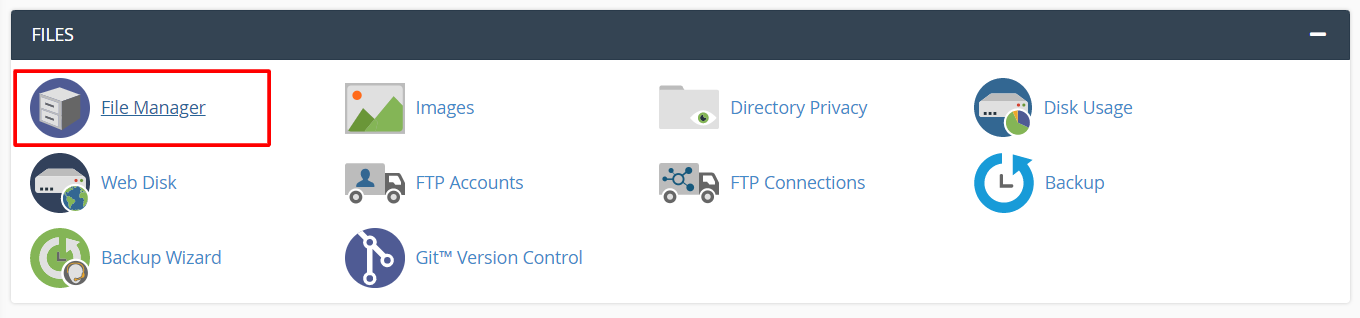
- In the Files section, click File Manager.
- Open the folder that holds your item. Website files are usually in
public_html. - Click once on the file or folder to select it.
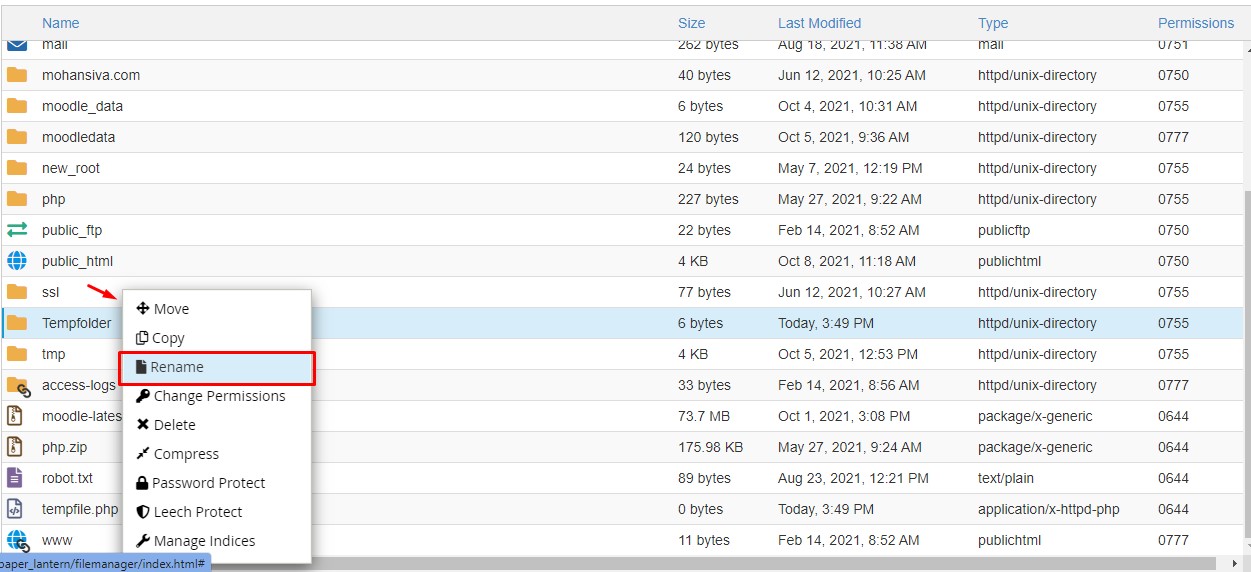
- Click Rename in the top toolbar. You can also right-click the item and choose Rename.
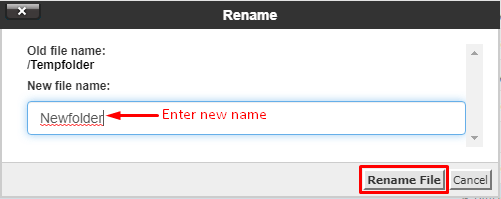
- Type the new name in the box.
- Click Rename File to save.
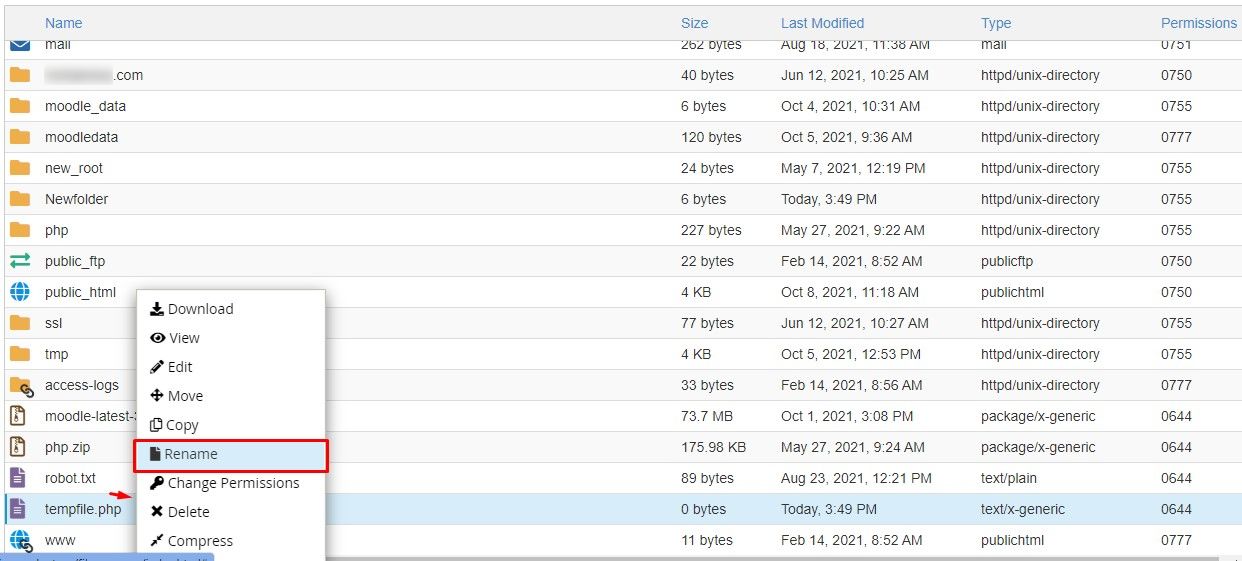
- Check that the new name shows in the list.
Name rules to remember
- Names are case sensitive.
Photo.jpgandphoto.jpgare two different files. - Do not use spaces. Use dashes or underscores, like
my-photo.jpg. - Keep the file ending, such as
.htmlor.jpg. It tells the computer what kind of file it is. - Avoid special characters such as
&and?.
If your site breaks after renaming
- Go back to File Manager.
- Select the item you renamed.
- Click Rename and type the old name again.
- Reload your website.
If a web page links to a renamed image or file, the link will break too. Update the link on the page, or keep the old name.
Tip: To change many names at once, a plugin or a script may be easier. Ask Hostvento support if you need help.
Quick recap
- Open File Manager in cPanel.
- Select the item and click Rename.
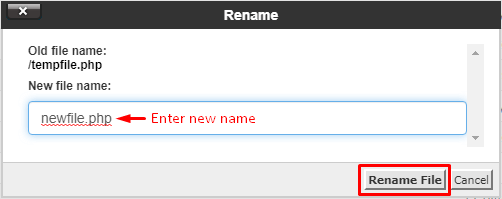
- Type the new name and save.
- Do not rename files your site needs unless you update links.
- You can undo by renaming back.