

What is the WHMCS admin area?
WHMCS is billing and support software for hosting businesses. The admin area is the private part where staff manage customers and invoices. This guide is for people who run their own WHMCS. Hostvento customers use the normal client area and do not need it.
Easy way: the reset link
- Open your WHMCS admin login page. It is often at
yourdomain.com/admin. - Click Forgot Password?
- Type the email address or username of your admin account.
- Click Reset Password.
- Open your email and find the message from WHMCS.
- Click the link in the email.
- Type a new password, then type it again to confirm.
- Save and log in with the new password.
Backup way: the database
Use this if the email never arrives. A database is the place where WHMCS stores its data. You can change a password stored there.
Warning: Changing the wrong row can lock out staff or damage data. Export a copy of the database first.
- Log in to cPanel and open phpMyAdmin. This is a tool to view databases.

- Click your WHMCS database on the left.
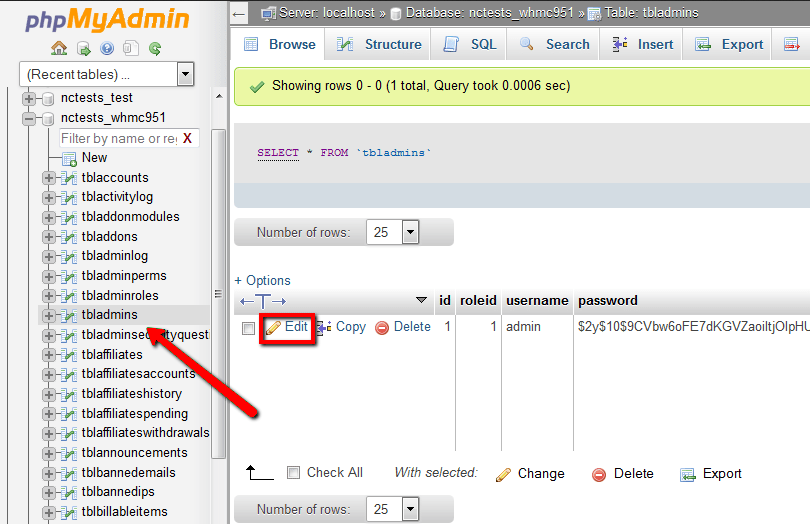
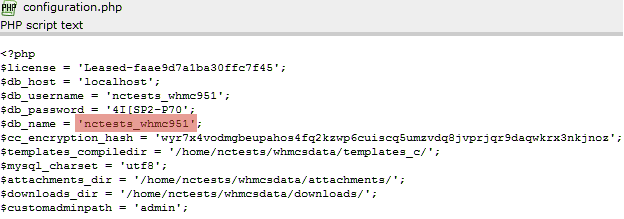
- Open the table named
tbladmins. It lists the admin users. - Click Edit next to your admin user.
- Find the
passwordfield and choose the function MD5 next to it if your version still uses it. - Type a new password into the value box.
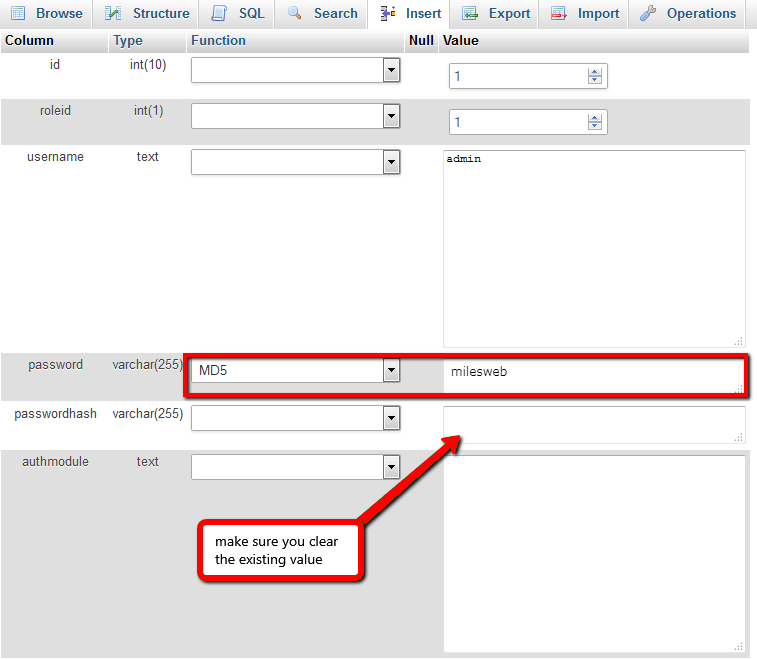
- Click Go to save.
- Log in with the new password and change it again right away from My Account.
Newer WHMCS versions store passwords in a stronger form, so the reset link is the safest choice. If neither method works, ask the support team of whoever installed your WHMCS.
Tip: Use a long, unique password and save it in a password manager.
Quick recap
- Try Forgot Password? on the admin login page first.
- Check your spam folder for the email.
- As a backup, edit
tbladminsin phpMyAdmin after a backup. - Change the temporary password afterward.
- Choose a strong password.