

What is Apache?
Apache is the program that sends your websites to visitors. A restart turns it off and on again, like rebooting a phone. This can fix a stuck site or make new settings take effect. WHM is the control panel used to manage a server.
This guide is for people with WHM access, such as VPS, dedicated server and reseller owners.
Warning: While Apache restarts, every website on the server is unavailable for a few seconds. Choose a quiet time if you can.
Steps
- Log in to WHM.
- Type Restart Services in the search box at the top left.
- Click Restart Services.
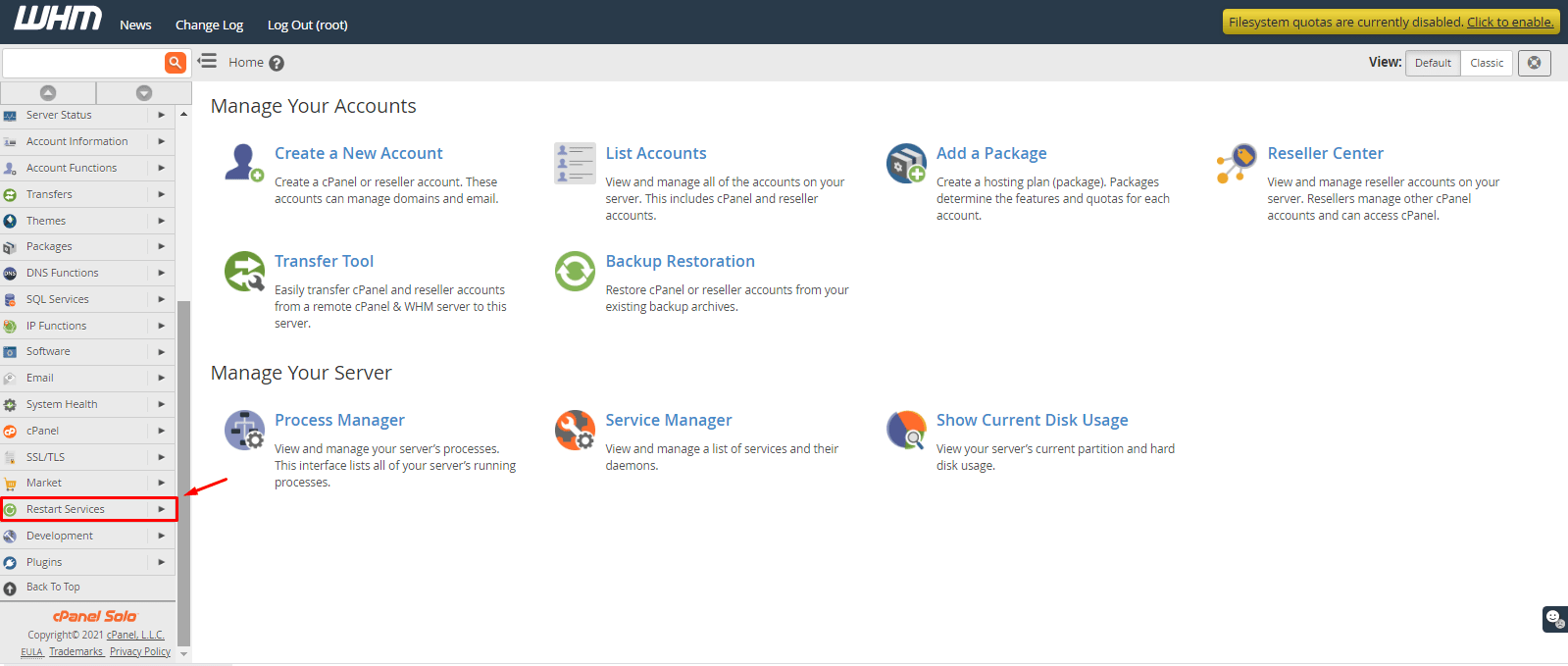
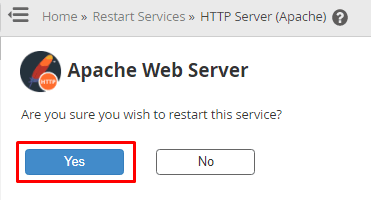
- Click HTTP Server (Apache).

- Click Yes to confirm.
- Wait while WHM shows the progress.
- Look for a message that says Apache restarted.
- Open one of your websites to check that it loads.
Graceful and hard restarts
A graceful restart lets visitors finish their page loads before Apache restarts. WHM usually does this by default. A hard restart stops everything straight away. Use a hard restart only when the graceful one fails.
If Apache will not restart
- Read the error message that WHM shows.
- If you recently changed settings, undo the last change.
- In WHM, search for Apache Configuration and open Include Editor. A typing mistake in an include file can stop Apache.
- Try the restart again.
- Open Service Status in WHM to see if Apache is running.
If it still fails, open a ticket with support at https://secure.hostvento.com/submitticket.php. Copy the error into the ticket.
Quick recap
- Apache shows your websites to visitors.
- Use Restart Services then HTTP Server (Apache).
- Sites go offline for a few seconds.
- Check a website afterward.
- If it fails, undo recent changes and contact support.