

What is this?
A backup is a saved copy of your data. If you delete or break a file, you can copy the old version back. WHM is the control panel for server owners. It has a tool that can restore just one file or folder. This is quicker than bringing back the whole website.
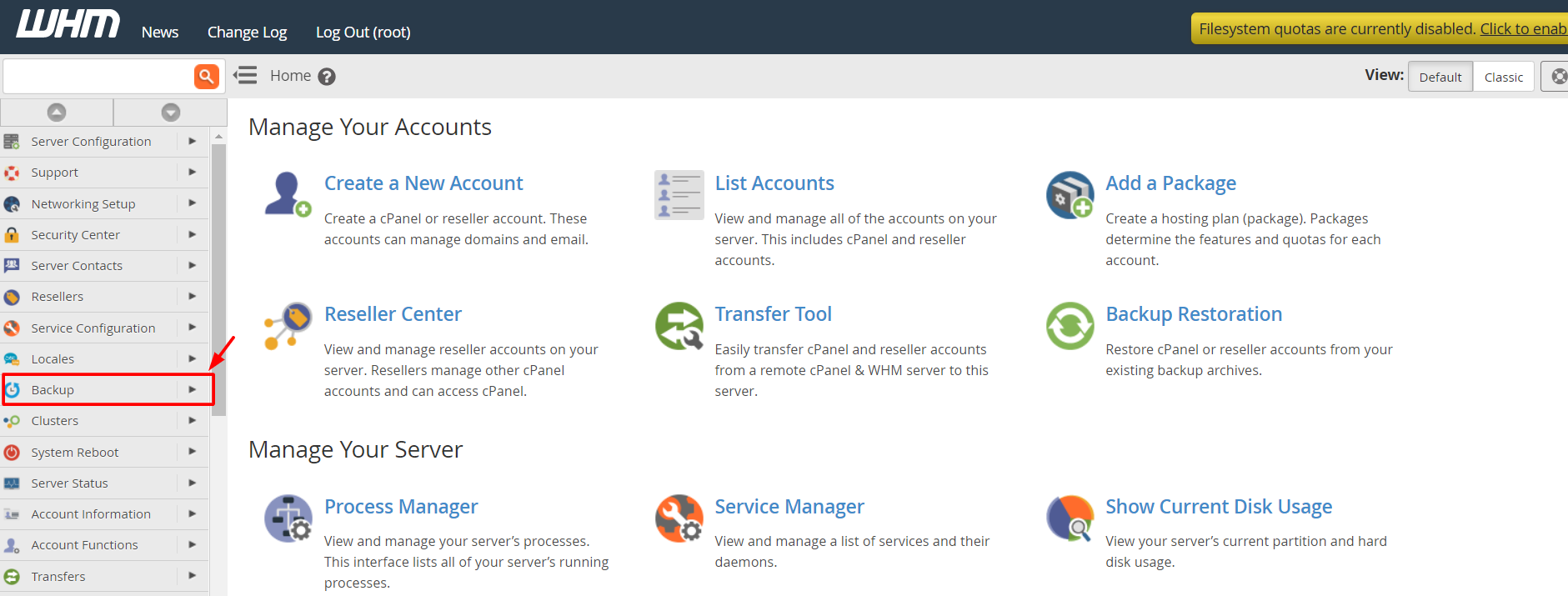
This guide needs WHM access and an existing backup. Backups must already be turned on. If you are not sure whether your plan has backups, ask Hostvento support.
Warning: Restoring replaces the current file with the old one. If you want to keep the current file, make a copy of it first.
Steps
- Log in to WHM.
- Search for File and Directory Restoration.
- Click File and Directory Restoration.

- Choose the account (the website owner) from the list.
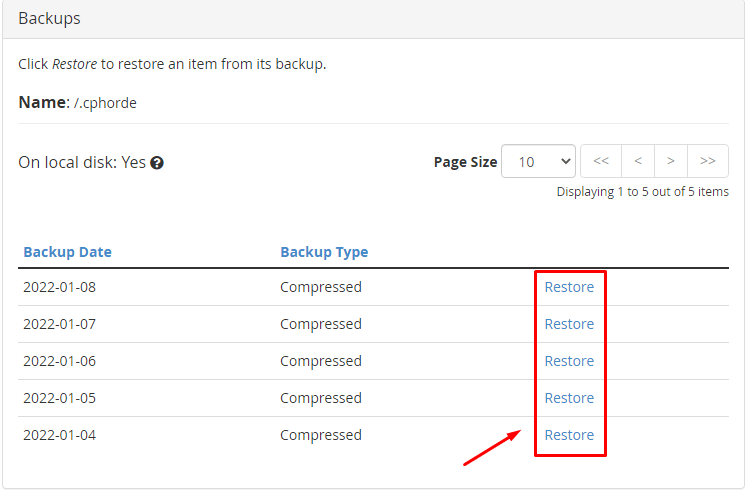
- Select the backup date you want, for example a daily, weekly or monthly copy.
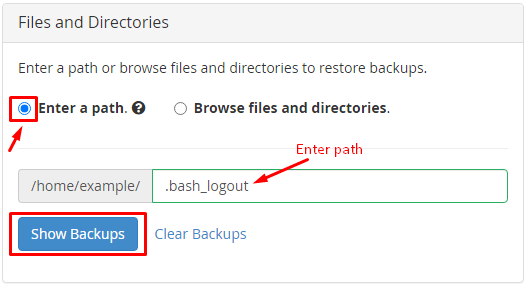
- Pick Restore a single file or Restore a directory. A directory is another word for a folder.
- Type the path of the item. The path is its address inside the account, such as
public_html/images/logo.png.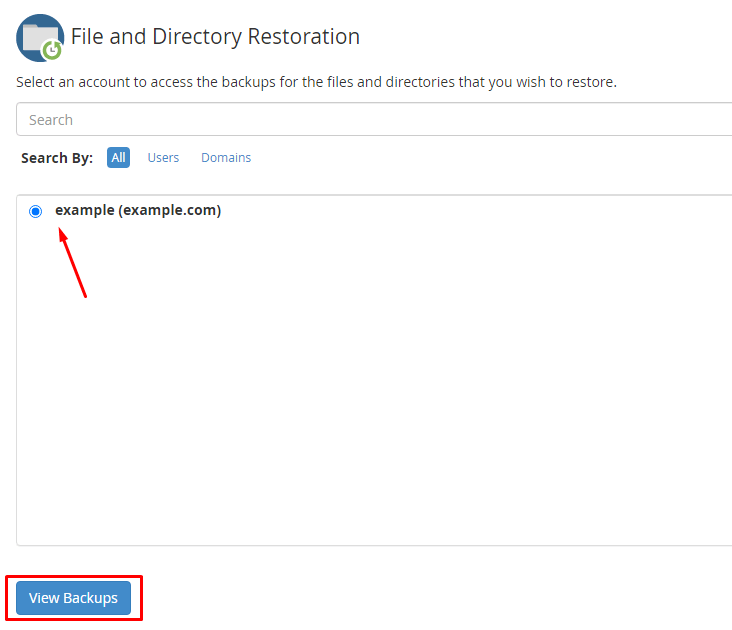
- Click Restore or Proceed.
- Wait for the success message.
- Check your site or open File Manager to confirm the file is back.
If your version of WHM does not show this tool, look under Backup in the left menu for Backup File Restoration or a similar name. Menu names can change between versions.
Other ways to get a single file
- In cPanel, the account owner can use Backup or JetBackup, if the plan includes it, to restore a single file.
- Ask Hostvento support to restore the file for you. Open a ticket at https://secure.hostvento.com/submitticket.php. Give the file path and the date you want.
Quick recap
- You can restore one file or folder instead of a whole account.
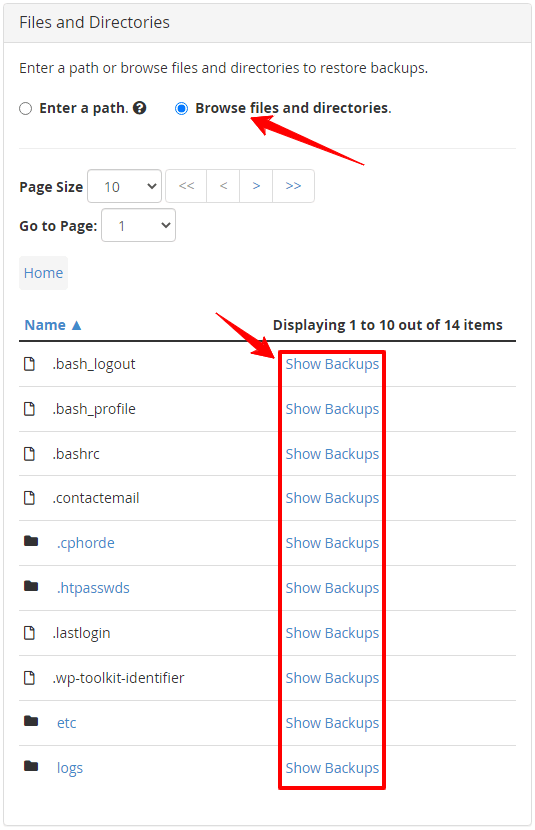
- Use File and Directory Restoration in WHM.
- Pick the account, the backup date and the path.
- Restoring overwrites the current version.
- Ask support if you cannot find the tool.