

What is a restore?
A backup is a saved copy of your website, email and databases. A restore means using that copy to bring things back. You might need it after a hack, a mistake or a broken update. WHM is the control panel for server owners and resellers.
You need WHM access and a backup that already exists. If you are not sure your plan has backups, ask Hostvento support.
Warning: A full restore replaces the current data of that account with the older data. Anything added after the backup date is lost. Make a fresh backup of the current state first.
Steps with Backup Restoration
- Log in to WHM.
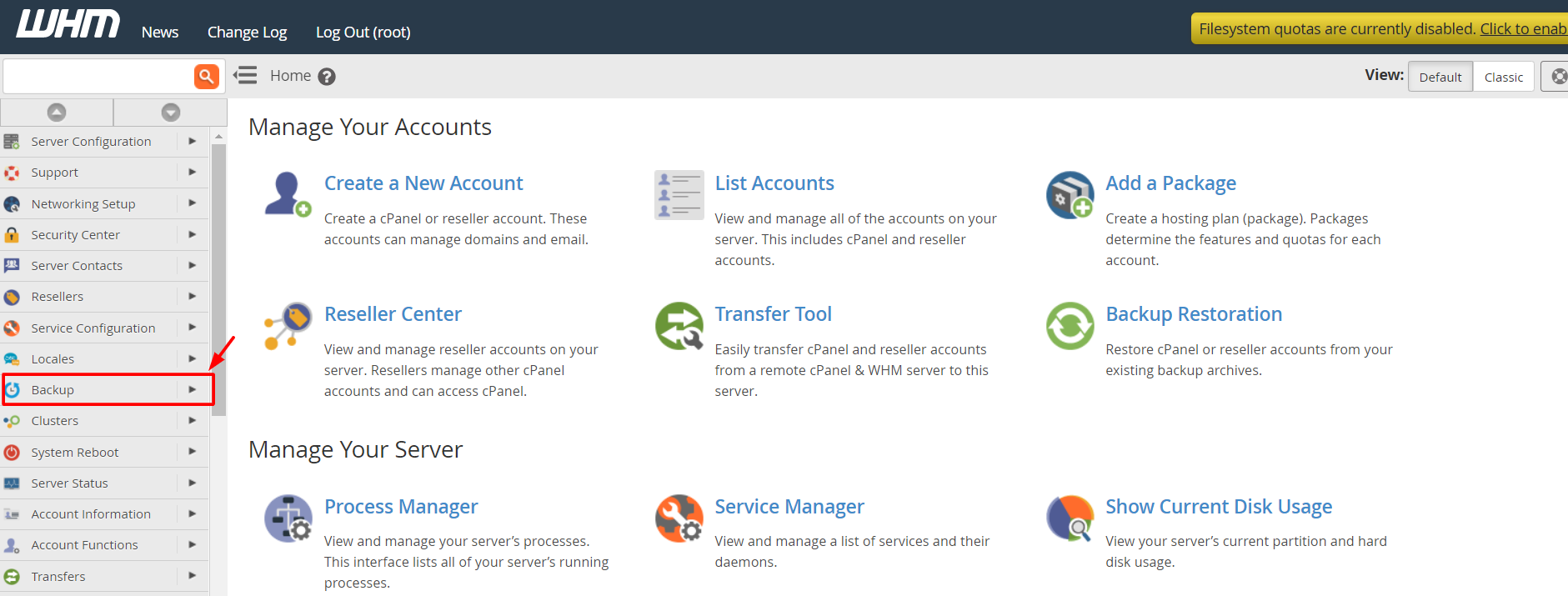
- Type Backup Restoration in the search box on the left.
- Click Backup Restoration. This may be named Restore a Full Backup/cpmove File in older versions.
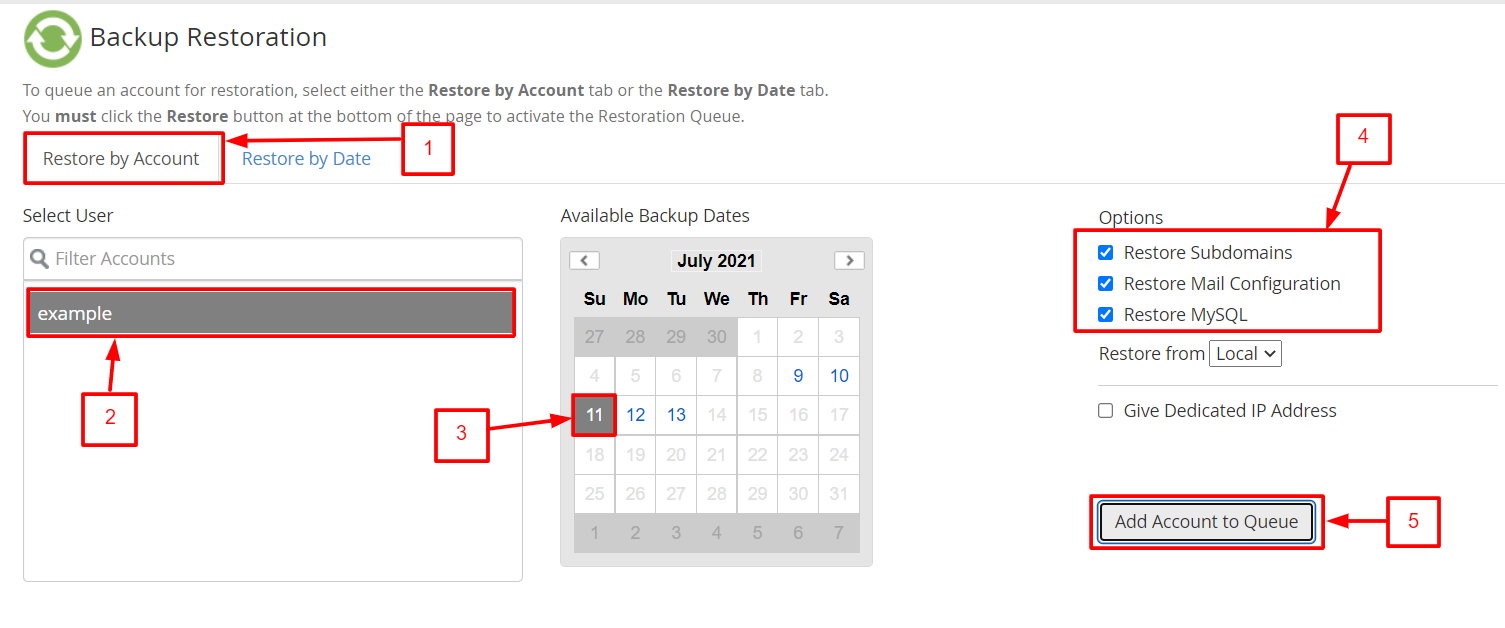
- Type the username of the account in the box.
- Choose the date of the backup you want. Dates in the list are the copies that exist.
- Pick what to restore. You can restore home files, databases, email and other parts, or all of them.
- Click Restore.
- Wait until the progress window says it has finished.
- Open the website and check that it works.
Steps with a backup file
Sometimes you have a backup file on your computer. It is often named cpmove-username.tar.gz or backup-date-username.tar.gz.
- Upload the file to the folder
/homeon the server. - In WHM, open Transfers and then Restore a Full Backup/cpmove File.
- Type the username and the path to the file.
- Click Restore.
After the restore
- Test your site, email and forms.
- Check that the database connects.
- If something is wrong, ask support for help at https://secure.hostvento.com/submitticket.php.
Quick recap
- A restore brings old data back from a backup.
- Use Backup Restoration in WHM.

- Pick the account, the date and the parts to restore.

- New data after the backup date is lost.
- Back up the current state first.