

What is password strength?
A strong password is hard to guess. It is long and mixes letters, numbers and symbols. A weak one, like "123456", can be guessed in seconds. Hackers try many passwords one after another. A strong one makes that attack much slower.
WHM lets a server owner set a minimum strength. The strength is a score from 0 to 100. A higher score means the password must be tougher. Users cannot save a password that scores below the rule.
This guide needs WHM access.
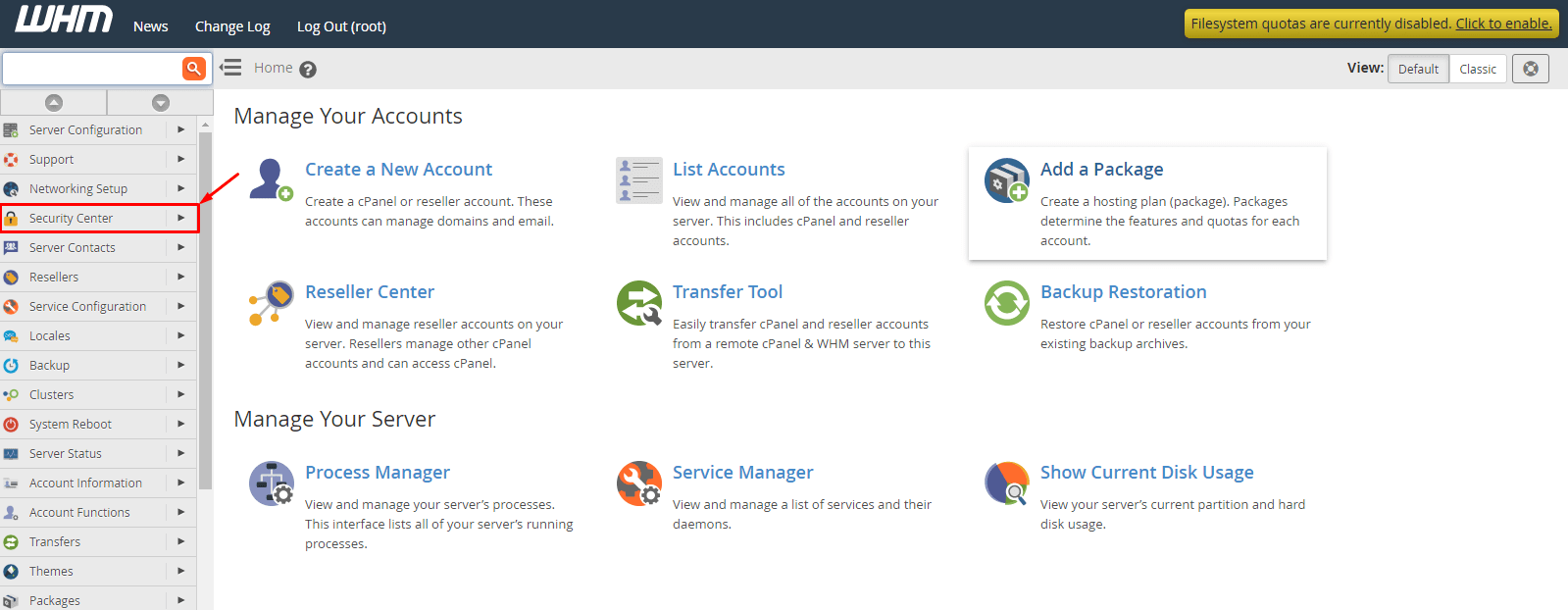
Steps
- Log in to WHM.
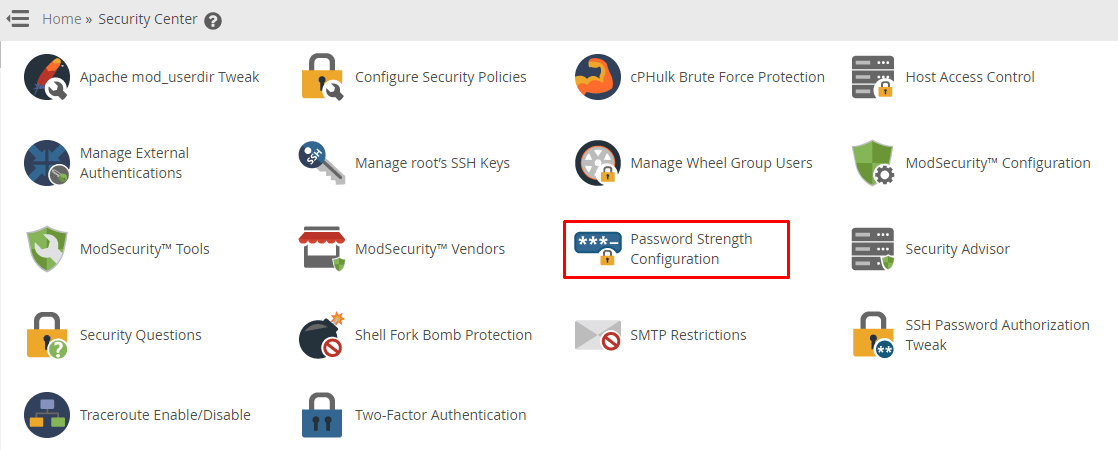
- Type Password Strength Configuration in the search box.
- Click Password Strength Configuration.
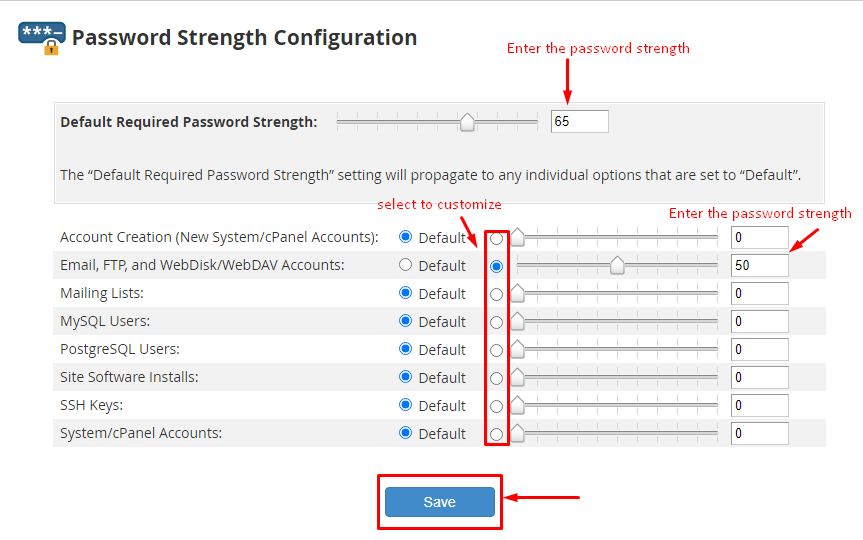
- You will see a list of actions, such as creating an account or changing a password.
- Next to each action, pick a number with the slider or box. For example, 65 is a fairly strong rule and 100 is very strict.
- Use a higher number for sensitive items like WHM and cPanel logins.
- Click Save.
Check the setting
- Open cPanel for a test account.
- Go to Password & Security.
- Try to type a weak password like "password".
- You should see a message that the password is too weak.
- Try a longer one, such as a mix of random words, numbers and symbols. The bar should turn green.
Tip: A long phrase of random words is both strong and easier to remember. A password manager can create and store strong passwords for you.
Good password habits
- Use at least 12 characters.
- Never reuse a password on other sites.
- Do not use names, birthdays or simple words.
- Change it right away if you think someone saw it.
Existing passwords are not changed by the new rule. It only applies when a user next sets or changes a password.
Quick recap
- Strength is a score from 0 to 100.
- Set it in Password Strength Configuration in WHM.
- Higher numbers mean stricter rules.
- The rule applies to new or changed passwords only.
- Test with a weak and a strong password.