

What is greylisting?
Spam is unwanted junk email. Greylisting is a trick to block much of it. When an unknown sender tries to send you mail, your server says "please try again later." Real mail servers try again after a few minutes, so real mail still arrives. Many spam programs never try again, so the junk is dropped. It is like asking a stranger at the door to knock a second time.
The cost is a small delay. The first email from a new sender can arrive several minutes late.
cPanel calls this feature cPGreyList. You need WHM access, as a server owner or reseller with the right rights.
Steps
- Log in to WHM.
- Type Greylisting in the search box on the left.
- Click Greylisting under the Email section. Some versions label it cPGreyList.
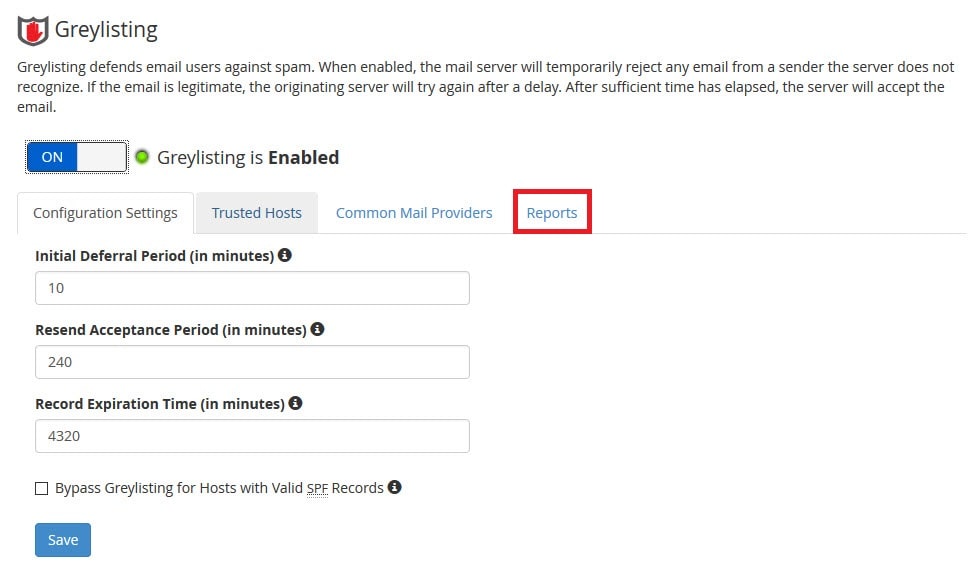
- Find the switch named Enable Greylisting.
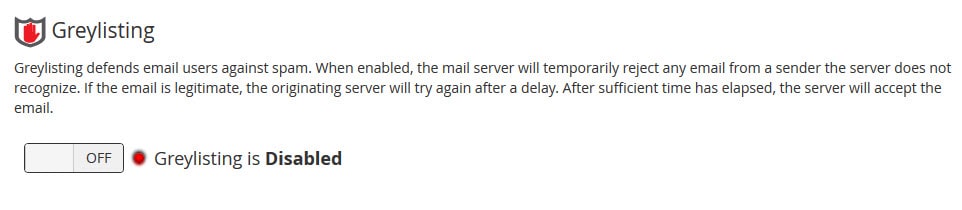
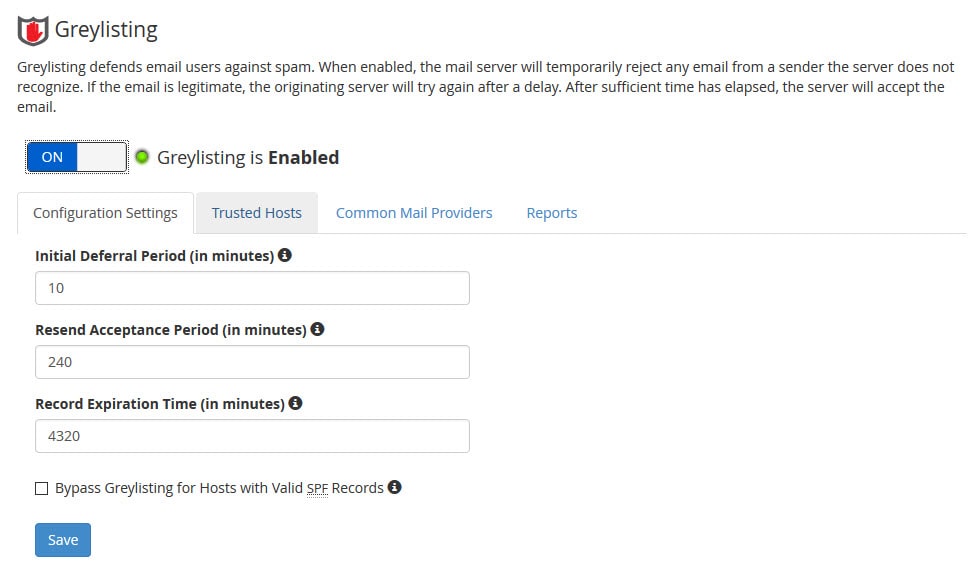
- Slide it to On.
- Click Save or wait for the green confirmation.
Useful settings
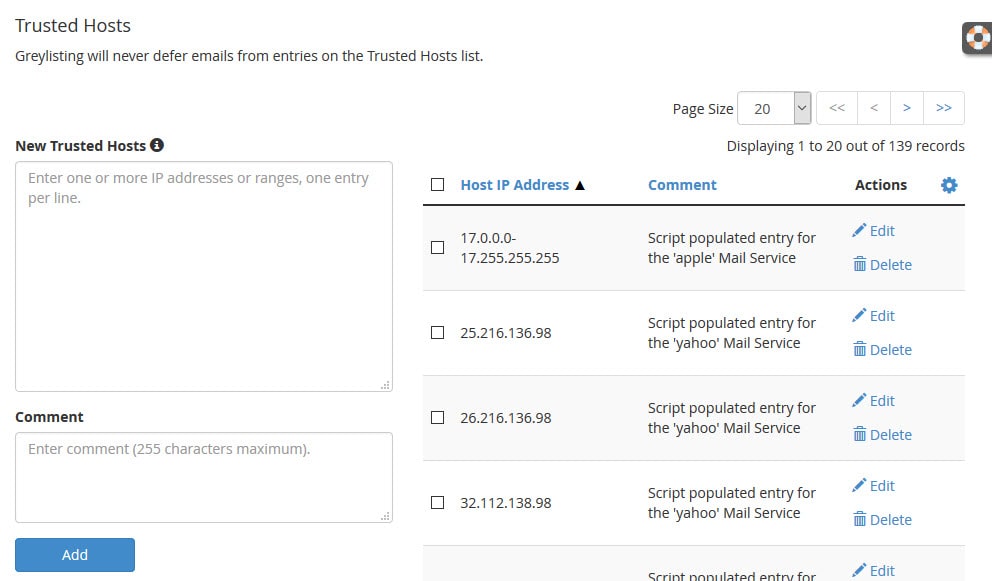
- Trusted Hosts: a list of senders that never get delayed. Add partners and services you rely on, like a payment system.
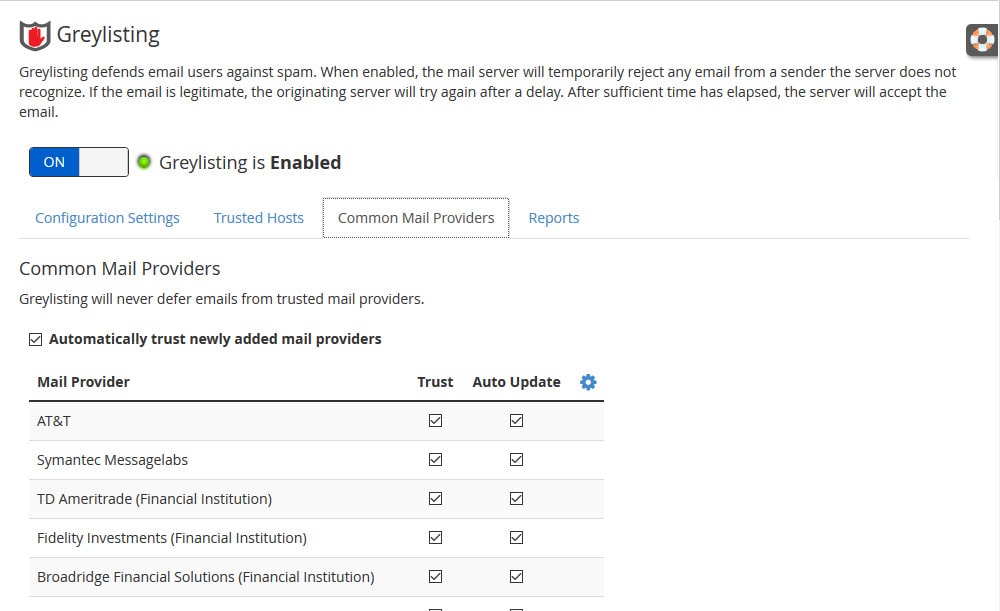
- Common Mail Provider list: big email services are already treated carefully so their mail is not held back.
- Reports: shows what was delayed and passed.
Turn it off for one account
Greylisting works on the whole server, but you can skip it for chosen domains. Use the Trusted Hosts or Opt-Out area of the Greylisting page. The labels may vary by version, so look for them on the same page.
If emails seem very late
- Wait about 15 minutes, as the first message from a new sender is held.
- Check the Reports page.
- Add the sender to the trusted list.
- If it keeps happening, turn greylisting off and ask Hostvento support for advice.
Quick recap
- Greylisting asks unknown senders to retry.
- Real mail arrives a bit later, and most spam does not.
- Enable it in WHM under Greylisting.
- Add important senders to the trusted list.
- Turn it off if delays cause problems.