

What does this error mean?
The full message reads: "An error occurred on the server when processing the URL. Please contact the system administrator." It comes from IIS. IIS is the web server program on Windows. It sends pages to visitors.
The message is a hiding place. For safety, IIS does not show the real problem to visitors. The real cause is inside the website's code or settings. Your task is to make the real error visible, then fix it.
Common causes
- A mistake in the code, such as a wrong database login.
- A missing file or a wrong file path.
- A broken database link. The database is where your site keeps its information.
- A fault in the
web.configfile. It holds the settings of an ASP.NET site. - Classic ASP scripts that cannot use a needed component.
Steps to find the real error
- Take a backup of your site files first.
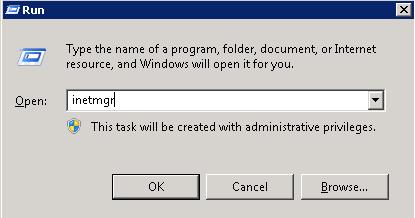
- Open your site files with FTP or the file manager in your hosting panel. FTP is a way to send files to your server.
- Find the
web.configfile in your site's main folder. Download a copy. - Open it in a text editor like Notepad.
- Look for a line that starts with
<customErrors. Change it so detailed errors show:
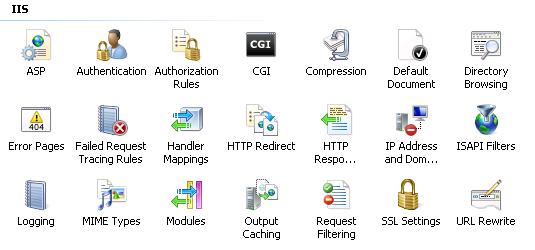
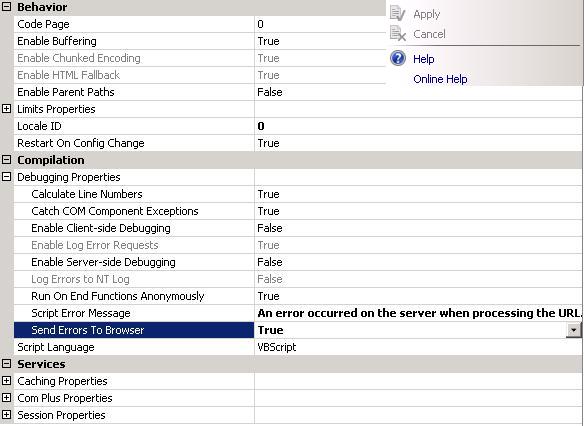
This tells ASP.NET to show the real error text.<customErrors mode="Off" /> - For Classic ASP sites, look in the IIS or panel settings for an option like Send Errors to Browser. Ask Hostvento support if you cannot find it.
- Save the file and upload it again.
- Reload the page that failed. Now you should see a detailed message with a line number.
Warning: Turn
customErrors back to RemoteOnly or On when you are done. Detailed errors can show private details to strangers.What to do with the message
- Read the first line of the error. It usually names the problem.
- If it names a missing file, upload it or fix the path.
- If it names the database, check the connection details in your settings file.
- If it names a setting in
web.config, undo your last edit. - If you cannot decide, copy the message and open a support ticket.
Tip: Think about what changed just before the error. An update, a new plugin or a settings edit is usually the cause.
Quick recap
- The message is a general IIS error that hides the real cause.
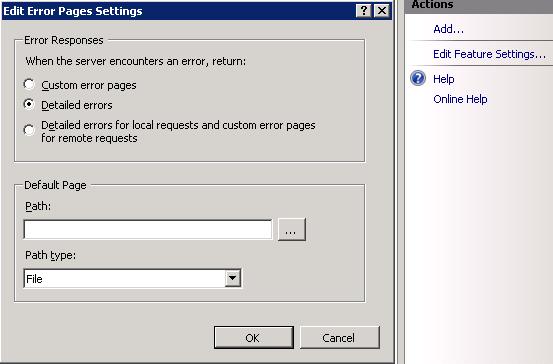
- Turn on detailed errors in web.config to see it.
- Fix the named problem: code, file, database or config.
- Switch detailed errors off again afterwards.