

What are FTP and a firewall?
FTP means File Transfer Protocol. It sends files between your computer and a server, like a mail truck for files. A firewall is a guard on the server. It blocks traffic unless a rule allows it. FTP uses port 21 to start the talk. A port is a numbered door on the server. Files then travel through other doors, called passive ports.
You need admin rights. This guide assumes an FTP server is already set up in IIS.
Method 1: Use the built-in rule
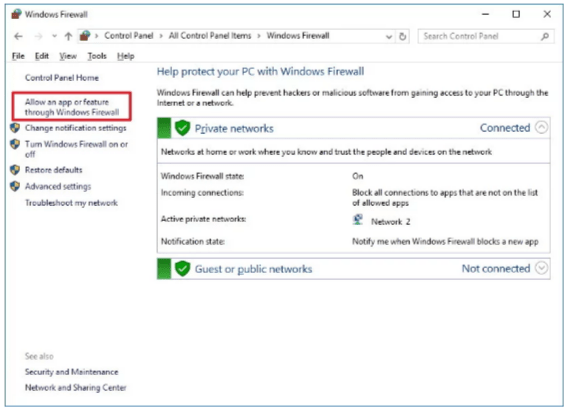
- Click Start and open Windows Defender Firewall.
- Click Allow an app or feature through Windows Defender Firewall.
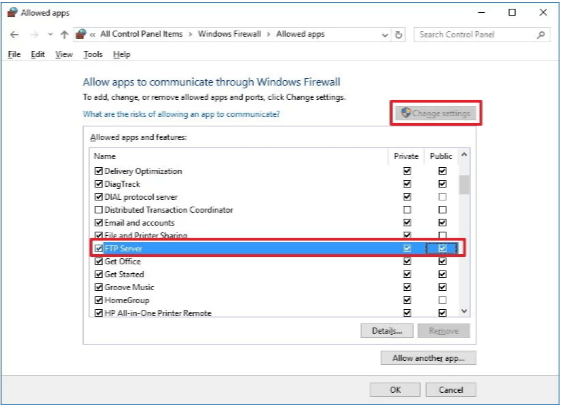
- Click Change settings.
- Find FTP Server in the list.
- Tick the boxes for Private and Public as needed.
- Click OK.
Method 2: Make your own rules
- Open Windows Defender Firewall with Advanced Security.
- Click Inbound Rules, then New Rule.
- Choose Port and click Next.
- Choose TCP and Specific local ports. Type
21. - Choose Allow the connection.
- Tick the profiles you need: Domain, Private, Public.
- Name the rule, for example
FTP port 21, and click Finish.
Set the passive port range
- Open IIS Manager and click the server name.
- Double-click FTP Firewall Support.
- In Data Channel Port Range, type a range, for example
50000-50100. - Click Apply.
- In Windows Firewall, add one more inbound rule for TCP ports
50000-50100. - Restart the FTP service from Services or run
iisreset.
Command line way
netsh advfirewall firewall add rule name="FTP 21" dir=in action=allow protocol=TCP localport=21
netsh advfirewall firewall add rule name="FTP Passive" dir=in action=allow protocol=TCP localport=50000-50100
These commands add one rule for the main FTP door and one for the passive range. Run them in a Command Prompt opened as administrator.
Test it
- Open FileZilla on your own computer.
- Type the server IP, the FTP user name, password and port 21.
- Click Quickconnect.
- You should see the folder list.
Tip: If it still fails, a network firewall outside the server may block ports. Ask Hostvento support.
Warning: Plain FTP sends passwords without hiding them. Use FTP over TLS (FTPS) or SFTP when you can.
Quick recap
- The firewall blocks FTP unless you allow it.
- Open port 21 and a passive port range.
- Set the same range in IIS FTP Firewall Support.
- Test with FileZilla.