

What is ping?
Ping is a small test message sent to a computer. If the computer answers, it is alive and reachable. It is like knocking on a door to see if someone is home. By default, the Windows firewall blocks ping. A firewall is a guard that decides what traffic may enter the server. Ping uses a message type called ICMP.
You need admin rights. Allowing ping is low risk, but it does make your server easier to find. Turn it off again if you do not need it.
Method 1: Windows Firewall window
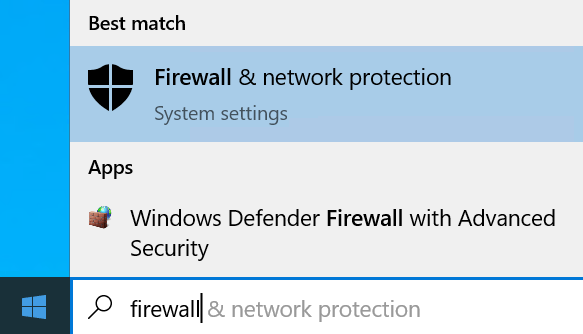
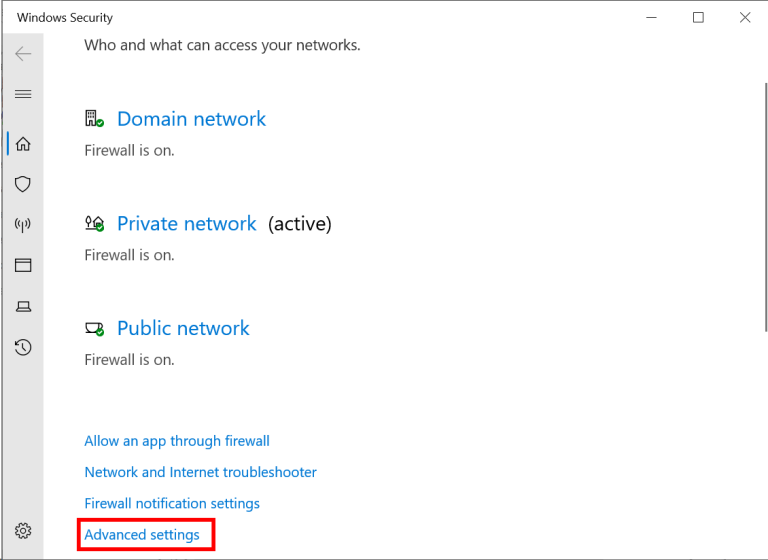
- Click Start and type Windows Defender Firewall with Advanced Security. Open it.
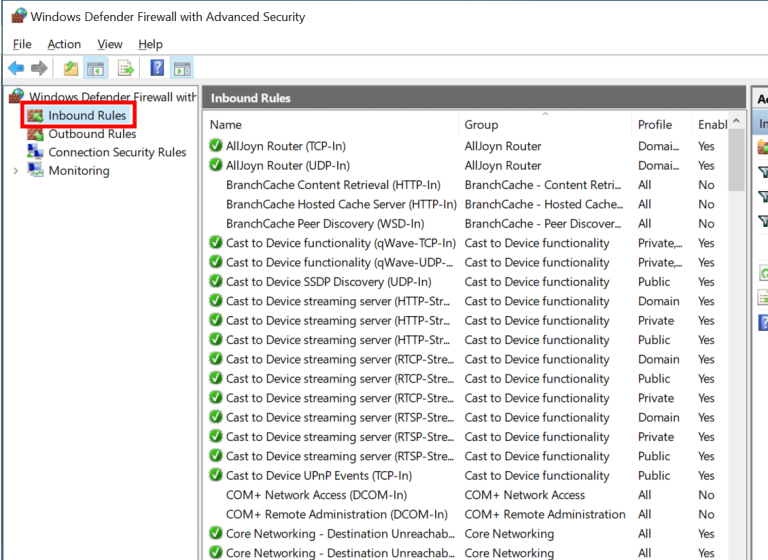
- Click Inbound Rules in the left panel.
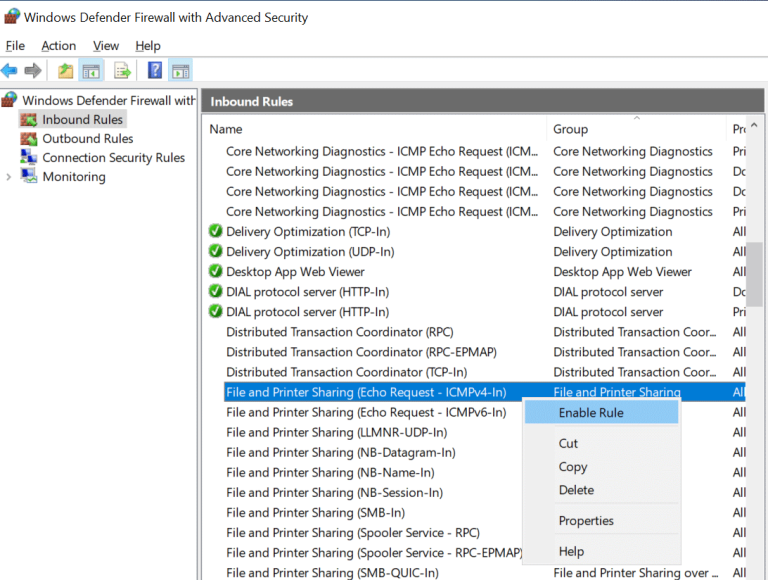
- Look for File and Printer Sharing (Echo Request - ICMPv4-In). Use the Name column to find it.
- Right-click the rule that matches your network profile and choose Enable Rule. If there are several, enable the ones marked for Domain and Public or Private as needed.
- If you also use IPv6, enable the ICMPv6-In rule in the same way.
IPv4 and IPv6 are the two kinds of internet addresses. IPv4 looks like 203.0.113.10.
Method 2: Command line
- Open Command Prompt as administrator.
- Run this command:
This command creates a new rule that lets ping requests in.netsh advfirewall firewall add rule name="Allow ICMPv4 Ping" protocol=icmpv4:8,any dir=in action=allow - To switch it off later, run:
This deletes the rule you made.netsh advfirewall firewall delete rule name="Allow ICMPv4 Ping"
Method 3: PowerShell
New-NetFirewallRule -DisplayName "Allow Ping" -Protocol ICMPv4 -IcmpType 8 -Direction Inbound -Action AllowThis command adds an allow rule for ping in PowerShell.
Test it
- On another computer, open Command Prompt.
- Type
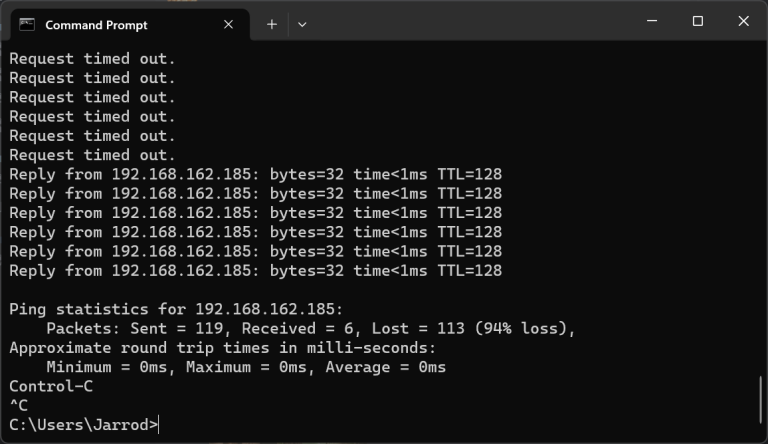
pingfollowed by a space and your server IP address, then press Enter. - You should see "Reply from" lines.
Tip: If you still get "Request timed out", another firewall may be in the way, such as one from your host. Ask Hostvento support.
Quick recap
- Ping checks if a server answers. Windows blocks it by default.
- Enable the Echo Request - ICMPv4-In inbound rule.
- Or add a rule with netsh or PowerShell.
- Test with
pingfrom another computer.