

Note: This guide needs administrator access. VPS and dedicated server customers have it.
What is the Administrator account?
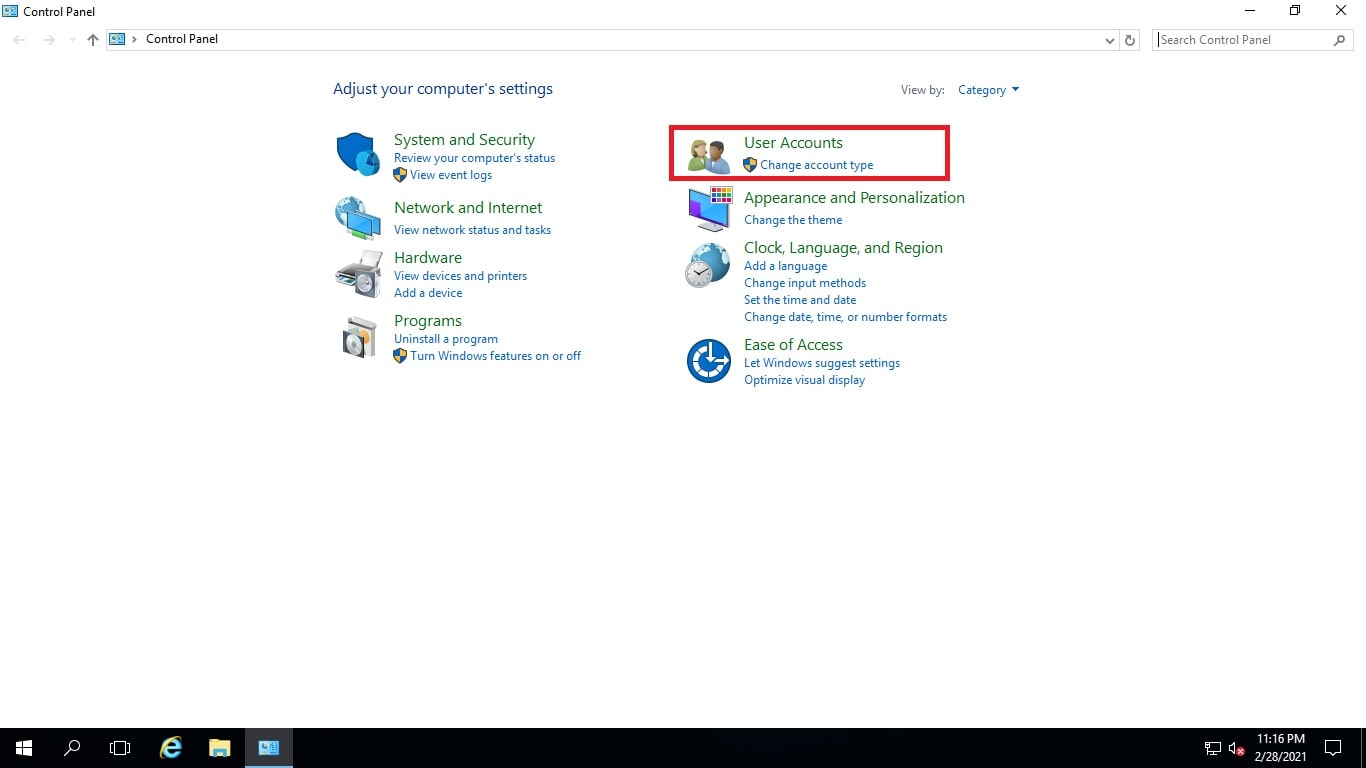
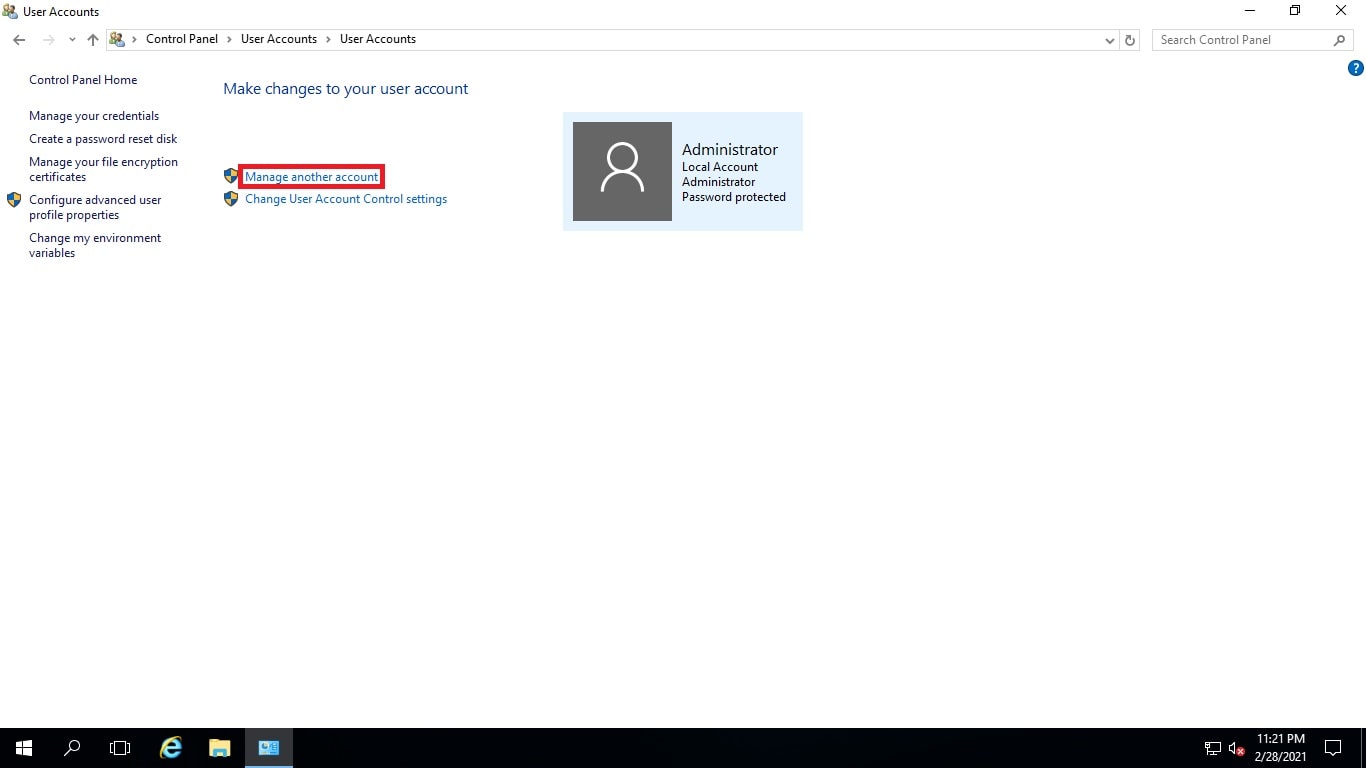
Administrator is the main account on a Windows server. It can install programs, change settings and delete anything. Whoever knows its password controls the server. So it must be strong and private.
You connect to your server using Remote Desktop. Remote Desktop shows the server's screen on your computer, so you can use it as if you sat in front of it. Change the password if you think it leaked, if someone who knew it left, or if it is old.
A strong password
- At least 14 characters.
- Upper and lower case letters, numbers and symbols.
- Not used anywhere else.
Warning: Save the new password in a safe place before you log out. If you forget it, you may lose access. Programs that use the old password, like scheduled tasks and services, will fail until you update them.
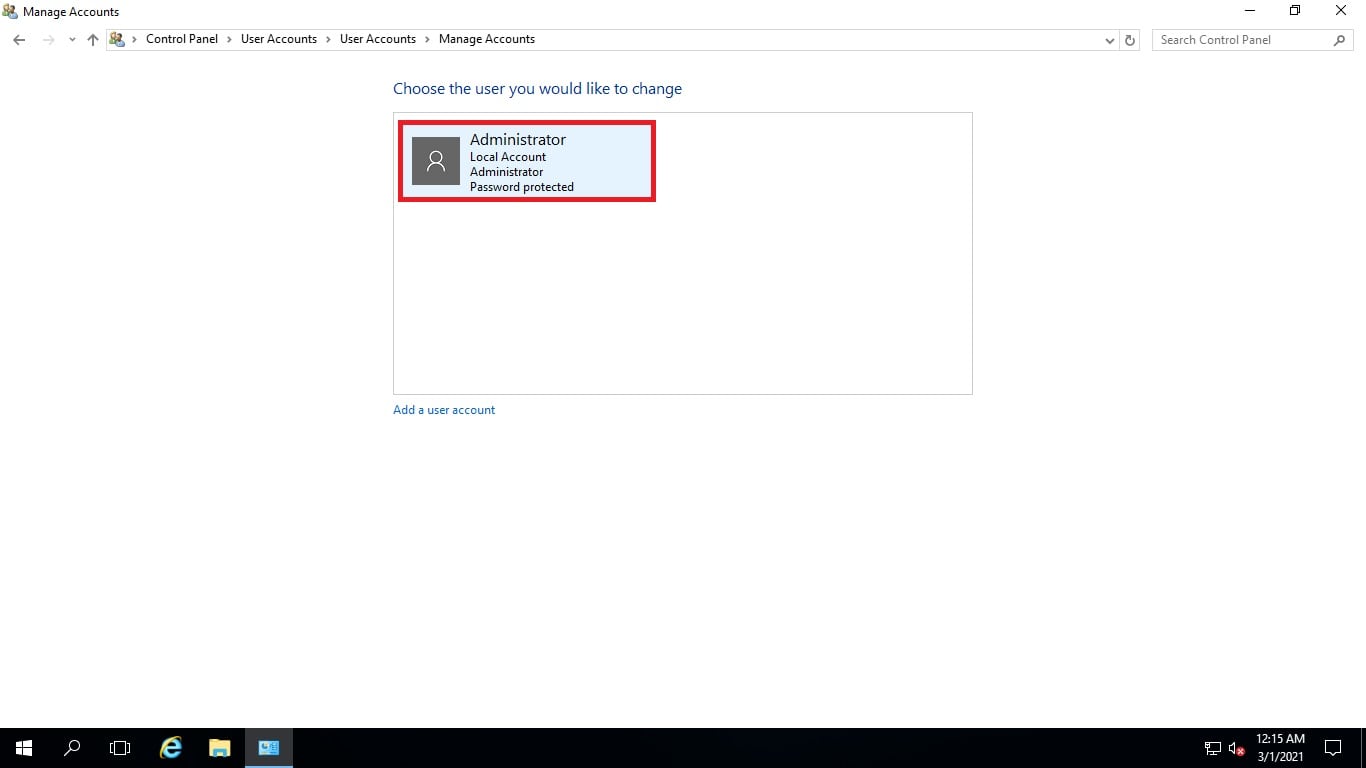
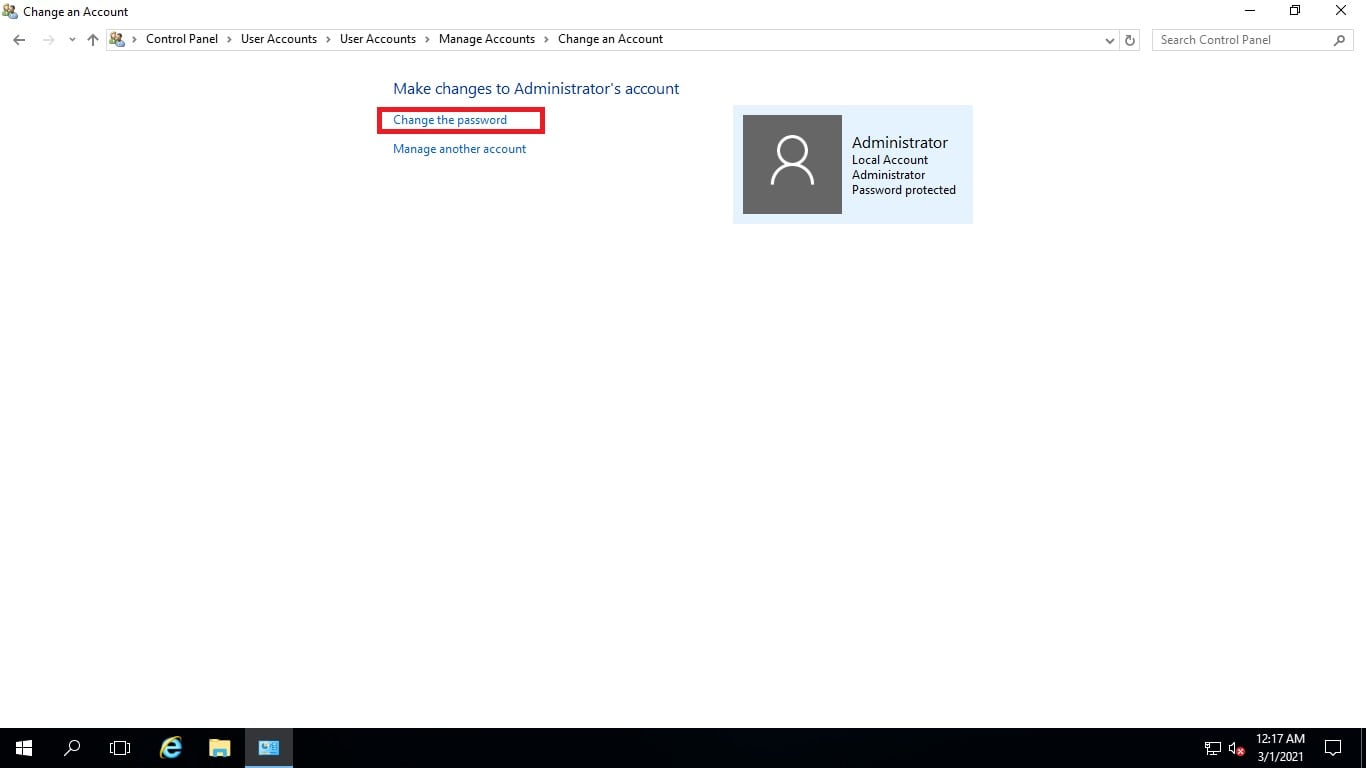
Steps with the graphical screen
- Connect to your server with Remote Desktop. Use the address and login from your welcome email.
- Press Ctrl + Alt + End on your keyboard. This is the Remote Desktop version of Ctrl + Alt + Delete.
- Click Change a password.
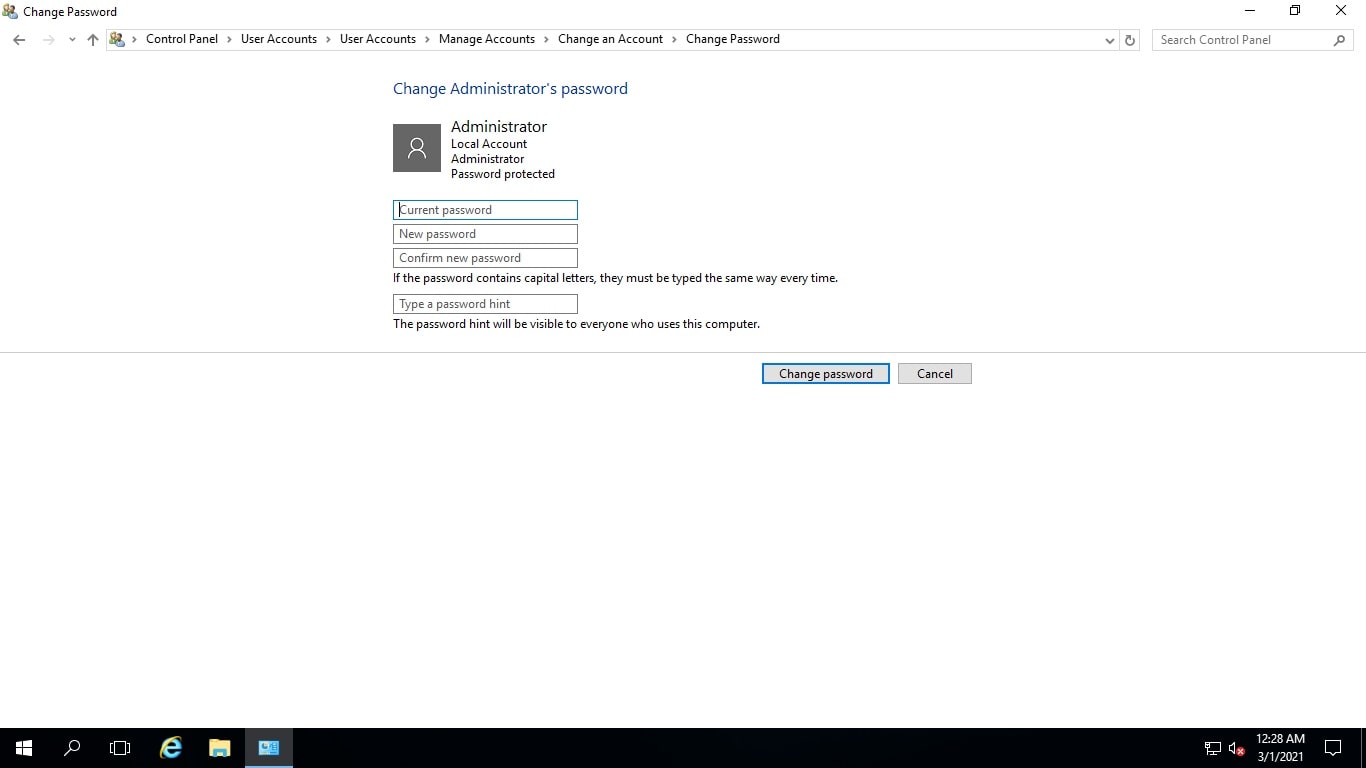
- Type your old password.
- Type the new password twice.
- Press Enter.
- Wait for the message that says the password was changed. Click OK.
Steps with the command line
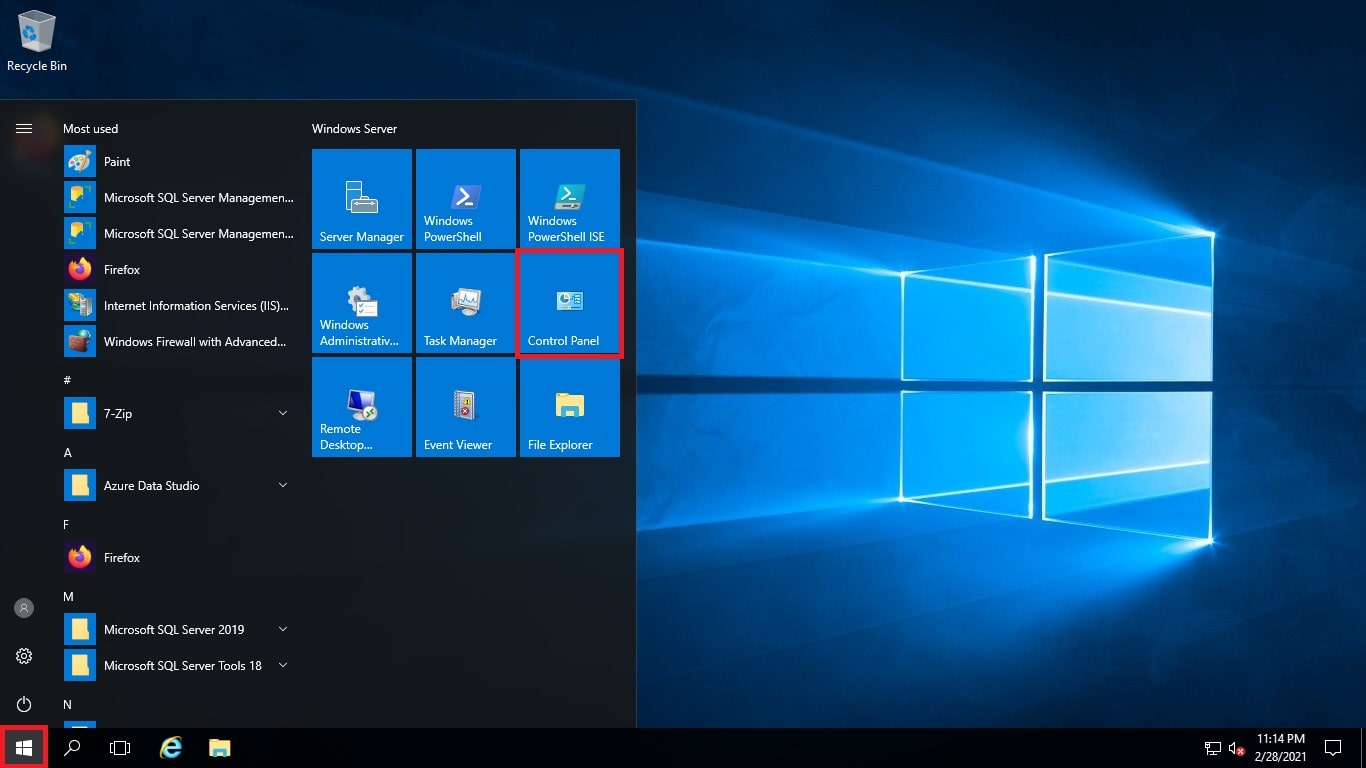
- Click Start and type
cmd. - Right-click Command Prompt and choose Run as administrator.
- Type this command and press Enter:
This asks you for a new password for the Administrator account.net user Administrator *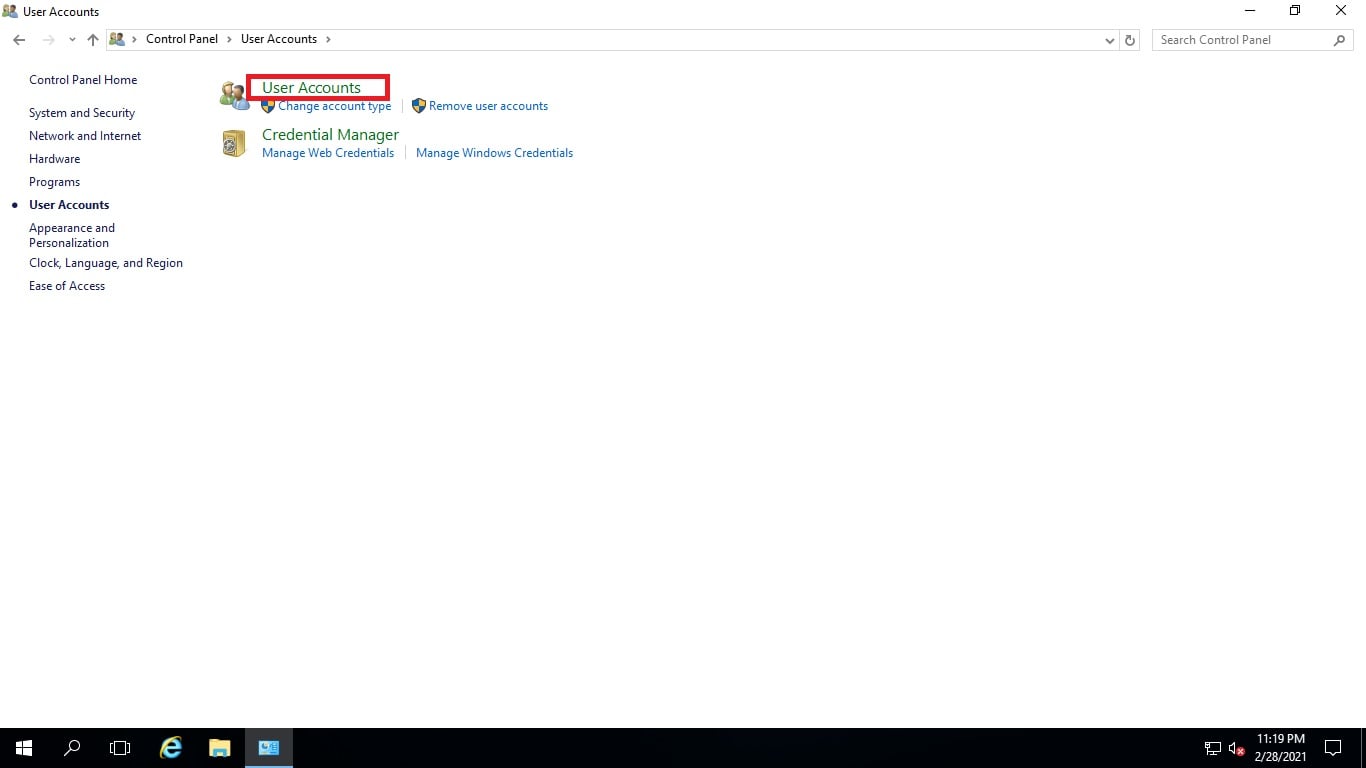
- Type the new password. The screen shows nothing while you type. That is normal.
- Type it again to confirm.
- Look for the line "The command completed successfully."
Test it
- Keep the current session open.
- Start a second Remote Desktop connection.
- Log in with the new password.
If you lost the password
Log in to your client area and check the service for a reset option. If there is none, open a support ticket.
Quick recap
- Administrator controls the whole server.
- Use Ctrl + Alt + End, then Change a password, or run
net user Administrator *.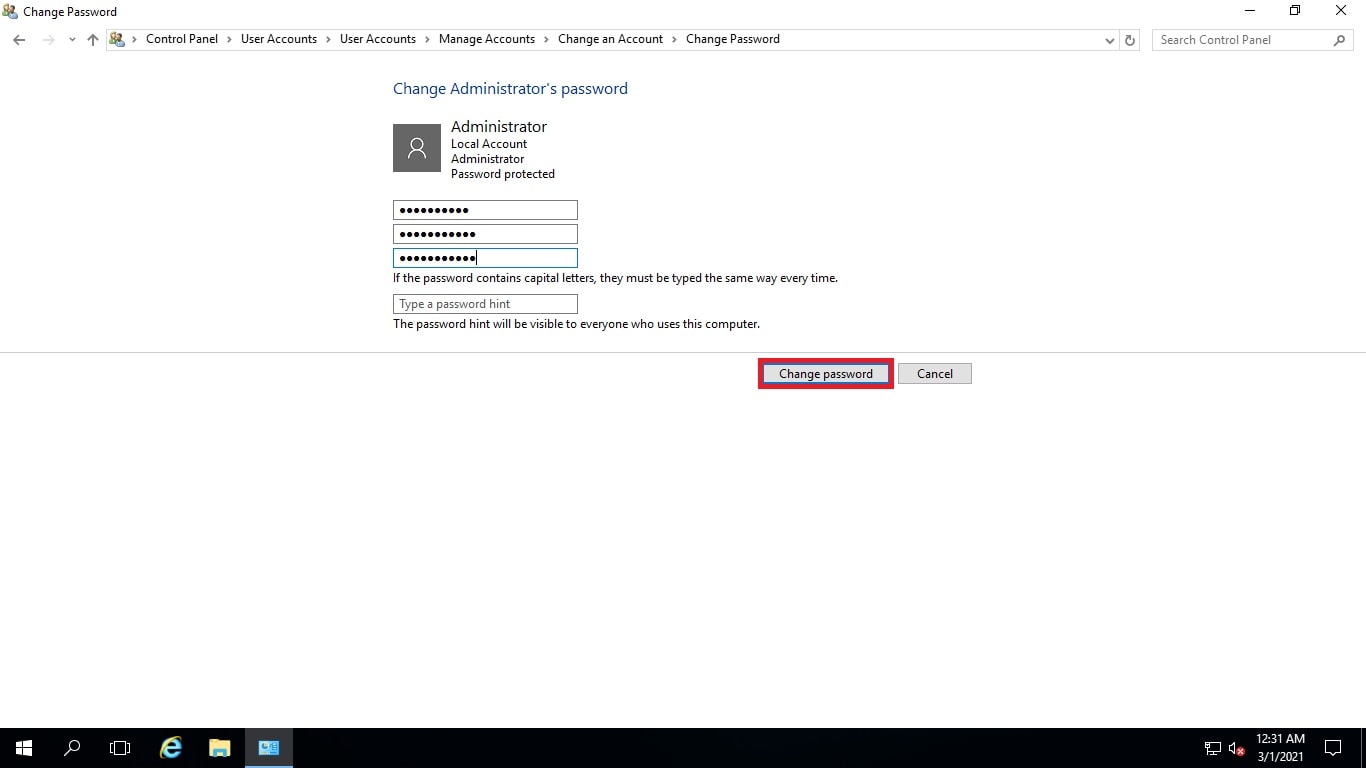
- Save the new password and test it in a second session.
- Update services that use the old password.