

Note: This guide needs administrator access. VPS and dedicated server customers have it.
What is a hostname?
A hostname is the name of a computer on a network. It is like a name tag. Your server has one. It shows up in tools, logs and mail settings. A good hostname is short and easy to read, like web01 or server.example.com.
Rules for a hostname:
- Use letters, numbers and hyphens only.
- Do not use spaces.
- The simple Windows computer name can be up to 15 characters.
Warning: Changing the hostname needs a restart. Your websites will be offline for a few minutes. Take a backup or snapshot first. Do it when few people visit. Software that is tied to the old name, such as some licences or SQL Server settings, may need an update.
Steps with the graphical screen
- Connect to your server with Remote Desktop. Remote Desktop shows the server screen on your computer. Your login is in your welcome email.
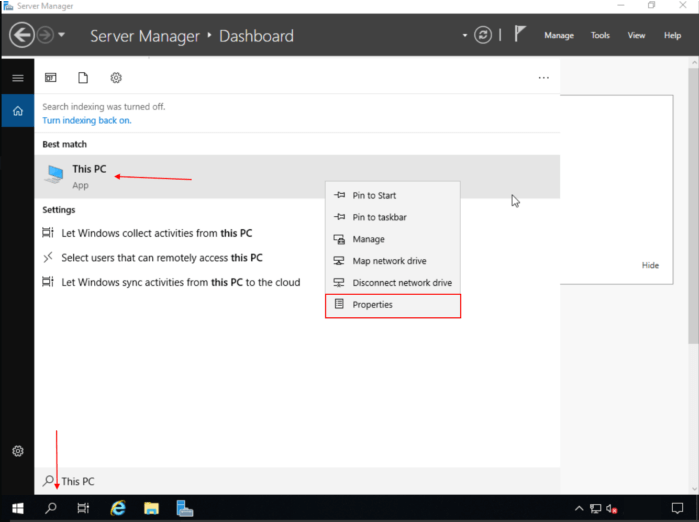
- Click Start and open Server Manager.
- Click Local Server on the left.
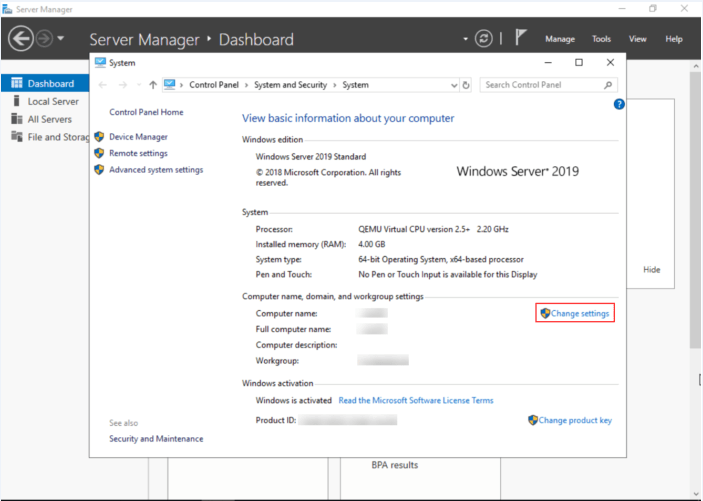
- Find Computer name in the list. Click the name next to it.
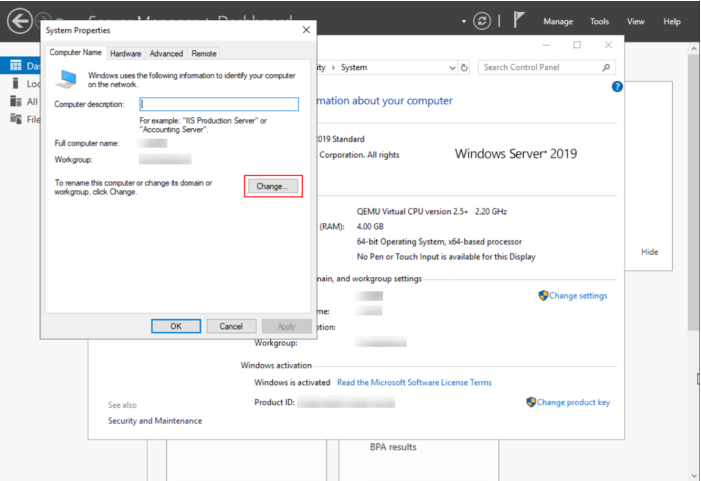
- The System Properties window opens. Click Change.
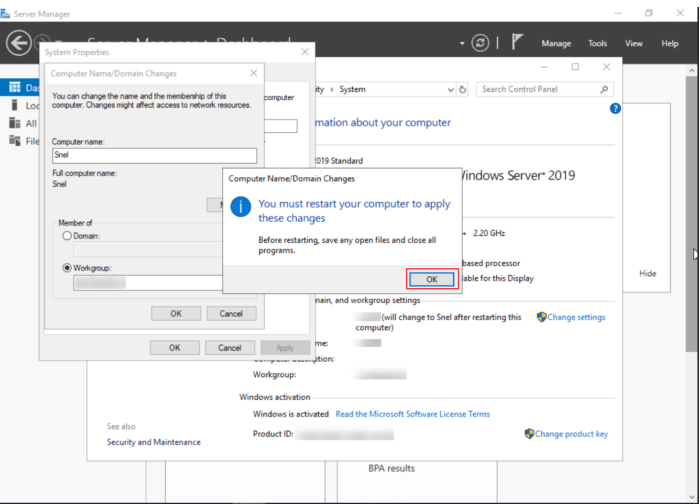
- Type the new name in Computer name.
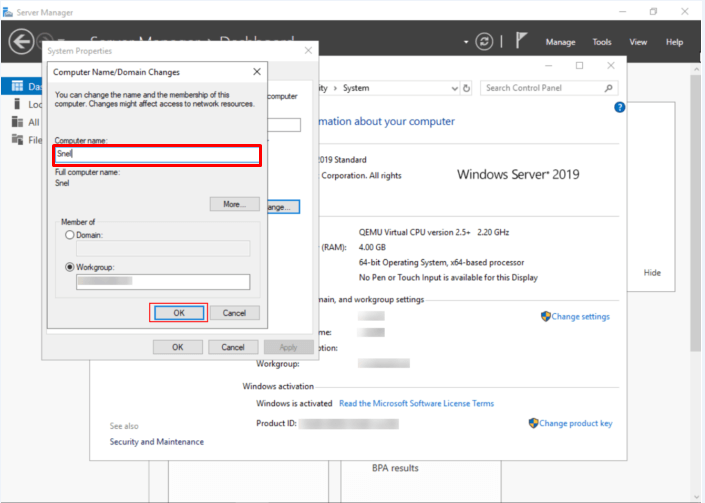
- Click OK.
- A message tells you to restart. Click OK, then Close.
- Click Restart Now.
- Wait a few minutes. Connect again with Remote Desktop.
Steps with PowerShell
- Click Start, type
PowerShell, right-click it and choose Run as administrator. - Type this command, with your own name:
This renames the server and restarts it right away.Rename-Computer -NewName "web01" -Restart
Check the new name
- After you log in again, open PowerShell.
- Type:
This prints the current name of the server.hostname
Tip: If your server's IP address and name are set up in DNS, update the record too. DNS is the phone book of the internet. If you need help, open a support ticket.
Quick recap
- The hostname is your server's name tag.
- Change it in Server Manager or with
Rename-Computer. - A restart is needed, so sites go offline briefly.
- Back up first and check the name with
hostname.