

What is the sa user?
SQL Server is a program that stores data in tables, like a very big spreadsheet. The sa user is the main administrator account of that program. "sa" stands for "system administrator". Anyone who knows its password can do almost anything with your data. So the password must be strong and private.
SSMS is short for SQL Server Management Studio. It is a window-based tool that lets you manage SQL Server with your mouse.
Before you start: After you change the password, any website or program that uses the old password will stop connecting. Write down the places that use it, so you can update them. A backup of your databases is a good idea too.
Steps
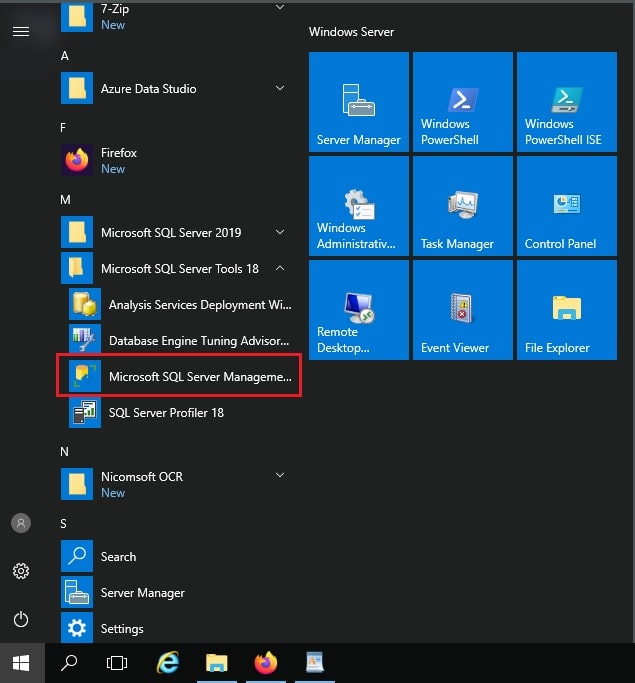
- Open SSMS from the Start menu.
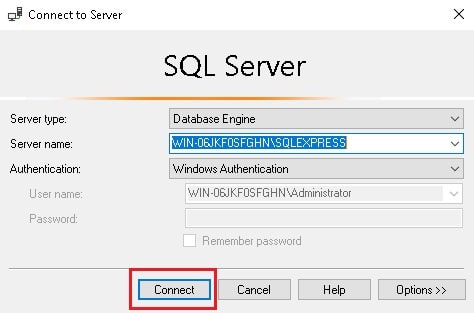
- In the Connect to Server box, choose Database Engine as the server type.
- Type your server name. If you are on the server itself, you can often type a dot (.) or the word localhost.
- Choose Windows Authentication and click Connect. Use a Windows account that has admin rights. If you use SQL Server Authentication instead, log in with a SQL login that has admin rights.
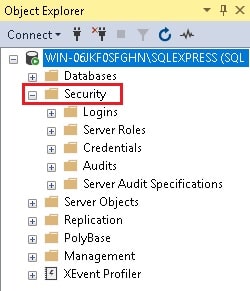
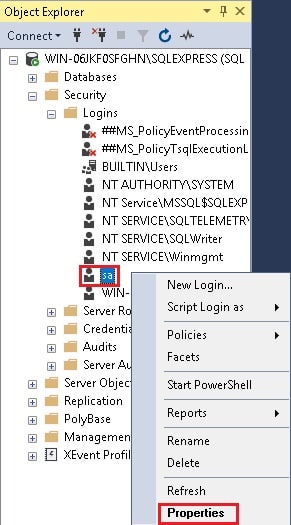
- In the left panel, click the small arrow beside Security.
- Open the Logins folder.
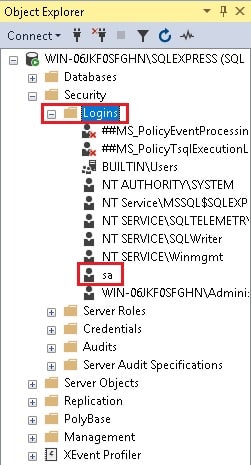
- Right-click sa and choose Properties.
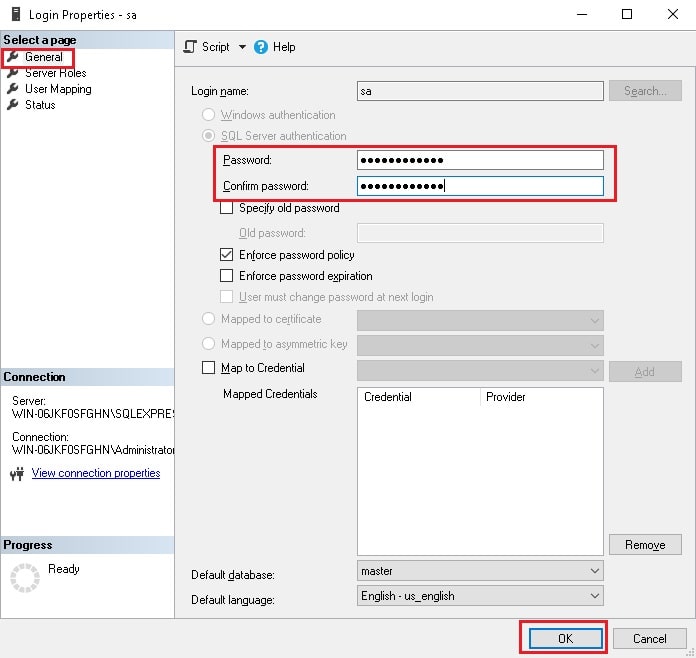
- On the General page, find the Password box and type your new password.
- Type the same password again in the Confirm password box.
- If the old password box is shown, you may need to fill it in. Tick or untick Specify old password as needed.
- Click OK to save.
Using a query instead
You can also change the password with a short command. Click New Query, paste the command, and press F5.
ALTER LOGIN sa WITH PASSWORD = 'YourNewStrongPassword';This command sets the new password for the sa login. Replace the text inside the quotes with your own password.
Make a strong password
- Use at least 12 characters.
- Mix capital letters, small letters, numbers and symbols.
- Do not use your name or your website name.
- Do not reuse a password from another place.
Tip: If the sa login is disabled, you cannot log in with it even with the right password. See our guide on enabling the sa user.
Quick recap
- Open SSMS and connect with an admin account.
- Go to Security, then Logins, then right-click sa.
- Choose Properties and type the new password twice.
- Click OK and update every program that used the old password.