

Why change the RDP port
The default RDP port is 3389. Bots scan the internet for it all day. A different port does not replace strong passwords, but it removes a lot of automatic attacks and noise from your logs.
Warning: Keep an open session while you change the port, and add the firewall rule before you restart. If you do it in the wrong order you can lock yourself out of the server.
Step 1: Change the port in the registry
- Press
Win + R, typeregeditand pressEnter.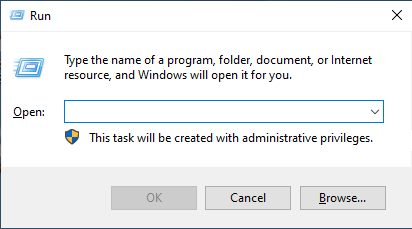
- Go to this key:
HKEY_LOCAL_MACHINE\System\CurrentControlSet\Control\Terminal Server\WinStations\RDP-Tcp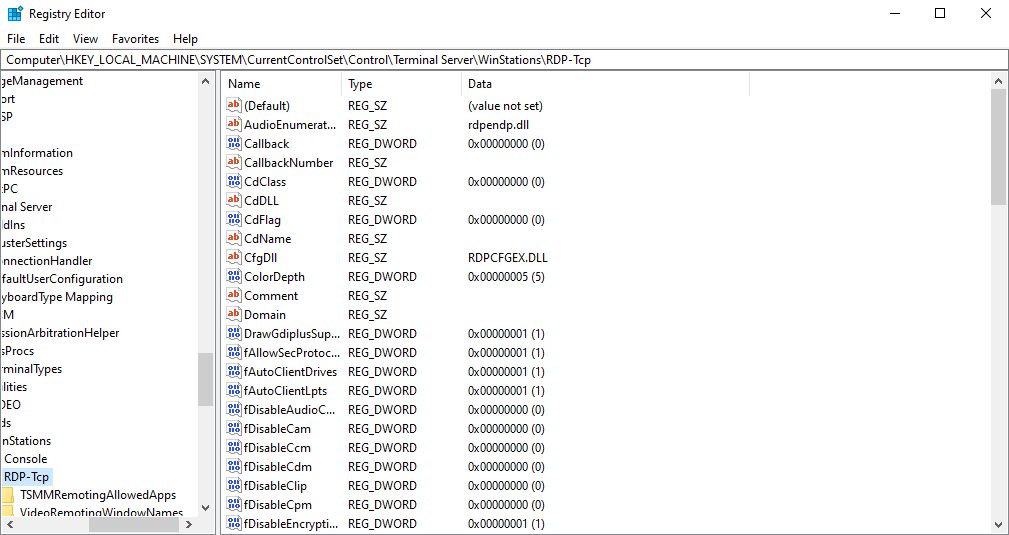
- Double-click PortNumber. Choose Decimal and enter a new port between 1025 and 65535 (for example
3390or49152). Click OK.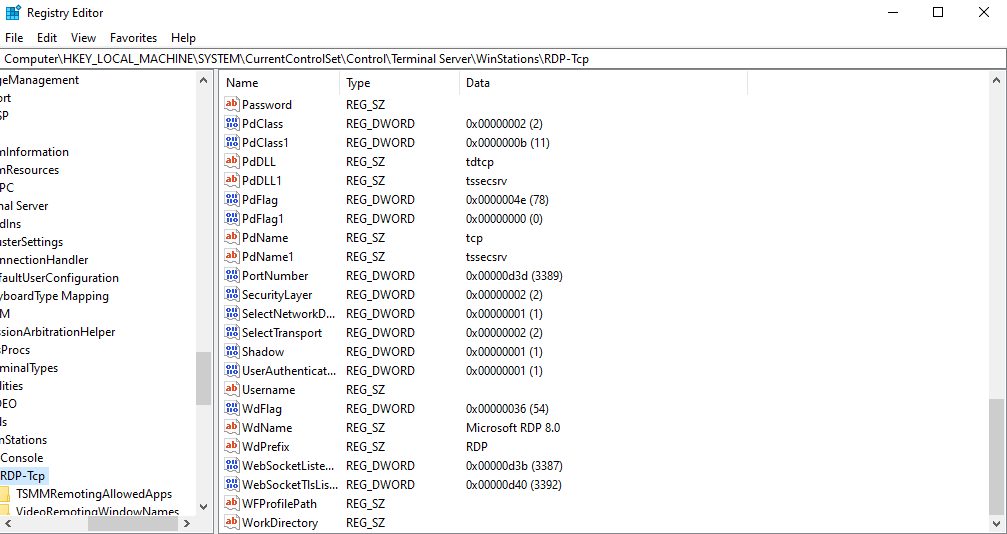
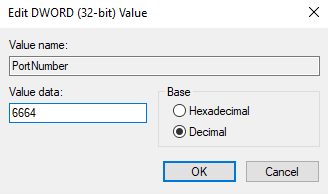
- Close the Registry Editor.
Step 2: Allow the new port in the firewall
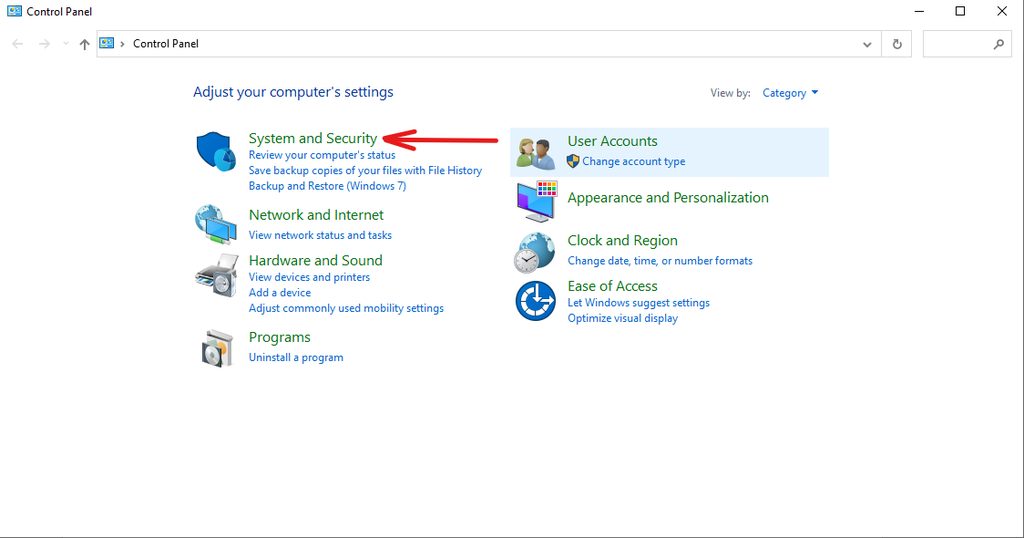
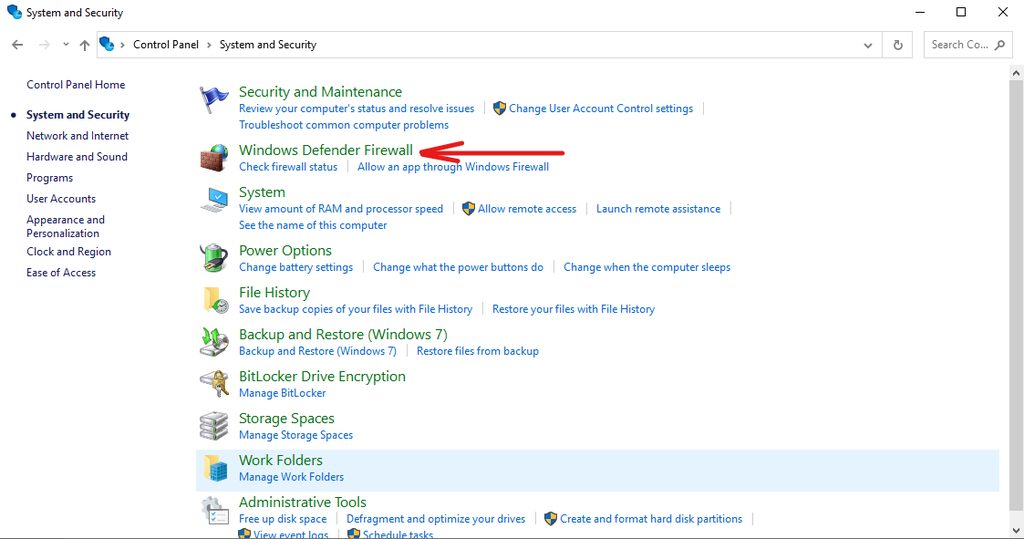
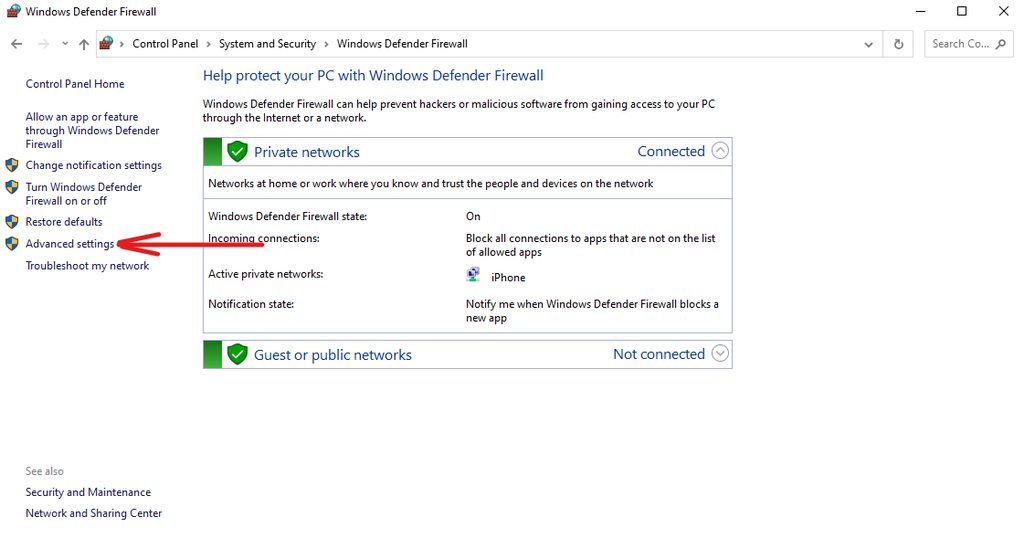
- Search for Windows Defender Firewall with Advanced Security and open it.
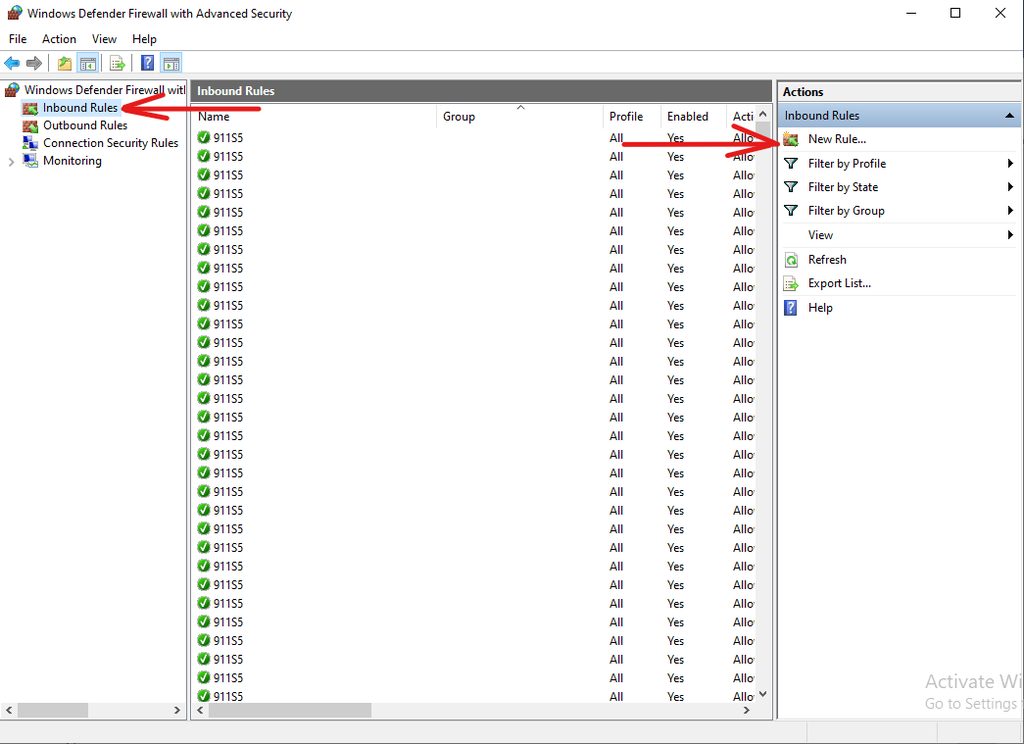
- Click Inbound Rules in the left pane, then New Rule... in the right pane.
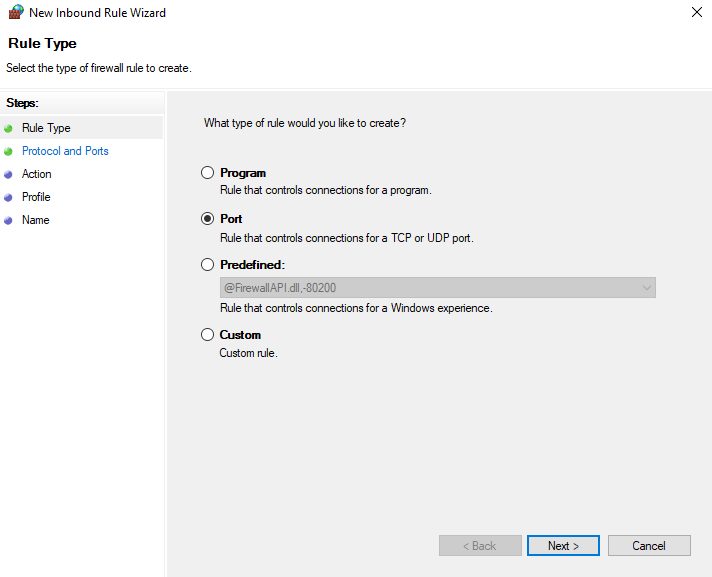
- Choose Port and click Next.
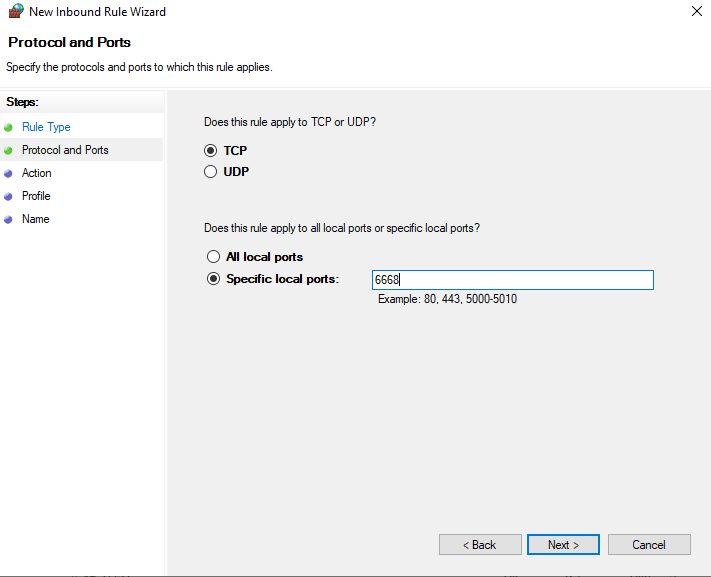
- Choose TCP, select Specific local ports and enter the new port. Click Next.
- Choose Allow the connection and click Next.
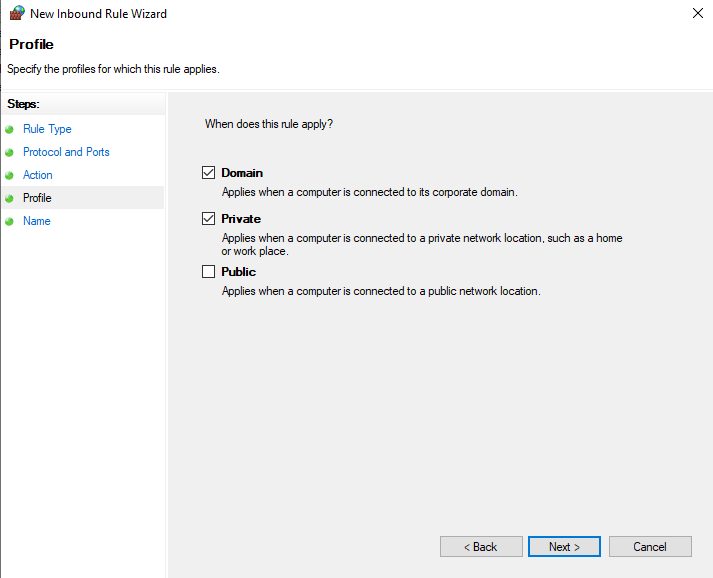
- Select when the rule applies (Domain, Private, Public) and click Next.
- Give the rule a name such as
RDP custom portand click Finish.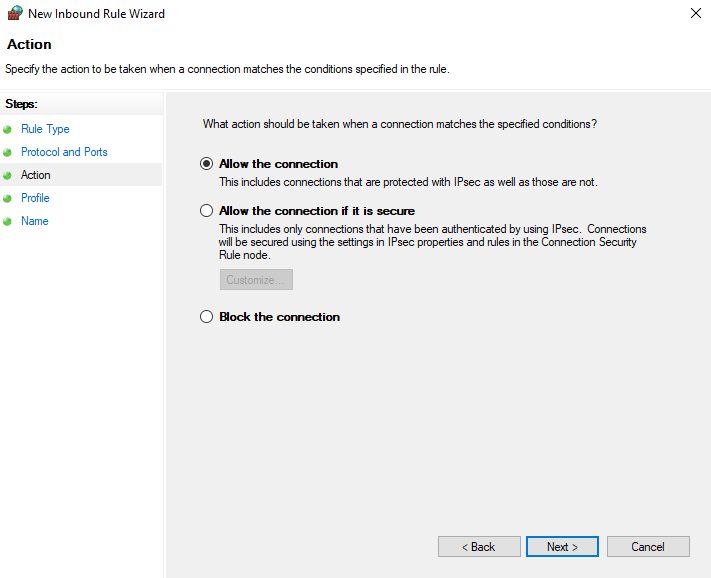
- Repeat the rule for UDP with the same port, because modern RDP also uses UDP.
Step 3: Restart and connect
Restart the Remote Desktop Services service or reboot the server. Then connect from your computer with the address and the new port, written like this:
203.0.113.10:3390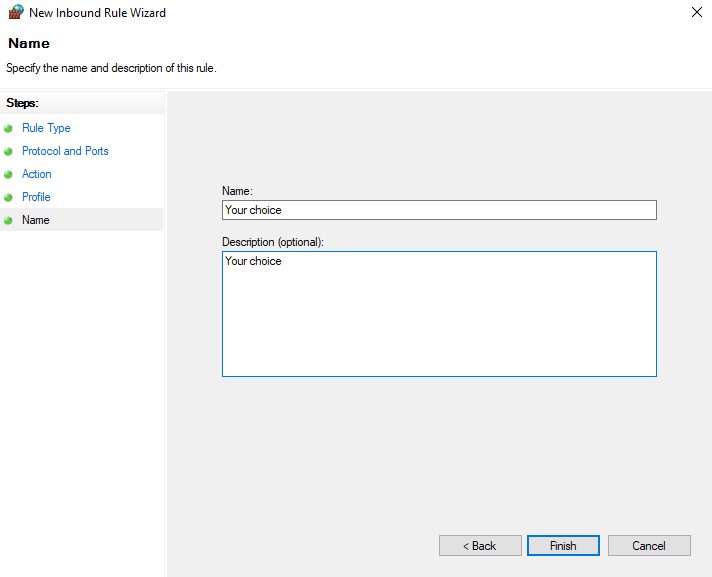
If your server is in a cloud or has a hardware firewall, open the new port there too.
Quick recap
- Change
PortNumberin the registry. - Add inbound TCP (and UDP) rules for the new port.
- Connect with
address:port.