

What a MAC address is
A MAC address is the unique hardware address of a network adapter. It has six pairs of characters, such as 00-1A-2B-3C-4D-5E. Routers use it to know your device on a local network.
Why change it
- To protect your privacy on public networks.
- To test MAC filtering on your own router.
- To get a device back on a network that knows an old MAC address.
Note: Changing the MAC address to hide who you are, or to get around the access controls of a network that is not yours, can be against the rules or the law. Use this only on your own devices and networks.
Steps
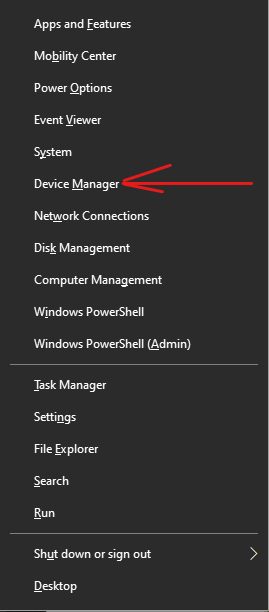
- Right-click the Start button and open Device Manager.
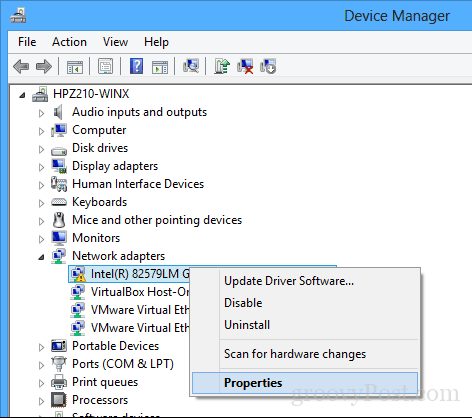
- Expand Network adapters. Right-click your adapter (Wi-Fi or Ethernet) and choose Properties.
- Open the Advanced tab. In the Property list, select Network Address (it can also be called Locally Administered Address or MAC Address). Choose Value and type the new address with 12 hexadecimal characters and no dashes or colons, for example
001A2B3C4D5E. Click OK.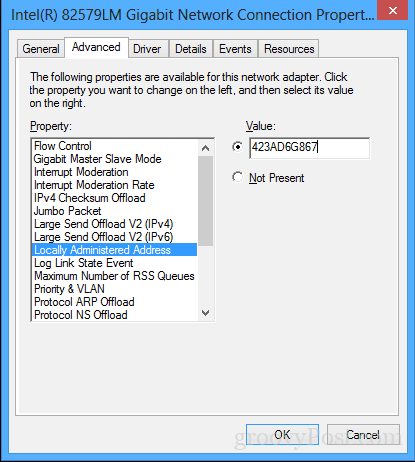
- Restart the adapter. Right-click it in Device Manager, choose Disable device, and then Enable device. Or restart the computer.
If the property Network Address is not in the list, your adapter or driver does not support it.
Check the new address
Open Command Prompt and run:
ipconfig /allLook for Physical Address under your adapter.
Go back to the original
Open the same screen and choose Not Present (or clear the value) for Network Address. Restart the adapter.
Tips
- Use an address that starts with
02,06,0Aor0Eas the second digit pair. This marks it as a locally administered address. - Two devices with the same MAC address on one network cause problems.
Quick recap
- Device Manager, Network adapters, Advanced, Network Address.
- Enter 12 hex characters, then restart the adapter.
- Confirm with
ipconfig /all.