

Reasons to change the port
Security. Port 3389 is the first one that attackers scan. A different port makes your server less visible to automatic attacks.
Troubleshooting. A different port can help when 3389 is blocked by a network, or used by another service.
Check the current port
Open PowerShell and run:
Get-ItemProperty -Path "HKLM:\System\CurrentControlSet\Control\Terminal Server\WinStations\RDP-Tcp" -Name PortNumberThe default value is 3389 (shown as 3389).
Change the port in the registry
- Press
Win + R, typeregeditand pressEnter. - Go to:
HKEY_LOCAL_MACHINE\System\CurrentControlSet\Control\Terminal Server\WinStations\RDP-Tcp- Double-click PortNumber, select Decimal, enter a new port between 1025 and 65535 and click OK.
- Some guides also mention
TcpPortNumberunderTerminal Server\Wds\rdpwd\Tds\tcp. On modern Windows theRDP-Tcpkey is enough. - Close the Registry Editor.
Configure the firewall
- Press the Windows key, type
Windows Defender Firewall with Advanced Securityand open it.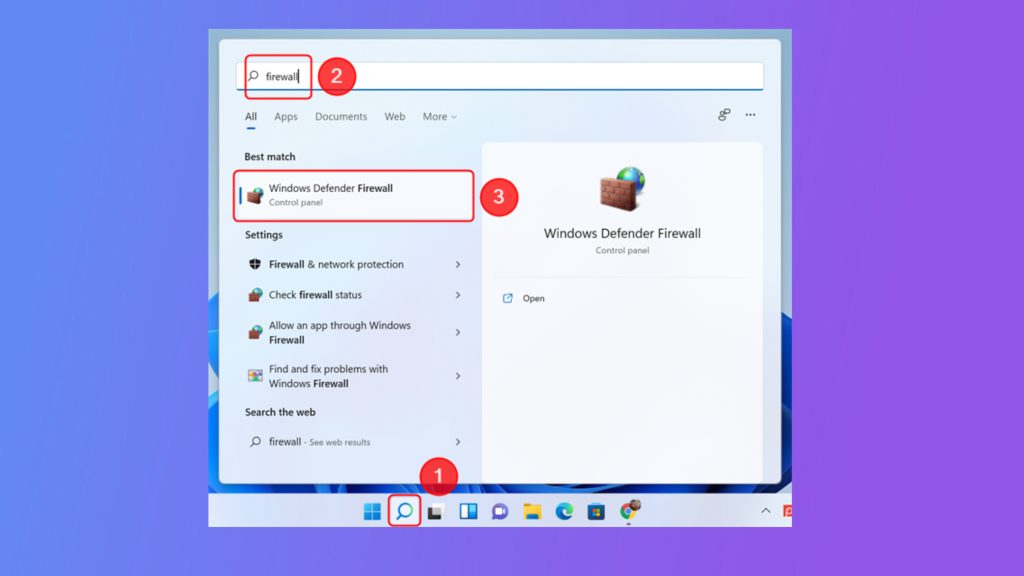
- Click Inbound Rules, then New Rule.
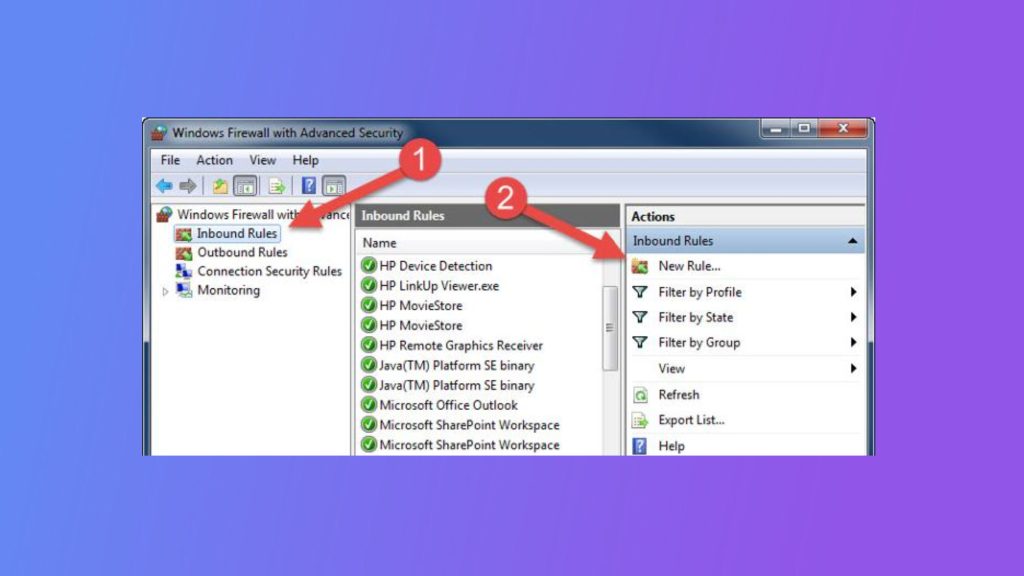
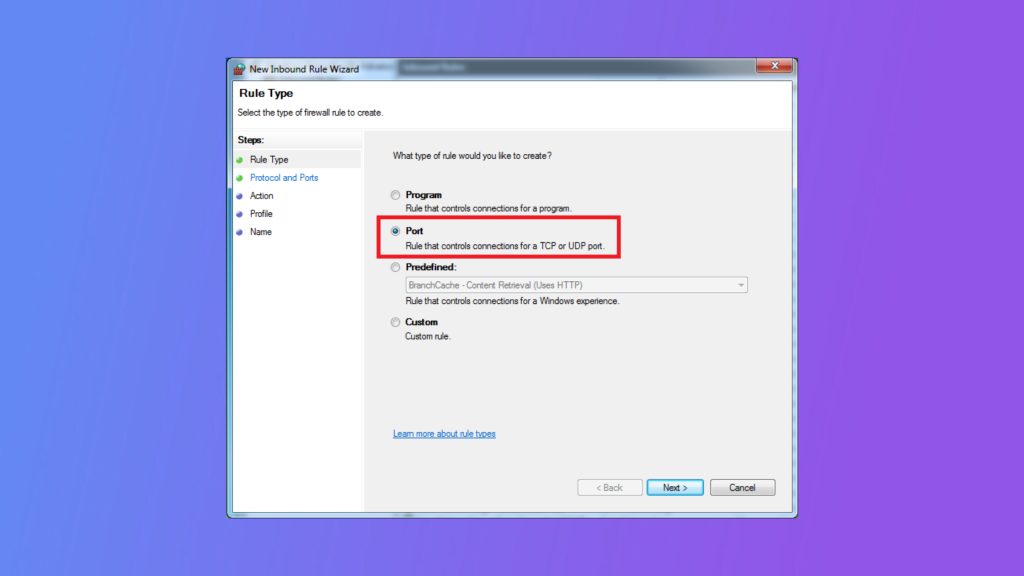
- Select Port and click Next.
- Select TCP, choose Specific local ports, type the new port number.
- Select Allow the connection and click Next.
- Select the network types and click Next.
- Name the rule and click Finish.
You can also do this in one PowerShell line:
New-NetFirewallRule -DisplayName "RDP custom port" -Direction Inbound -Protocol TCP -LocalPort 3390 -Action AllowRestart and test
Restart the server (or the Remote Desktop Services service). From another computer, connect with address:port, for example 203.0.113.10:3390.
Troubleshooting
- Check that the IP address and the port are right.
- Make sure Windows Firewall, and any firewall of your host or cloud provider, allows the new port.
- Check that the registry value is in Decimal.
- Check that the server restarted.
- If you are locked out, use the console of your VPS panel to fix the settings.
Quick recap
- Change
PortNumberin theRDP-Tcpkey. - Add a firewall rule for the new port.
- Restart and connect with
address:port.