

What is SQL Server Express?
A database is a place where a program keeps its data in an organized way, like a digital filing cabinet. SQL Server is a popular database program from Microsoft. The Express edition is free. It has limits on size and power, but it is fine for small sites and learning.
You need a Windows server with admin rights. Check that you have enough free disk space. Take a backup of your server if it holds important data.
Steps
- Open a web browser on the server.
- Search for "SQL Server Express download" and open the Microsoft page.
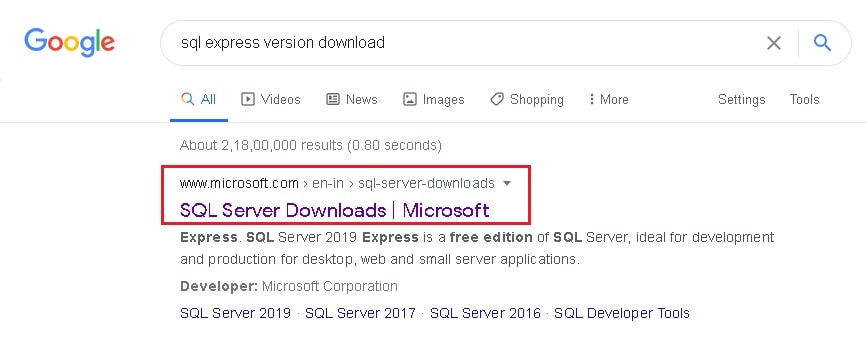
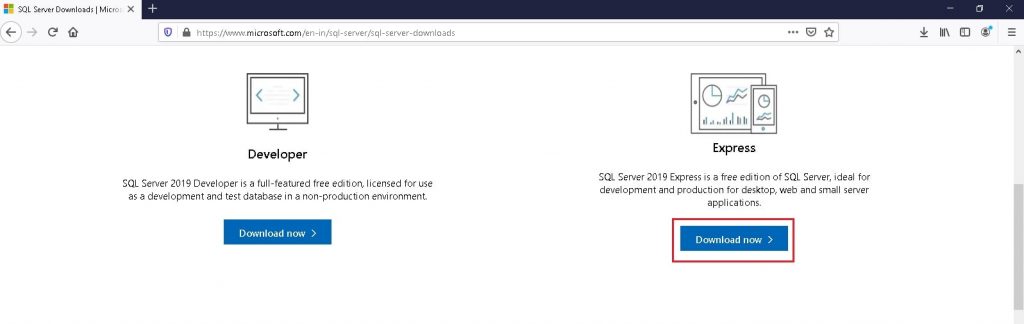
- Choose the version you need, for example SQL Server 2019 Express, and click Download now.
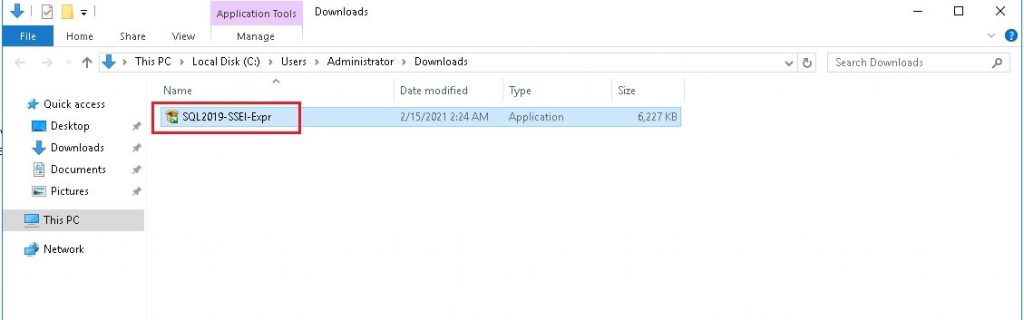
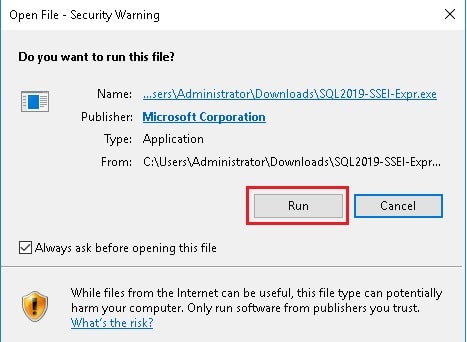
- Find the downloaded file, usually in Downloads, and double-click it.
- Click Yes if Windows asks for permission.
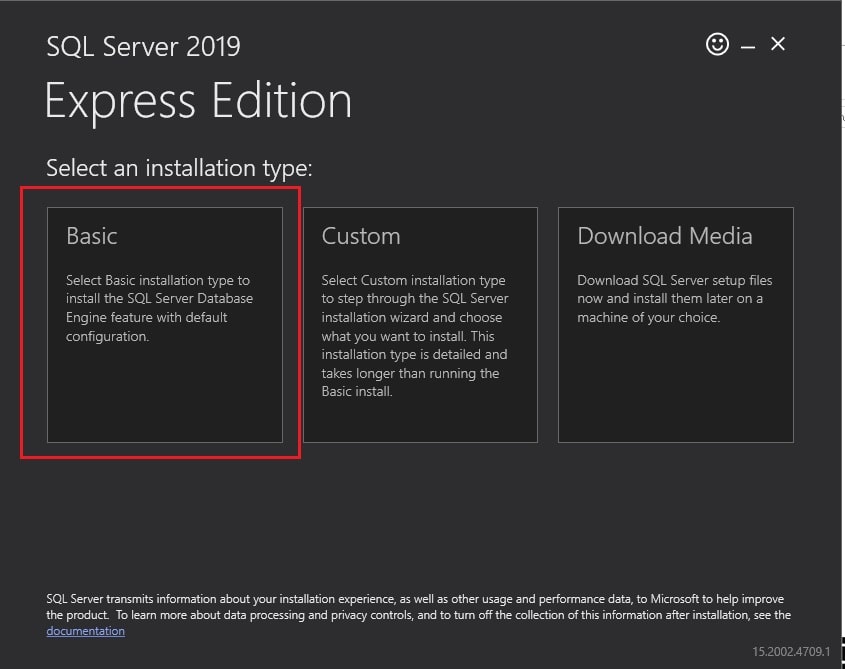
- Choose an install type. Basic is the easiest. Custom lets you pick options. Pick Basic if you are new.
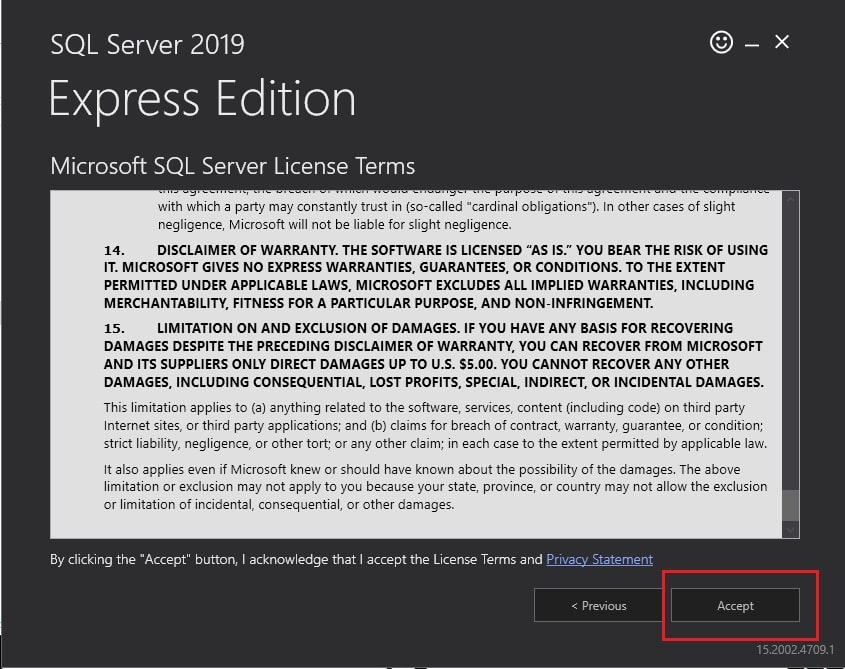
- Read and accept the license terms.
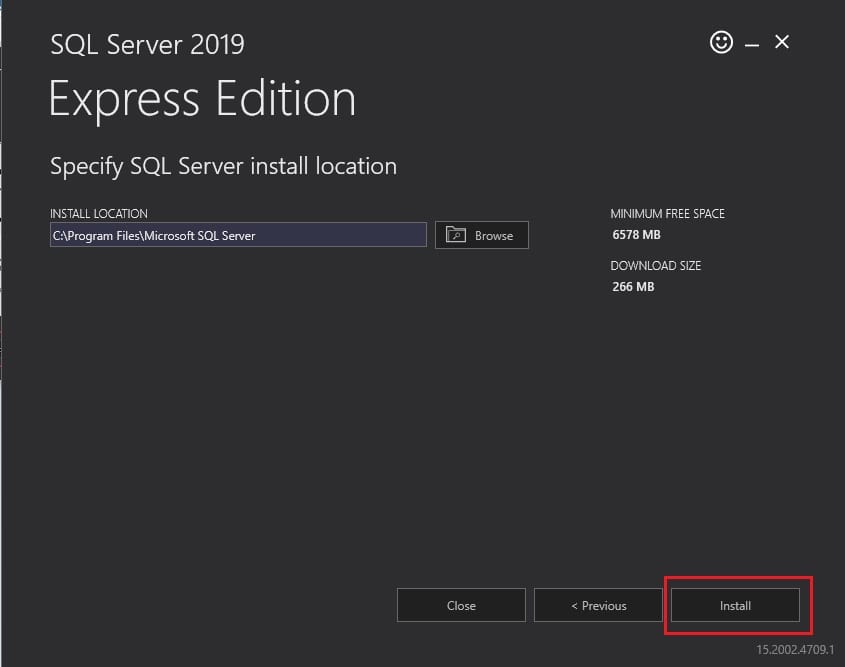
- Choose where to install it, or keep the default folder.
- Click Install and wait. It can take several minutes.
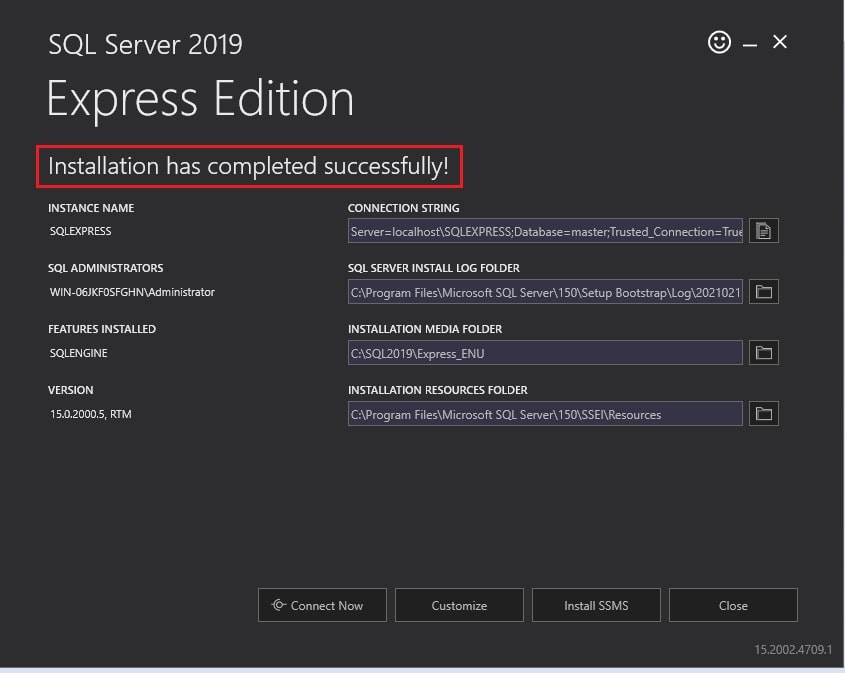
- When it finishes, note the connection string shown on the screen. This is the text a program uses to connect to the database. Copy it somewhere safe.
- Click Close.
Check that it runs
- Click Start and type Services. Open it.
- Look for SQL Server (SQLEXPRESS).
- The Status should say Running.
Next: a tool to manage it
The Basic install does not include a window-based tool. Install SQL Server Management Studio (SSMS) to create databases and users. See our guide on installing SSMS.
Tip: The default instance name for Express is SQLEXPRESS. To connect on the same server, use the name
.\SQLEXPRESS or localhost\SQLEXPRESS.Tip: Express has size limits for each database. If you may outgrow it, ask Hostvento support about other options.
Quick recap
- SQL Server Express is the free edition of SQL Server.
- Download it from Microsoft and run the installer as admin.
- Pick Basic and wait for the install to finish.
- Check the service is running and install SSMS to manage it.