

What is FTP?
FTP means File Transfer Protocol. It is a way to send files between your computer and a server. Think of it as a mail truck for files. An FTP user is a login that is allowed to use it. This guide needs admin rights. It also assumes the IIS FTP Server role is installed. IIS is the Windows program that serves websites.
Part 1: Create a Windows user
- Press Windows + R, type
lusrmgr.mscand press Enter. This opens Local Users and Groups. - Right-click the Users folder and choose New User.
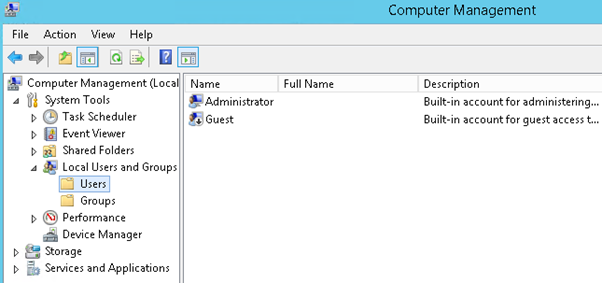
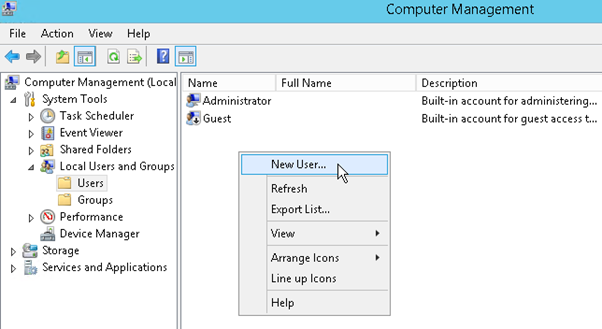
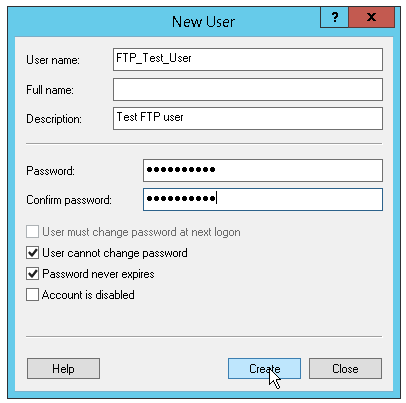
- Type a user name, for example
ftpuser1. - Type a strong password twice.
- Untick User must change password at next logon.
- Tick Password never expires.
- Click Create, then Close.
Part 2: Give the user access to a folder
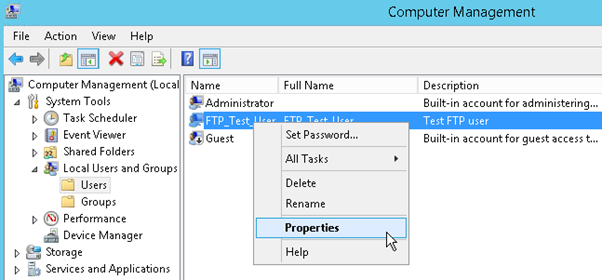
- Create or choose a folder, such as
C:\FTP\ftpuser1. - Right-click the folder and choose Properties.
- Open the Security tab and click Edit, then Add.
- Type the user name and click OK.
- Tick Modify to let the user upload and change files. Tick only Read for download only.
- Click OK.
Part 3: Add the user to the FTP site
- Open IIS Manager.
- In the left panel, expand the server and then Sites. Click your FTP site.
- Double-click FTP Authorization Rules.
- Click Add Allow Rule on the right.
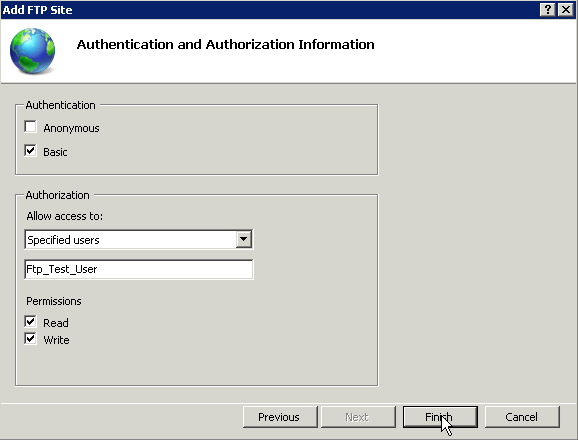
- Choose Specified users and type the user name.
- Tick Read and Write as needed.
- Click OK.
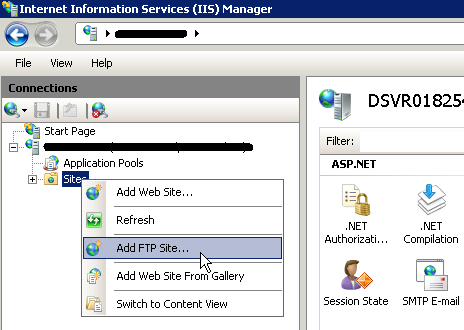
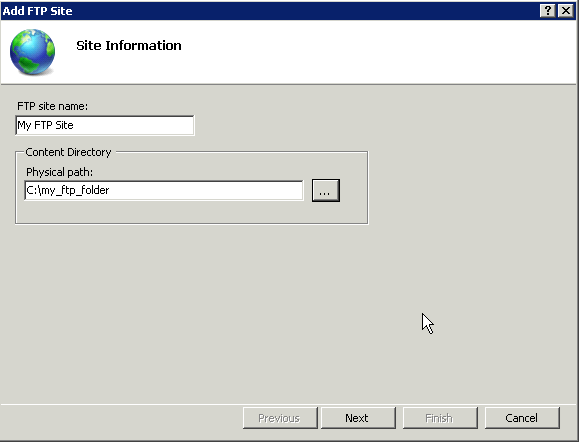
If you have no FTP site yet, right-click Sites and choose Add FTP Site. Point it to your folder.
Test the login
- Open an FTP program such as FileZilla.
- Type the server IP in Host, the user name, the password and port 21.
- Click Quickconnect.
If it fails, the Windows firewall may block FTP. See our guide on allowing FTP through the firewall.
Tip: Give each person their own user and folder. Remove users who no longer need access.
Quick recap
- Create a Windows user in
lusrmgr.msc. - Give that user rights on one folder.
- Add an allow rule in IIS FTP Authorization Rules.
- Test the login in FileZilla.