

What is PuTTY?
PuTTY is a free program for Windows. It opens a safe connection to a server using SSH. SSH is a secure way to send commands to a faraway computer. A server is a computer that runs your website all day. With PuTTY you can type commands and see answers from your server.
Steps to download
- Open your web browser.
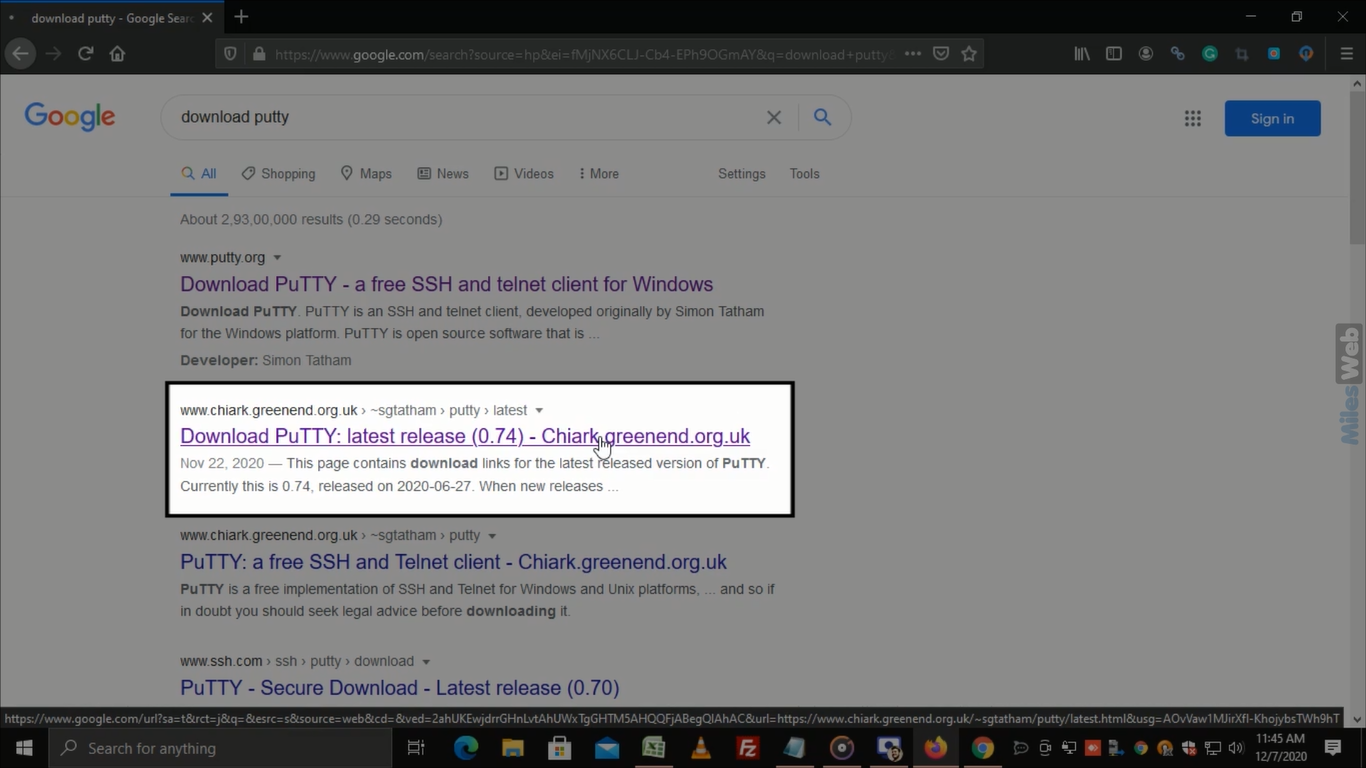
- Search for "PuTTY download". Choose the official page by the PuTTY author, Simon Tatham. Be careful with other sites that may carry fake copies.
- Find the section for Windows.
- Choose the MSI ('Windows Installer') file. Pick 64-bit x86 if your PC is 64-bit. Most modern PCs are.
- Click the link to download the file.
Not sure if your PC is 64-bit? Open Settings, then System, then About. Look at System type.
Steps to install
- Open the Downloads folder.
- Double-click the file you downloaded. It ends in
.msi. - Click Yes if Windows asks for permission.
- On the welcome screen, click Next.
- Keep the default folder, or choose another, and click Next.
- Leave the options as they are. You may tick Add shortcut to PuTTY on the Desktop. Click Install.
- Click Finish.
Make your first connection
- Click Start and open PuTTY.
- In Host Name (or IP address), type your server IP.
- Keep Port at 22 and Connection type as SSH.
- Click Open.
- If a security alert about a host key appears the first time, click Accept if you trust the server.
- Type your user name and password. The password does not show as you type. This is normal.
You find your IP address and login in your welcome email. If the details are missing, ask Hostvento support.
Tip: Save your settings. Type a name in Saved Sessions and click Save. Next time, double-click that name.
The installer also adds PuTTYgen, which makes SSH keys, and Pageant, which holds keys in memory.
Quick recap
- PuTTY is a free SSH program for Windows.
- Download the MSI file from the official site.
- Run it and click through Next and Install.
- Open PuTTY, type the server IP and click Open.