

Step 1: Install Node.js
Angular needs Node.js and npm:
- Package management. Node.js comes with npm, which installs Angular and its libraries.
- Build tools. Angular build tools and the development server run on Node.js.
- Command line. The Angular CLI (
ng) is installed with npm.
How to install it:
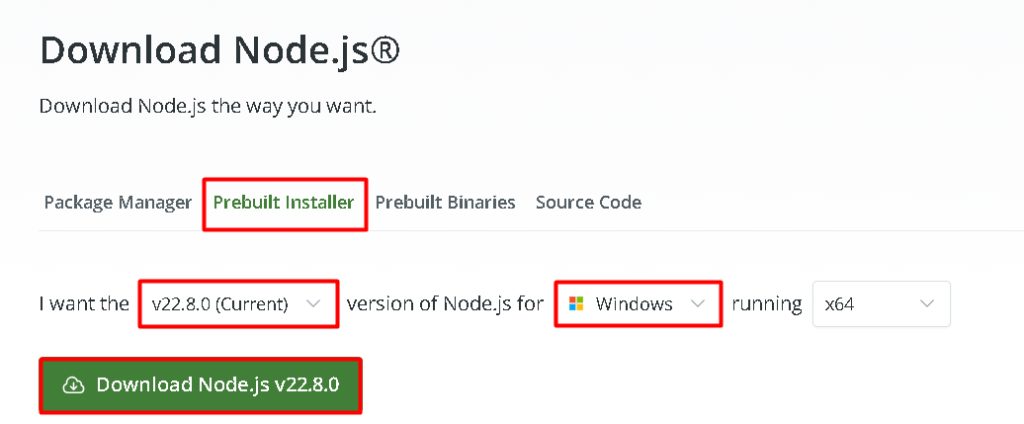
- Open the Node.js website (
nodejs.org). - Download the LTS version for Windows.
- Run the installer and accept the defaults.
Check the version in Command Prompt:
node -v
Step 2: Install the Angular CLI
Open Command Prompt and run:
npm install -g @angular/cli
To get a certain version, add it after an @, for example @angular/cli@17.
What the command does:
npm installdownloads and installs a package.-ginstalls it globally, so it works from any folder.@angular/cliis the name of the package.@17picks version 17 (leave it out for the newest).
The command downloads the CLI and what it needs, installs it, and gives you the ng command to create and manage projects.
Step 3: Check the installation
ng version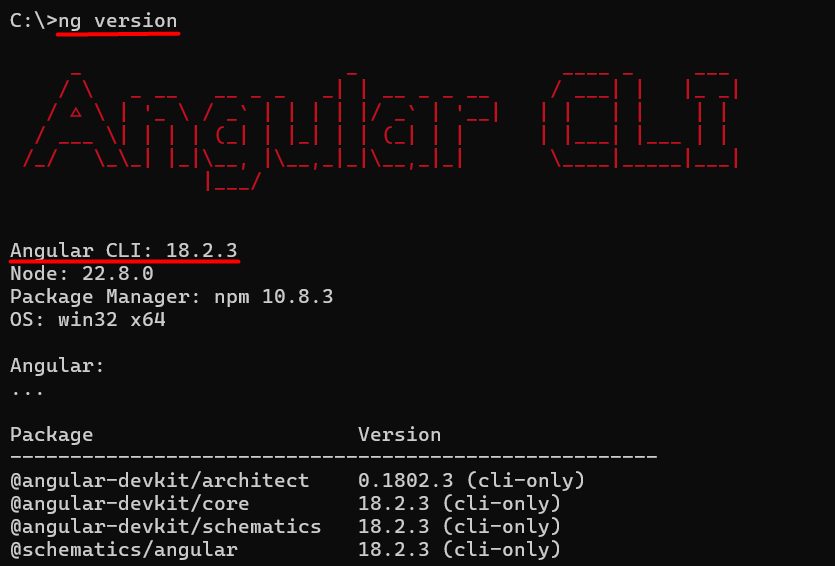
You see the Angular CLI version, the Node.js version and the operating system.
Create your first app
ng new my-app
cd my-app
ng serve
Open http://localhost:4200 in your browser.
Tips
- Keep Node.js and the CLI updated (
npm update -g @angular/cli). - If PowerShell blocks scripts, run
Set-ExecutionPolicy RemoteSigned -Scope CurrentUseror use Command Prompt. - Use Visual Studio Code with the Angular Language Service extension.
Quick recap
- Install Node.js LTS.
- Run
npm install -g @angular/cli. - Check with
ng version.