

What Tomcat is
Apache Tomcat is an open-source server for Java web applications. Its main parts:
- Servlet container. Runs Java servlets.
- JSP engine. Turns JavaServer Pages into servlets.
- Web server. Serves static files and answers HTTP requests.
- Connector. Connects Tomcat with web clients.
- Manager. Manages the life cycle of deployed web applications.
- Security. Features that protect web applications.
Before you start
- Tomcat needs a JDK (Java Development Kit). Install one first and note its folder.
- You need administrator rights on Windows.
- Pick a Tomcat version that fits your application and your JDK version.
Download
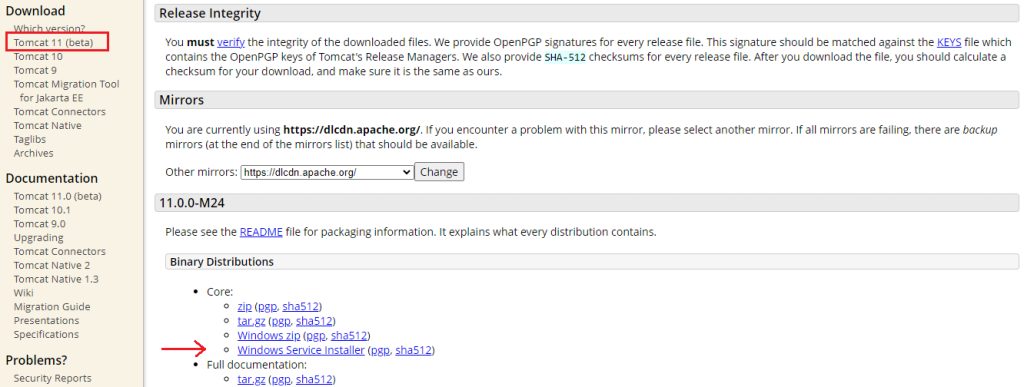
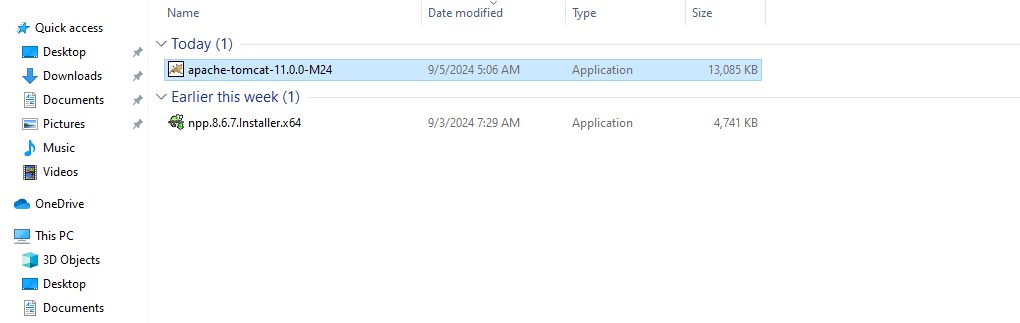
Go to the Apache Tomcat website and download the 32-bit/64-bit Windows Service Installer.
Install
- Run the installer and accept the license.
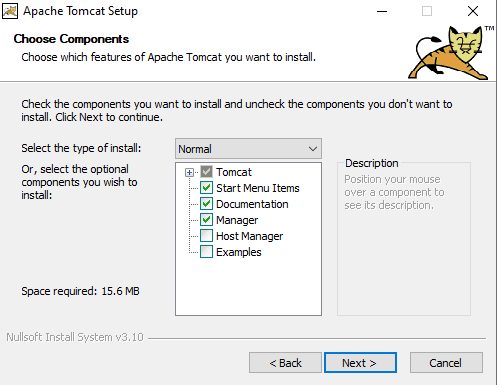
- Select the components. The defaults (Tomcat, Service Startup) are fine. The Manager and Host Manager can be useful.
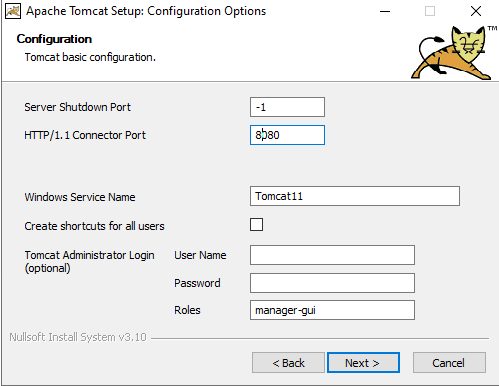
- Set the configuration: the HTTP port (8080 by default), a user name and password for the admin pages.
- Choose the install folder.
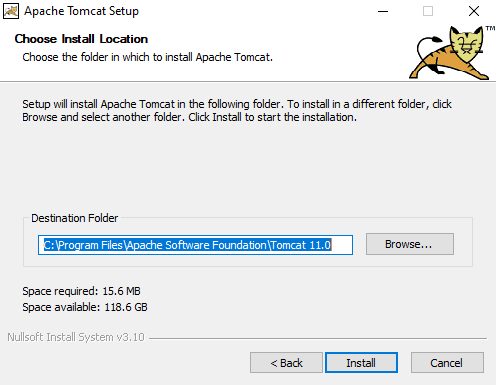
- Choose the path of the JDK (or JRE) that Tomcat will use.
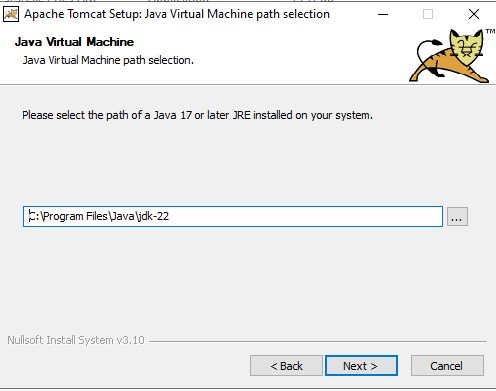
- Click Install and Finish.
Start Tomcat
If you ticked Run Apache Tomcat, it starts by itself. You can also start it from the Windows Services, or from a Command Prompt:
cd C:\Program Files\Apache Software Foundation\Tomcat 11.0\bin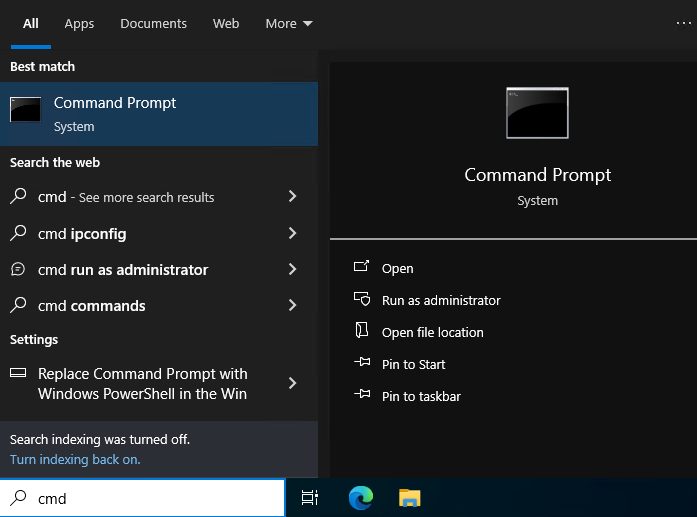
startup.bat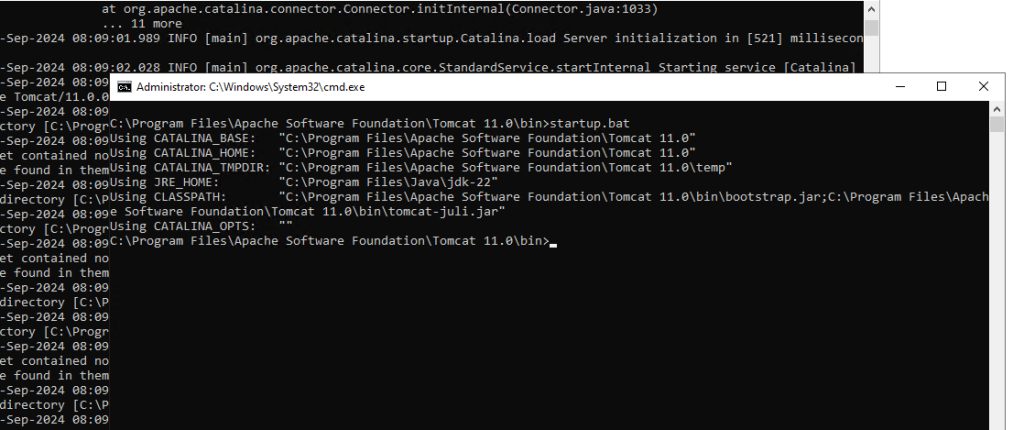
Check it
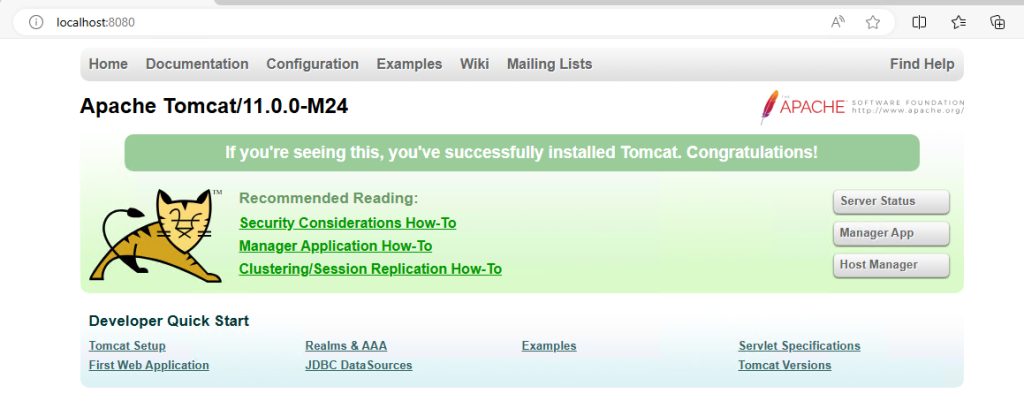
Open http://localhost:8080 in your browser. The Tomcat start page appears.
Configure Tomcat
The main files are in the conf folder.
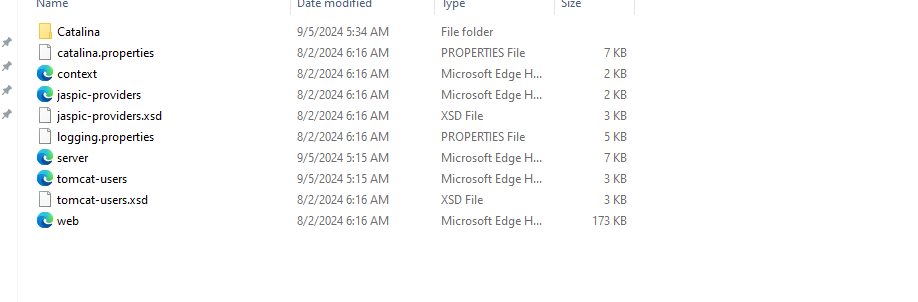
- server.xml. The global settings, such as ports and connectors.
- context.xml. The global settings for web applications.
- web.xml. The default settings for all web applications.
- tomcat-users.xml. The users and roles for the Manager.
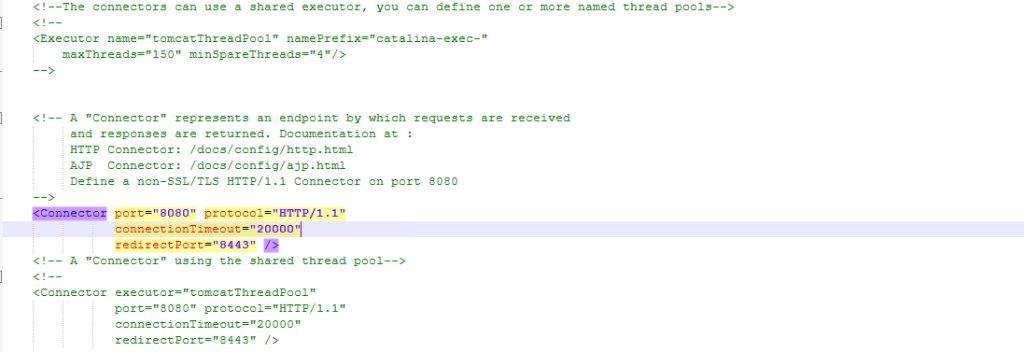
To change the HTTP port, edit server.xml and change the number in the connector for protocol HTTP/1.1 (port="8080"). Restart Tomcat afterwards.
Deploy a web application by copying its .war file into the webapps folder.
Tip: Open the port in Windows Firewall if you want to reach Tomcat from other computers.
Quick recap
- Install a JDK, then the Tomcat Windows service installer.
- Open
http://localhost:8080to check. - Configure through
conf\server.xmland deploy.warfiles inwebapps.