

Before you start
- NetBeans works on Windows 7, 8, 10 and 11.
- You need an internet connection to download it.
- You need administrator rights.
- You need free disk space (about 1 GB for the IDE plus your projects).
- To develop Java apps, install a JDK first. NetBeans needs a supported JDK (for example JDK 17 or newer for recent versions).
Install
- Open the Apache NetBeans website and go to the download page. Download the Windows installer (
.exe) of the latest version.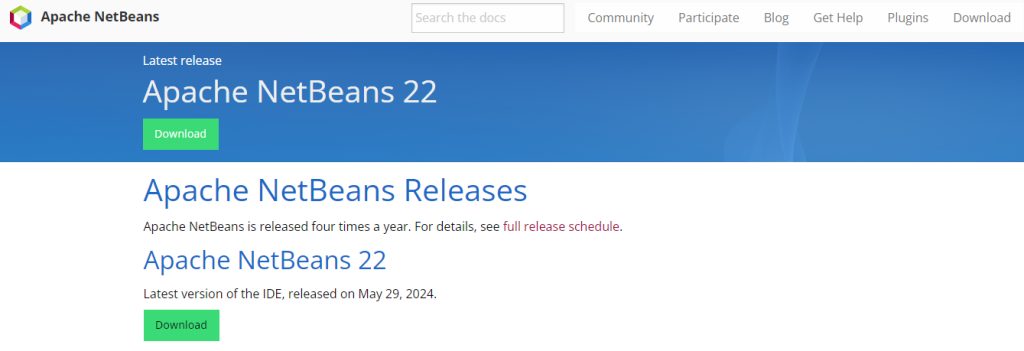
- Run the installer.
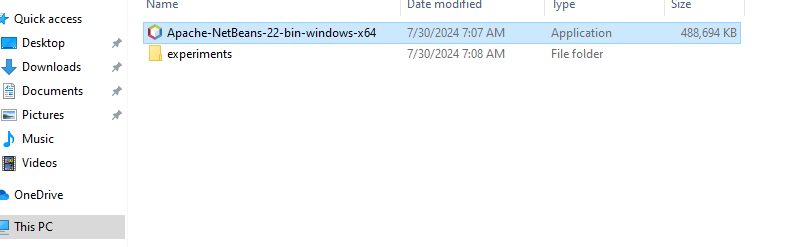
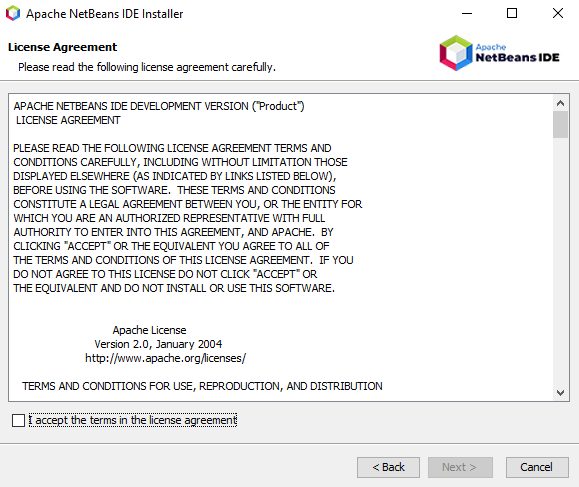
- Click Next. Accept the license agreement.
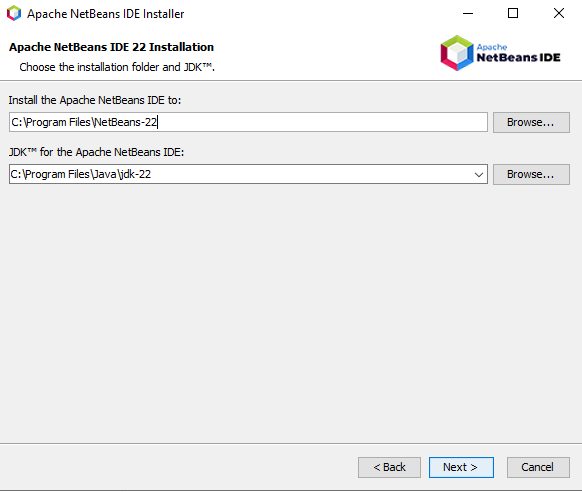
- Choose the install folder and the JDK that NetBeans will use.
- Customize the install if you want to add or remove features.
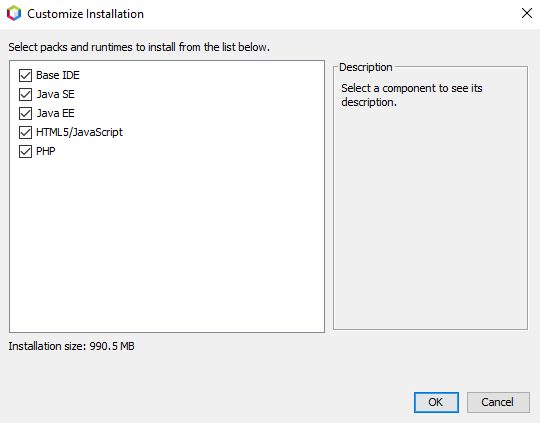
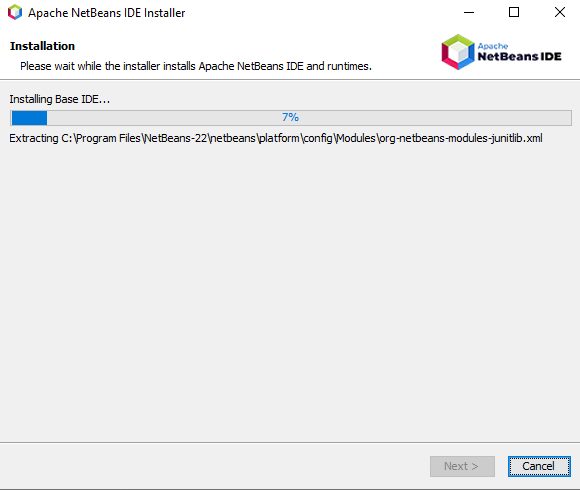
- Click Install and wait for the download and install of the files.
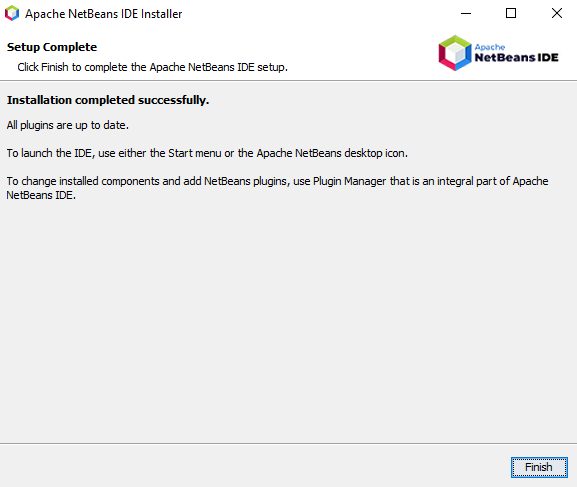
- Click Finish and start NetBeans.
Create a Java application
- Choose File, New Project.
- Select Java with Maven (or Java with Ant), then Java Application, and click Next.
- Name the project and click Finish.
- Press
F6to run it.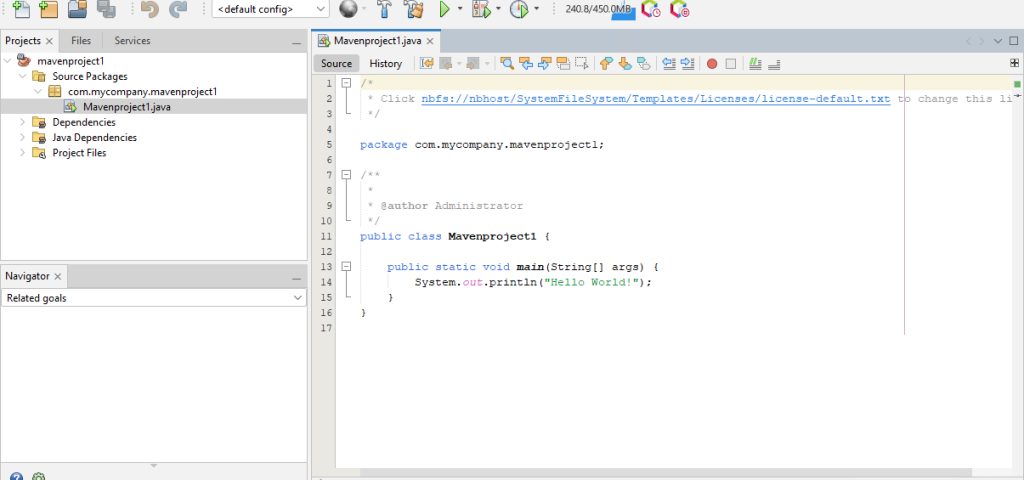
Good to know
- NetBeans has regular updates with new features and bug fixes. Check for updates in the IDE.
- You can change the look, the fonts and the shortcuts under Tools, Options.
- Plugins add support for PHP, JavaScript, C/C++ and more.
Quick recap
- Install a JDK, then run the NetBeans installer.
- Select the JDK in the installer.
- Create a project and press
F6.